




UberCam 4 with HyperCam — Manual
The complete manual for the current release set: HyperCam 1.2.60 · UberCam 4.0.0.21 · Sensor 0.4.112 · HyperLook 1.1.7 · HyperDIT 0.8.9 · October 2026.
Contents
- HyperCam
- What HyperCam Is
- Installation
- Your First Shot
- The Controls
- COLMAP & Lens Calibration
- The Three Variants
- IrisLink & ShutterLink
- CameraLink
- The Sensor
- HyperLook — Look Passes
- HyperDIT — DIT Monitor
- Licensing
- In-Camera Updates
- Troubleshooting
- UberCam 4
- UberCam 4 — What It Is
- UberCam 4 — Installation
- UberCam 4 — The Cameras
- UberCam 4 — Licensing
- More
- FAQ
- Support
- Copyright & License
HyperCam — What It Is
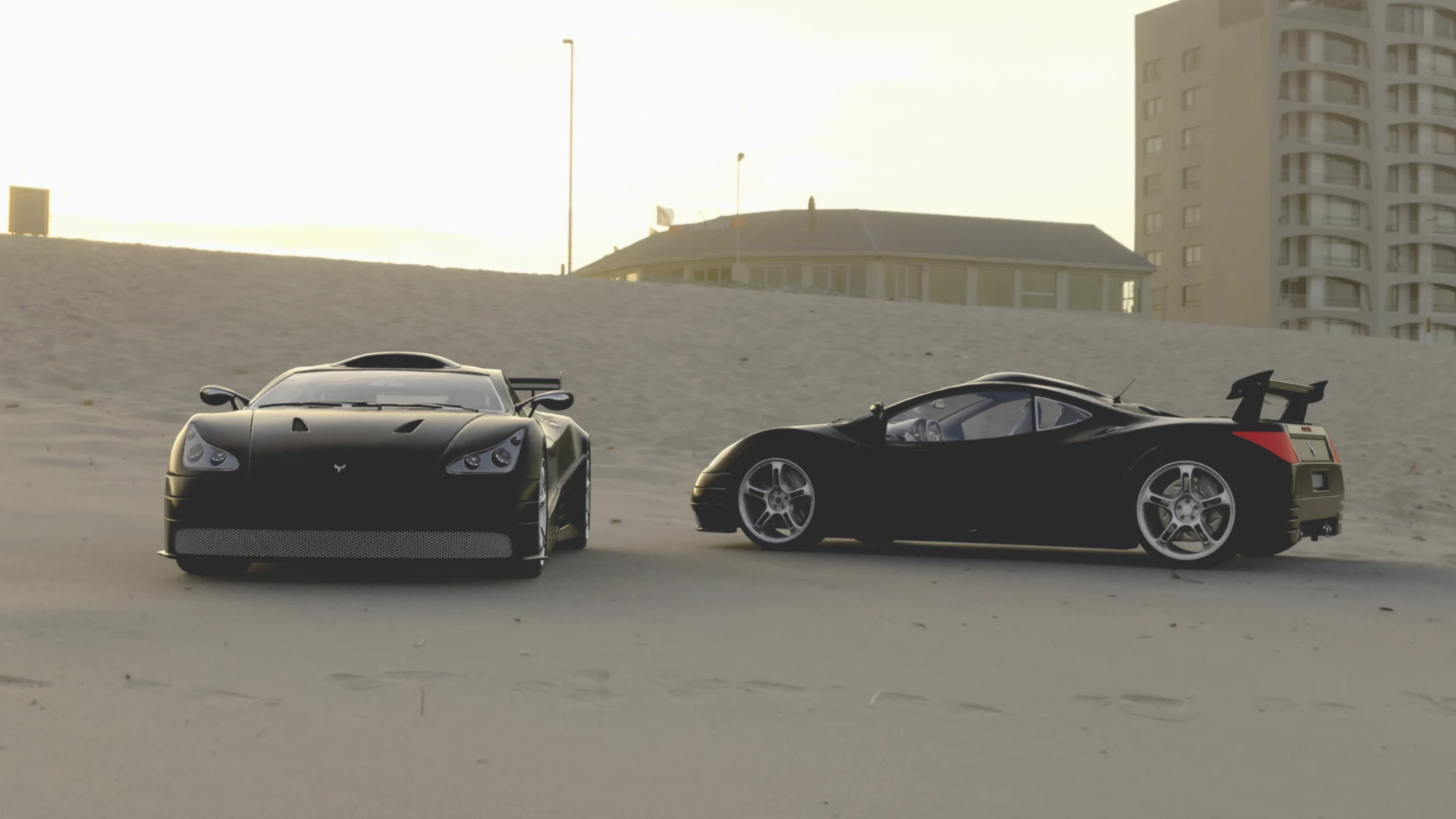
HyperCam replaces LightWave's camera with one that thinks like a real cinema camera. You pick a camera body, set ISO, iris and shutter the way you would on set, and it handles focus blur and motion blur the way the physical camera would.
It comes with two companions:
- The Sensor is your meter. It sits in the image pipeline, watches what the camera is doing, and applies photographic exposure — brightening or darkening the frame the way changing ISO, iris or shutter would on set.
- IrisLink and ShutterLink are two small sync helpers. They copy HyperCam's iris and shutter into LightWave's own camera numbers, so everything in the scene agrees.
- HyperLook saves the Sensor’s look as separate EXR passes (film stock, pre-grain look, and grain on its own) next to your render, for compositing.
- HyperDIT mirrors a VPR viewport to a second monitor — a virtual DIT monitor with a live readout of the shot’s camera, body and lens.
The exposure triangle works like the real thing: raise the ISO, open the iris, or lengthen the shutter angle and the image gets brighter. ISO 100, f/2.8, 180 degrees at 24fps is neutral — everything is measured from there.
HyperCam — Installation
The release is one package containing the whole set: HyperCam, UberCam 4, the HyperCam Sensor, HyperLook and HyperDIT, plus their support folders. The INSTALL-AND-ACTIVATE.txt file in the package has the full walkthrough; the short version:
- Unzip the release and copy all of the
.pfiles into your LightWave plugins folder. Do not rename them — the names must stay exactly as shipped. - Copy the
thumbs/andstmaps/folders so they sit next toHyperCam64.p, and thelooks/,previews/andvignette/folders so they sit next toHyperCamSensorx64.p. The plugins find their support files relative to their own location. - In Layout: Utilities > Add Plug-ins, and select each
.pfile. - Open Camera Properties and change the camera Type to
Liberty3dHyperCam. The HyperCam panel is now your camera. - Add the HyperCam Sensor under Image Processing > Pixel Filter, and HyperLook under Effects > Processing > Add Image Filter if you want look passes saved with your renders.
HyperCam — Your First Shot
- In the HyperCam panel, pick your Camera Body (FX6, A7S, BMD Cinema Camera 6K — whichever matches the footage you are cutting with). This tells HyperCam the sensor's real sensitivity and latitude.
- Set exposure the way you would on set: ISO, Iris (f-stop), Shutter Angle (180 degrees is the normal look).
- Set Focal Distance — that is where your focus sits. Everything in front of and behind it falls off into blur according to your f-stop. Wider aperture (smaller f-number) means a dreamier background.
- Press F9. That is it.
HyperCam — The Controls
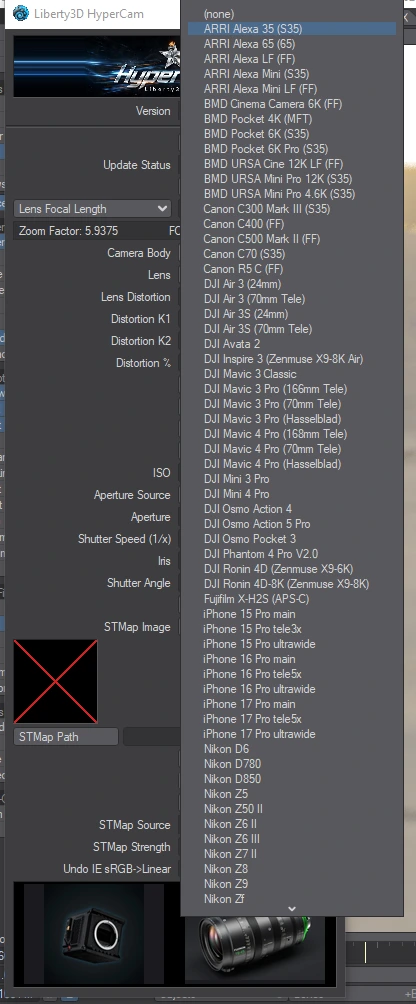
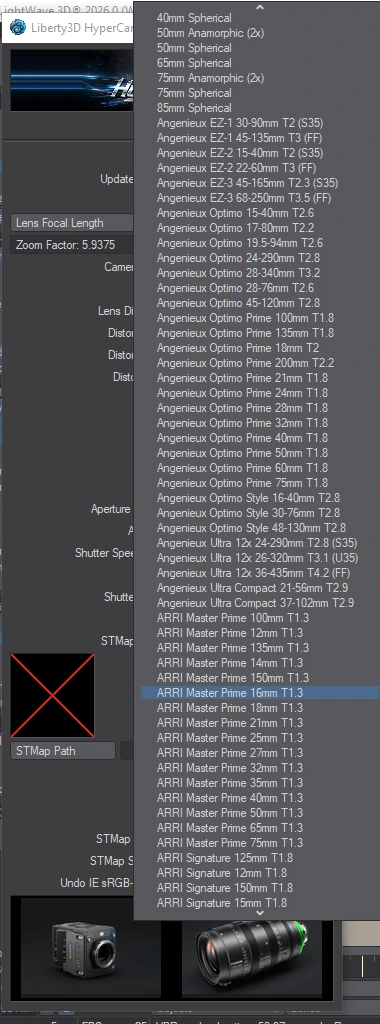
These are the controls in the HyperCam panel, in plain language.
Keyframing exposure (new): ISO, Iris and Shutter Angle each have an (E) envelope button in the panel — no Graph Editor spelunking required to set them up. In the Graph Editor the channels are named simply ISO, Iris and ShutterAngle. Scenes saved by older versions, with keys on the old PhotoISO / PhotoIris / PhotoShutter channels, are adopted automatically the first time the scene is opened — your animation carries over, and the old channels remain visible but inactive.
HyperCam — The Three Variants
HyperCam installs as three camera types. They share the same panel; they differ in what they render.
Liberty3dHyperCam— the full camera: depth of field and motion blur.Liberty3dHyperCamNoDOF— motion blur on, depth of field off. Faster, and focus stays sharp everywhere.Liberty3dHyperCamNoDOFNoMB— both off. The fastest option: a clean photographic camera with HyperCam's exposure, useful for previews and look development.
HyperCam — IrisLink & ShutterLink
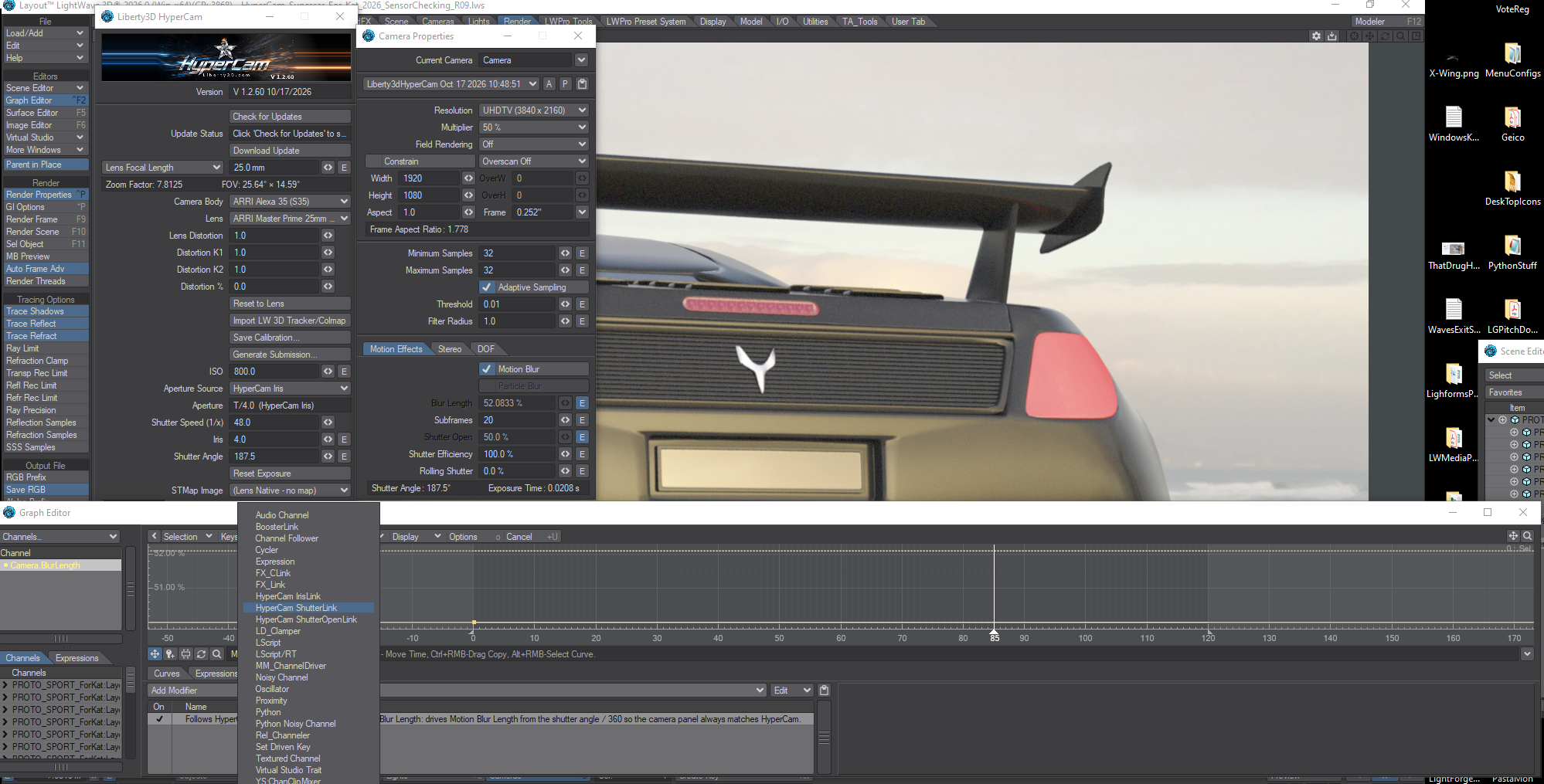
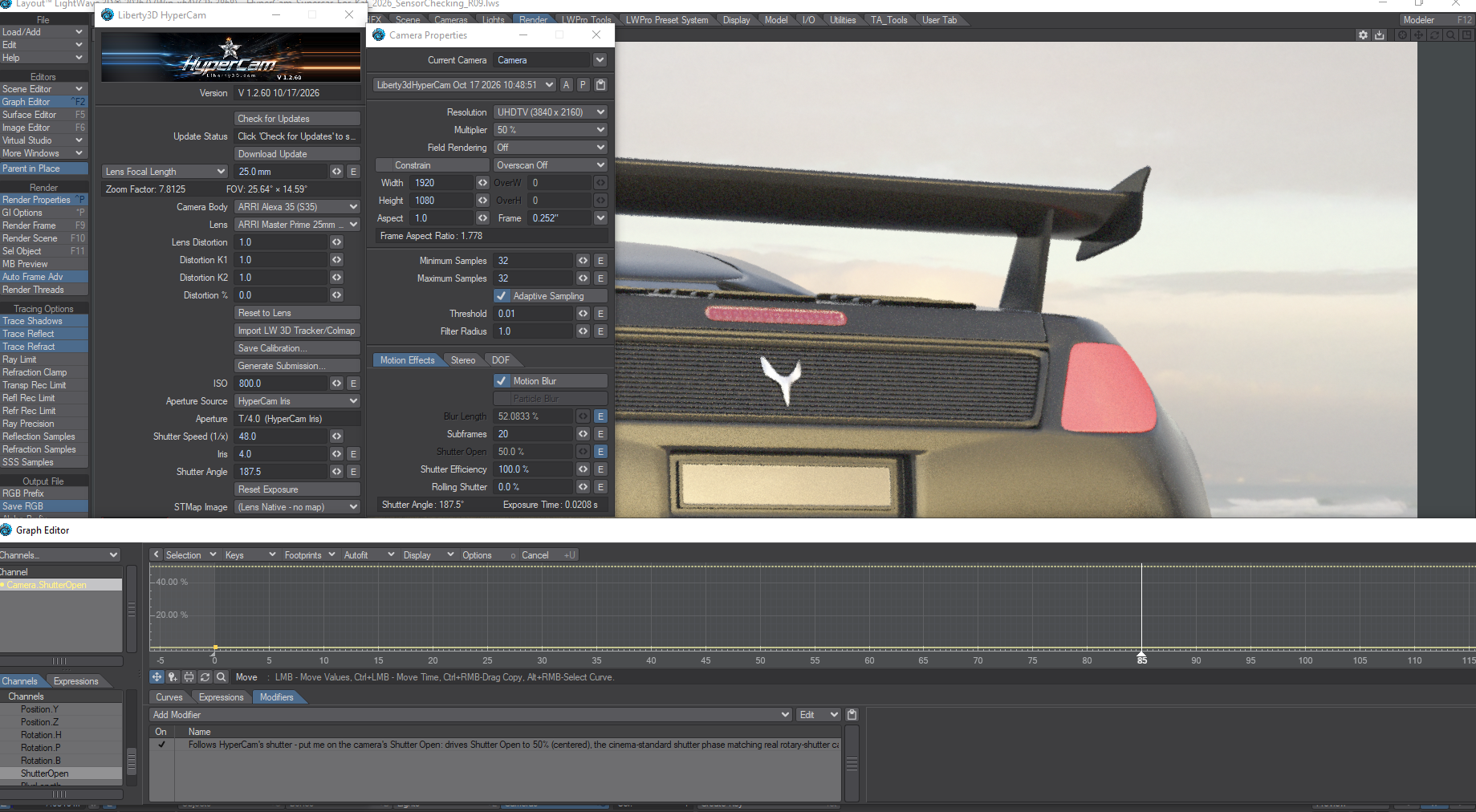
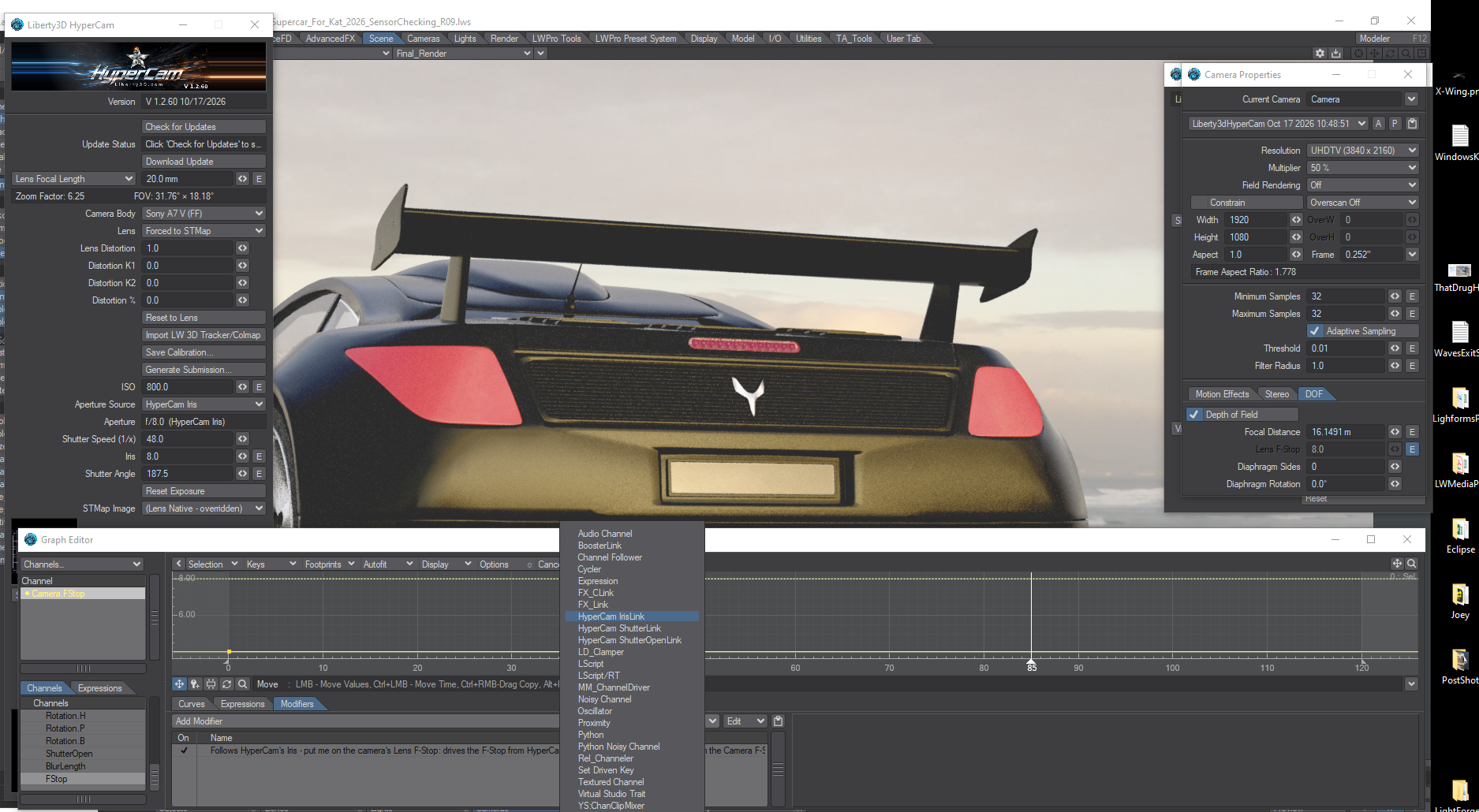
The linkers keep LightWave's own camera numbers honest. They do not change the picture — they just mirror HyperCam's iris and shutter onto the native channels so depth of field, motion blur and any channel-driven tools in the scene all agree.
Setting them up (30 seconds, once per scene):
- Open the Graph Editor, find the Camera, and select the Blur Length channel. Go to the Modifiers tab, Add Modifier, and pick "Follows HyperCam's shutter". Leave its checkbox on.
- Do the same on the Lens F-Stop channel with "Follows HyperCam's Iris".
- From now on, drag the iris in the HyperCam panel and the camera's F-Stop follows; drag the shutter and Blur Length follows.
Worth knowing: if HyperCam is not in the scene, the linkers do nothing at all — they never touch your other cameras.
HyperCam — CameraLink
CameraLink is the bridge that shares HyperCam's photographic state (ISO, iris, shutter) with other Liberty3D tools through a small sidecar file. HyperCam writes its exposure values out whenever they change, and companion tools — like the Sensor — read them. You do not need to configure anything; it works quietly in the background.
HyperCam — COLMAP & Lens Calibration
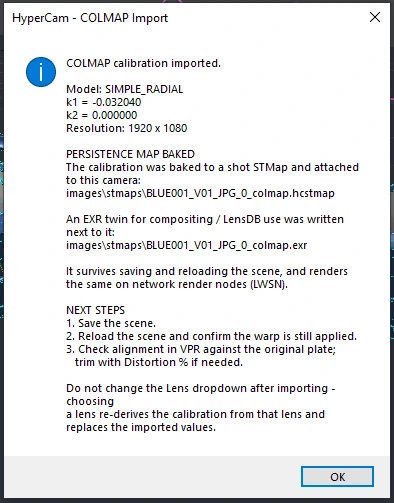
With the introduction of LightWave3D's new 3D tracking solution, which is based on COLMAP, in LightWave 2026.0 (You did upgrade, right?), HyperCam now closes the loop. If you track a shot using the new LightWave3D 3D Tracker, you can now import the solve, and HyperCam bakes the lens calibration into a distortion map that lives with the shot. This is something that is absolutely critical for VFX and Architectural Previsualization work as the native LW camera system has no way to properly extract the Colmap distortion information from the colmap data and warp the lens. HyperCam is the missing link in this work flow. From there you can render in LightWave with the true lens warp, and or export standard EXR STMaps for compositing should you wish to go that route. Using HyperCam with the COLMAP 3D tracker solve gives you the silver bullet for work in this area. One of the benefits of doing this "in camera" warping based on the extracted lens information from the structure from motion solver of COLMAP is that you are rendering a true 3D image based on that warp and its using camera ray information. You are not doing a distortion based on "pixel" information in a 2D fakery approach. The warp is real, based on real camera lens behavior and as such the image quality of your final export is much higher.
- Track and solve your shot in LightWave3D 3D Tracker (COLMAP).
- Once complete, change the resulting tracked camera to HyperCam and then in the HyperCam panel, use Import COLMAP, and point it at the exported
cameras.txtfile — typically located in your Content directory atTrackingData\ImageSequenceTracked\sparse\0\cameras.txt. HyperCam reads the first camera in the file and takes its focal length and distortion as the calibration if it has not already been set by the resulting camera pushed into your scene after completing a track. - HyperCam bakes the calibration to a 512×512 map in your Content directory (
images\stmaps\), as both a native.hcstmap(what renders use) and a standard.exrtwin (what compositing uses). Because the map lives in the Content directory, the calibration travels with the shot — save the scene, reload it, or send it to the render farm, and it is still there.
During this process you may be prompted with a pop up window telling you what is going on and what to do, depending if you have VPR enabled or not. This is important stuff, DO NOT IGNORE THIS WINDOW and what it is saying. VPR must be engaged in order to properly process the information, but we prompt you for it if you don't have it engaged during the import of the cameras.txt file.
Supported COLMAP camera models: SIMPLE_PINHOLE, PINHOLE, SIMPLE_RADIAL, RADIAL and OPENCV (the tangential terms p1/p2 are not used). Importing sets the calibration directly; it does not change the panel's focal length readout, which stays as the scene's camera reports it.
Map resolution — theirs and ours
When other tracking tools hand you lens distortion as STMaps, the maps arrive at the plate's own resolution: a 1920×1080 STMap for an HD shot, a 4096-wide map for a 4K shot — one map per shot, tied to that raster, and sizeable on disk. That holds for the maps exported by SynthEyes and PFTrack, for STMaps generated in Nuke, and for the converters that turn a standard COLMAP solve into maps. (COLMAP itself produces no STMap at all: it hands you camera parameters, and its own undistortion path writes full-resolution undistorted images.)
HyperCam's own maps — the lens library, the COLMAP-import bakes, and everything Evaluate & Store produces — are 512×512, and that is a deliberate design point, not a shortcut. A lens warp is a smooth field: the warp at one pixel is nearly the warp at its neighbour, so 512 samples across the frame describe it faithfully, and the render samples that field per ray, at whatever resolution you are rendering. One 512×512 map is therefore correct at 1080, at 4K, at 8K — it is a description of the lens, not of one raster. The same field is what the EXR twin exports for compositing.
If you are handed a full-resolution STMap from another package, HyperCam will still work with it: load it in the STMap picker, and Evaluate & Store evaluates it into the same 512×512 render field, while your original file stays on disk untouched for comp. What you give up in raw pixel count you get back in a map that is resolution-independent, small, and identical on every machine and render-farm node that touches the shot.

After importing, do not pick a lens from the Lens dropdown. Choosing a preset lens replaces the imported calibration with that lens's data. If it happens, just import the COLMAP file again.
Judging the match — the pairing rule
When you check CG against a distorted plate, pair them correctly or you will chase an error that is not there:
- Load the original (distorted) plate as the background, apply the redistort STMap, and set the camera and render resolution to the plate's native resolution.
- The undistorted plate pairs with no warp — use it only to judge the raw track.
Judging redistorted geometry against an undistorted plate manufactures an error equal to the warp itself — zero at the centre, worst at the corners — and no Distortion % setting can fix it, because the percentage gets spent fighting the pairing error instead of trimming the real residual.
The x-ray check: To judge alignment in VPR, set your objects' surfaces to 100% transparent and then in the object properties panel under Primative>Edges, and pick a nasty, easy to see color for your "Edge Color" and then enable the check for "Other Edges". You don't have to do this for everything in the scene. We recommend using it for your 3D Tracked and Meshed point cloud or set extension or some proxy objects that you might need to check with for your line up. Anything else in VPR will of course distort with the distortion warp but the idea here is that the wireframe outlines carry the distortion warp while the plate shows through, so you can judge the match directly. Judge in VPR, not OpenGL — OpenGL has no warping capability, so its wireframes will mislead you.
Again, we have to stress, there is NO WAY to accurately line up a 3D tracked shot in LightWave3D and a native LightWave3D camera. Not even the native Advanced Camera can really do it. HyperCam is the solution to get this done properly and accurately.
How accurate? Well, regardless of you getting your track from the 3D Tracker (COLMAP) in LightWave or being handed a track with STMaps produced by an external program such as Syntheyes or PFTrack or Nuke, our solution for lens baking is overkill and then some.
HyperCam — The Sensor
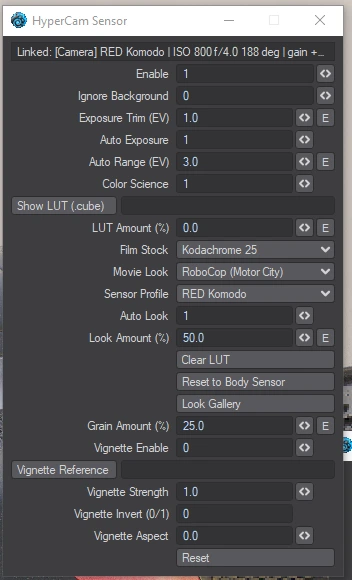
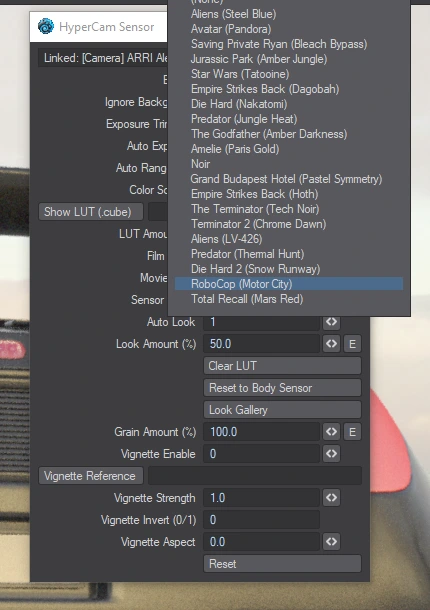
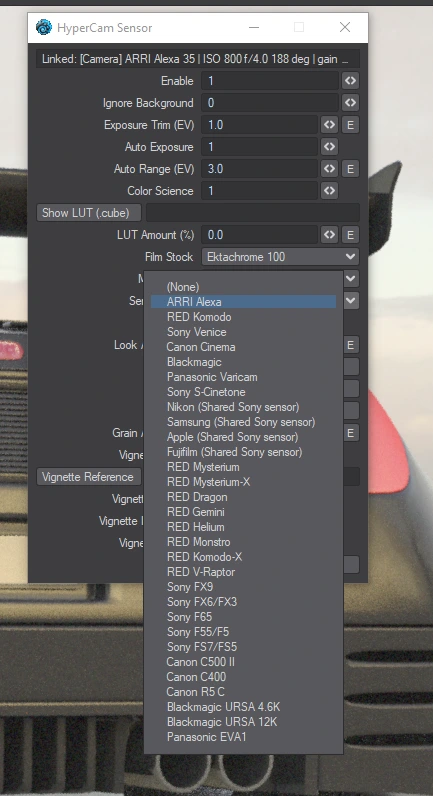
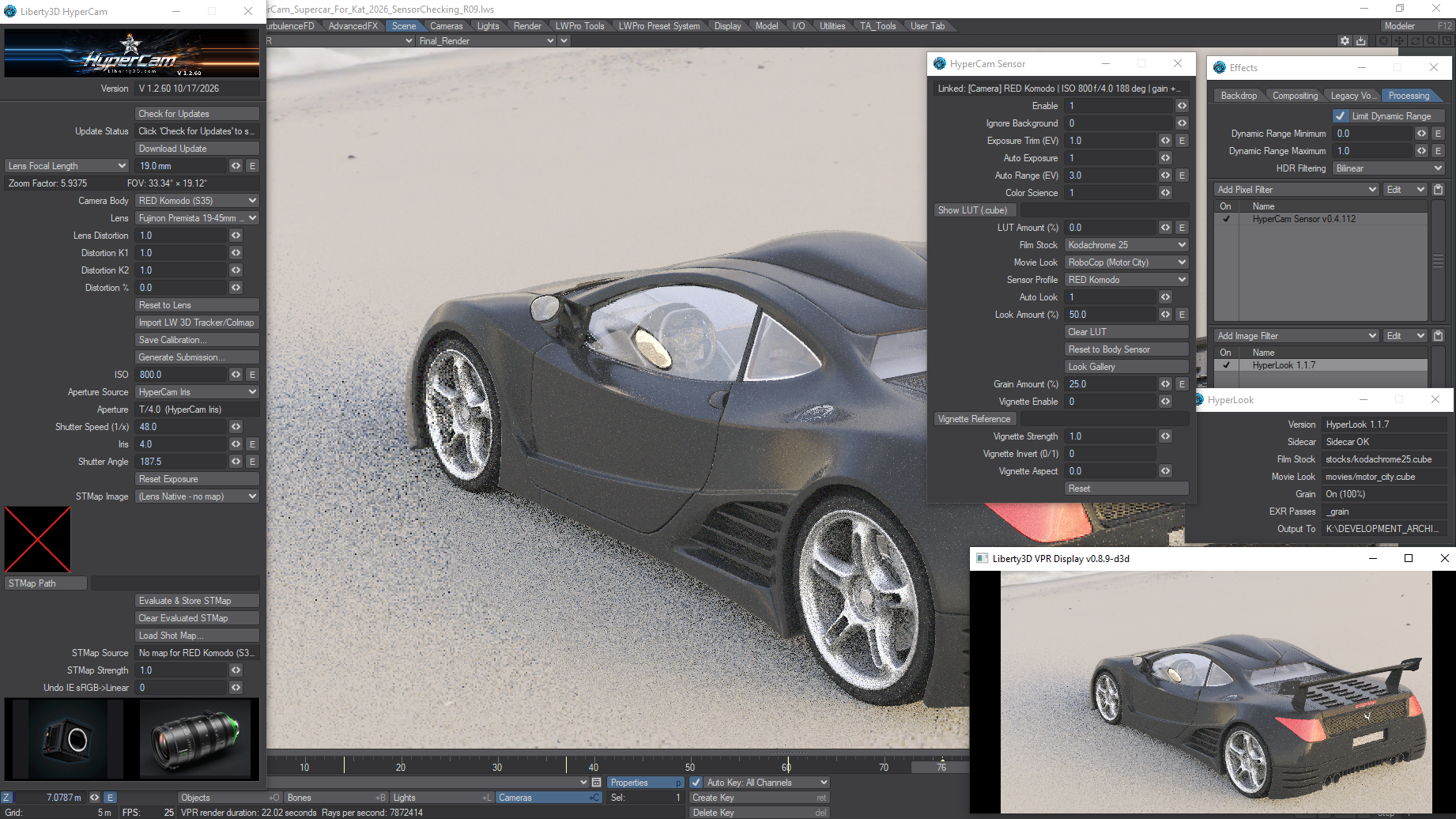
The Sensor is a pixel filter (Image Processing > Pixel Filter) that completes the photographic chain. HyperCam publishes the shot's settings over CameraLink; the Sensor reads them and applies real sensor behaviour: photographic exposure, the body's own response and noise character, film stocks and movie looks, and grain. Every camera body in HyperCam has a matching Sensor profile — pick the body in HyperCam and the Sensor follows, including the Sony A7 V (dual base ISO 800/8000).
With more than one HyperCam in a scene, the Sensor follows the render camera, and its panel says so: the Linked line names the camera it is following, so you always know which camera is driving exposure.
looks/ and previews/ folders next to the plugin. Choose a film stock or a movie look and it is applied to the render with the exposure. The movie looks are measured, not guessed: each was built from image analysis of the film that inspired it, so what it reproduces is the film's colour behaviour — not a tint laid over the top. Exposure Trim is the fine nudge for a shot that lands a touch bright or dark.Vignette is parked in this release. The vignette controls in the Sensor panel are greyed out and the effect is off — including in scenes saved with it on. It returns, fully wired into the preview and final-look pipeline, in a later update. Nothing else in the Sensor is affected.
The Sensor has no activation of its own: it reads the same licence certificate as the cameras (see Licensing, below).
The Sensor Panel, Control by Control
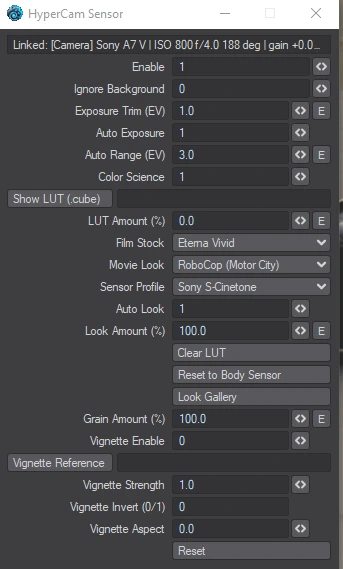
The panel is arranged in the order the image flows through it: link and exposure first, colour next, the look stack after that, grain last. Controls marked (E) carry an envelope button and can be keyframed.
Status line. The readout at the top is the Sensor's report on itself: the camera it is Linked to (in a multi-camera scene it names the render camera it is following), the body's ISO, iris and shutter angle as received over CameraLink, the exposure gain in EV, the auto-exposure contribution, the colour/LUT state, and the Sensor's version. If it says No CameraLink sidecar, no HyperCam or UberCam has rendered yet in this scene — the exposure side is idle until one does.
Enable. The master switch. Off, the filter is a complete bypass — no exposure, no colour, no grain — and the status line says so.
Ignore Background. Exempts LightWave backdrop/background-image pixels from everything the Sensor does: no gain, no colour, no metering. The CG gets the photographic treatment; the plate behind it stays exactly as it was.
Exposure — the photographic gain. Before any colour is touched, the Sensor applies real exposure maths in linear light: ISO measured against the linked body's native ISO (so a body whose base is 800 sits at unity gain at ISO 800, not three stops hot), iris against f/2.8, shutter angle against the 180° reference. Exposure Trim (EV) (E) is your fine nudge on top of that maths, in stops. Auto Exposure adds a metering servo: it meters the frame after gain, aims at middle grey with a highlight-weighted meter, reacts fast when a scene brightens and releases slowly when it darkens. Auto Range (EV) (E) caps how far the servo may travel (default ±3 EV) — beyond the range, the camera is at its limit and the scene keeps the difference, the way a real camera behaves. Whatever the servo decides, it decides once per frame: gain never moves inside a frame, in VPR or in final renders.
Color Science. A toggle, off by default. On, and with the linked body matched to a supported vendor (Sony, ARRI, RED, Blackmagic), the Sensor can run the manufacturer's own input transform (IDT) — the vendor's log colour pipeline. It is a fallback colour path, not a layer: it applies only when no look (below) and no Show LUT are active. The moment you choose a stock, a look, a profile or a Show LUT, those take over and the IDT steps aside.
Show LUT (.cube) and LUT Amount (%) (E). Your own LUT slot: browse to any .cube file and it is applied after the look stack, at the strength set by LUT Amount. This is where a show LUT, a house LUT, or a LUT exported from a grading session belongs. Clear LUT empties this slot only — the look dropdowns are untouched. A bad path fails safe: nothing is applied and the status line tells you why.
The look stack — Film Stock, Movie Look, Sensor Profile. The three dropdowns, applied in that order of layers: profile first (the body's own response), then stock (the recording emulsion), then movie look (the grade). Auto Look, on by default, keeps the Sensor Profile following the body chosen in HyperCam; picking a profile by hand switches Auto Look off, and the profile stays where you put it. Look Amount (%) (E) blends the whole stack against the un-looked image — one amount for all three layers together, which is what the galleries below leave at 100. Reset to Body Sensor clears the manual Show LUT and snaps the profile back to the linked body's own sensor. Look Gallery opens the visual gallery of stocks and looks in your browser (the same gallery reproduced below).
Grain Amount (%) (E). Digital sensor noise, applied last, after the look stack. Its character — how coarse, how it behaves in the shadows — comes from the linked body's detailed sensor model, including dual-native-ISO bodies, whose noise character follows whichever native ISO the shot sits nearer. With no profile matched it falls back to an Alexa-like character. The noise is seeded per frame, so it animates like real grain across a sequence and is the same in VPR and final render for any given frame.
Vignette. A grouped set of controls (Enable, Reference, Strength, Invert, Aspect) — parked in this release: greyed out and forced off, as noted above.
Reset. Returns the panel's values to their defaults and refreshes the render and the look sidecar, so what you see is what the reset actually did.
How the groups lean on each other. Exposure is upstream of everything: because gain lands first, in linear light, opening the iris doesn't just brighten the frame — it changes what the looks receive, pushing their highlight behaviour exactly as it would on a real capture. The profile choice is three decisions in one: it sets the profile layer of the stack, the grain's noise character, and (through the body) the native ISO the exposure maths is anchored to. Look Amount governs the curated stack as a single blend and nothing else — the Show LUT and the grain each answer only to their own amounts. Auto Exposure meters after gain but before colour, so grades never fool the meter. And Ignore Background stands outside all of it: backdrop pixels are exempt from every group on the panel.
Note — fireflies. Anyone who renders with LightWave's PBR engine knows the firefly: a stray pixel sitting at many times the brightness of everything around it, born from a single wild sample. The Sensor tames them as a by-product of its colour pipeline. Every LUT in the stack — profile, stock, look, Show LUT — reads its input from a bounded colour table, so a pixel arriving hotter than the table's white point is capped at that white point instead of rendering as a speck of pure energy. Highlights at or under white pass through the table's real curve untouched, so the picture keeps its legitimate sparkle. The fireflies are capped, not deleted — the pixel renders as a bright highlight rather than a blinding outlier — and the protection is on whenever any LUT is active, which in practice means always: a sensor profile is matched to your camera by default. No denoise pass, no extra samples, no detail smeared.
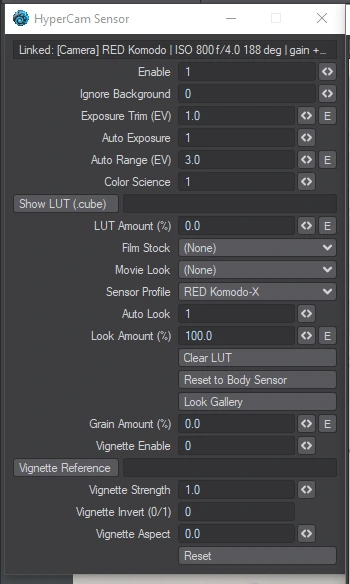
Three layers, three jobs. The Sensor builds the image in layers, and it helps to keep them straight. The Sensor Profile is the body: how that camera's sensor itself renders — its native colour science, its response in highlights and shadows, its base-ISO behaviour and noise character. It follows the body you pick in HyperCam automatically (every frame in the galleries below was shot through the RED Komodo-X profile, auto-matched to the Komodo). The Film Stock is the medium — the emulsion the shot is notionally recorded on. These are camera stocks, the film in the can, not print stocks: every name in the list is an emulsion you would load into a camera. Each is presented as a finished, viewable image — for the negative stocks that includes the inversion a print would give you, done neutrally — and the Movie Look then plays the role the print-and-timing stage played in the film chain: the final colour decisions. The Movie Look is the grade applied over the top. Because the profile is the foundation, the same stock-and-look combination lands differently on different bodies: swap the Komodo profile for the ARRI Alexa and every frame below would shift with it. In short: profile and stock work together as the capture mix that records your scene; the Movie Look is the final grade laid over it.
Note — camera stock vs print stock. Traditional filmmaking involves two different films, and they are easy to confuse. The camera stock is the film in the can: the emulsion loaded into the camera that actually records the scene. The print stock is a second, different film that the finished negative is printed onto for projection, and it has a strong character of its own. Every Film Stock in the Sensor is a camera stock — the emulsion that "shot" your scene. When you add a Movie Look, you are adding the stage the print stock used to provide: the final colour decisions, made at printing and timing time. Body, negative, print — profile, stock, look.
The Film Stocks, Frame by Frame
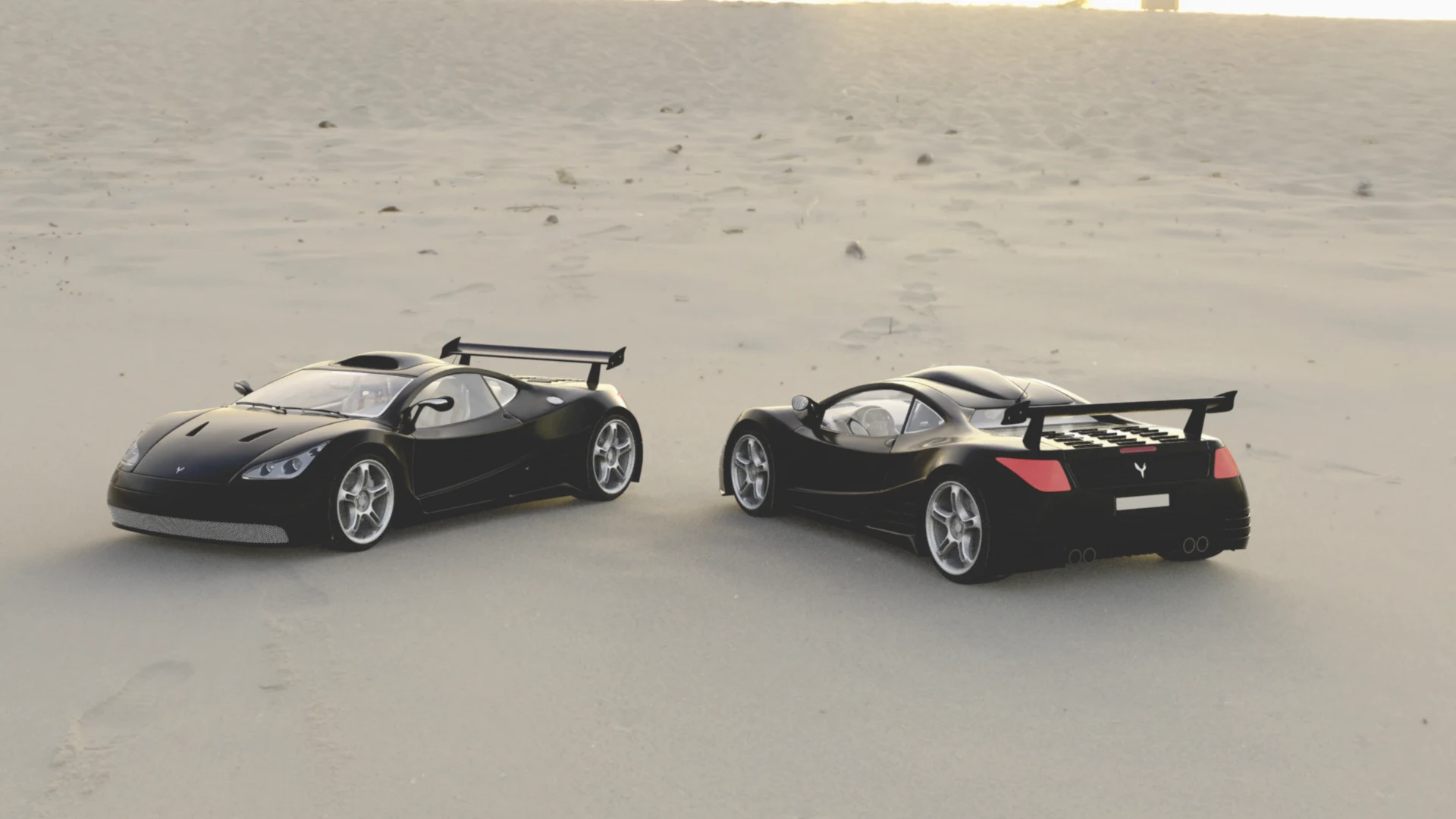
Every frame below is the same shot — same camera (RED Komodo, Premista 19-45mm at ISO 800, T4.0), same Sensor settings, grain at zero — with exactly one thing changed: the Film Stock. That is the honest way to judge a stock emulation, because on any single frame the differences range from a whisper to a shout. Read them in the car's shadow side (how deep the blacks sit), the tail lights (how far the saturation travels), and the water (how the highlights roll off).
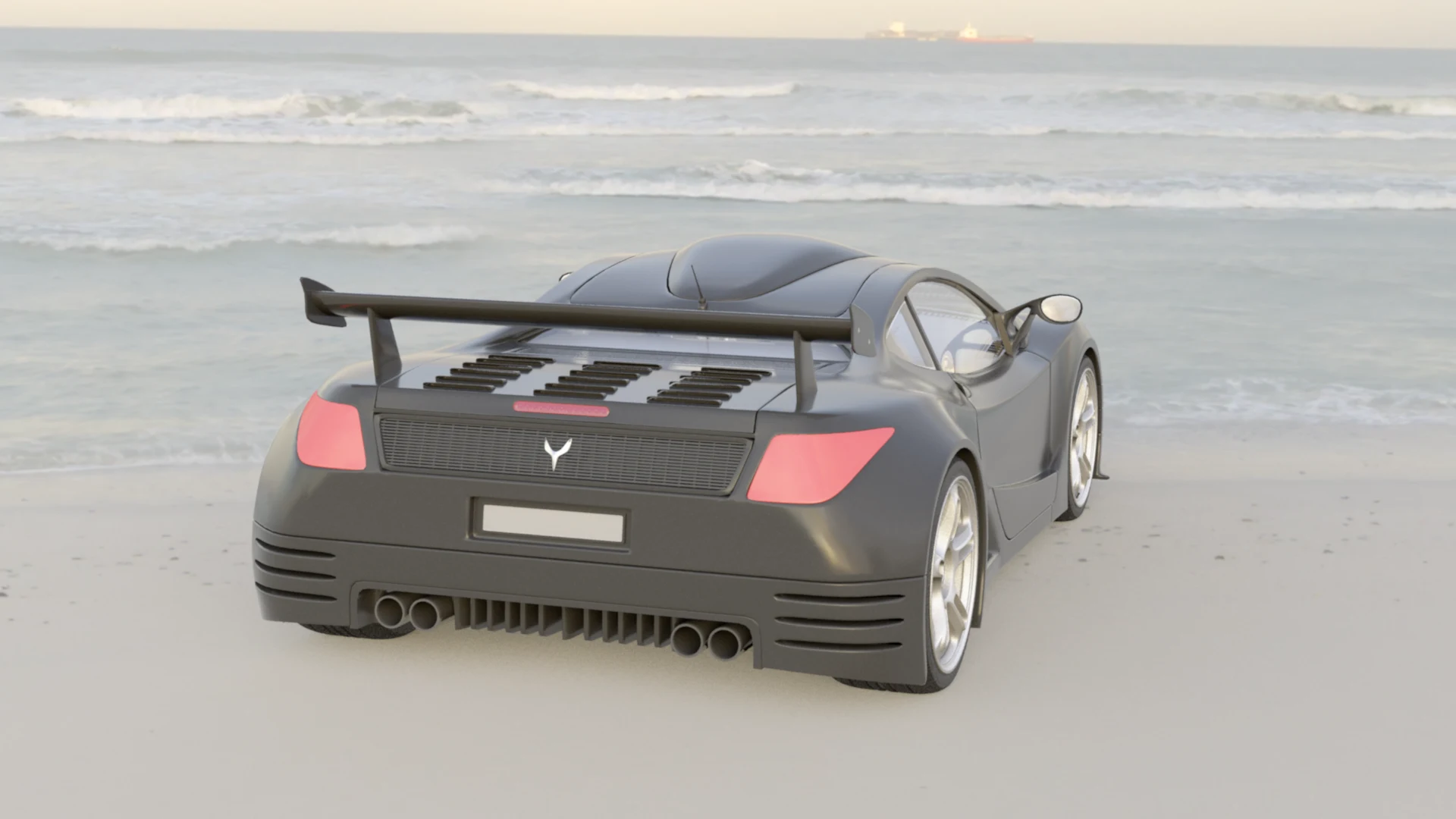
Film Stock: None. The reference frame. No stock is applied, so what you see is the camera's own colour science passing straight through the Sensor. Every other entry in this gallery is this exact frame with one stock switched on.
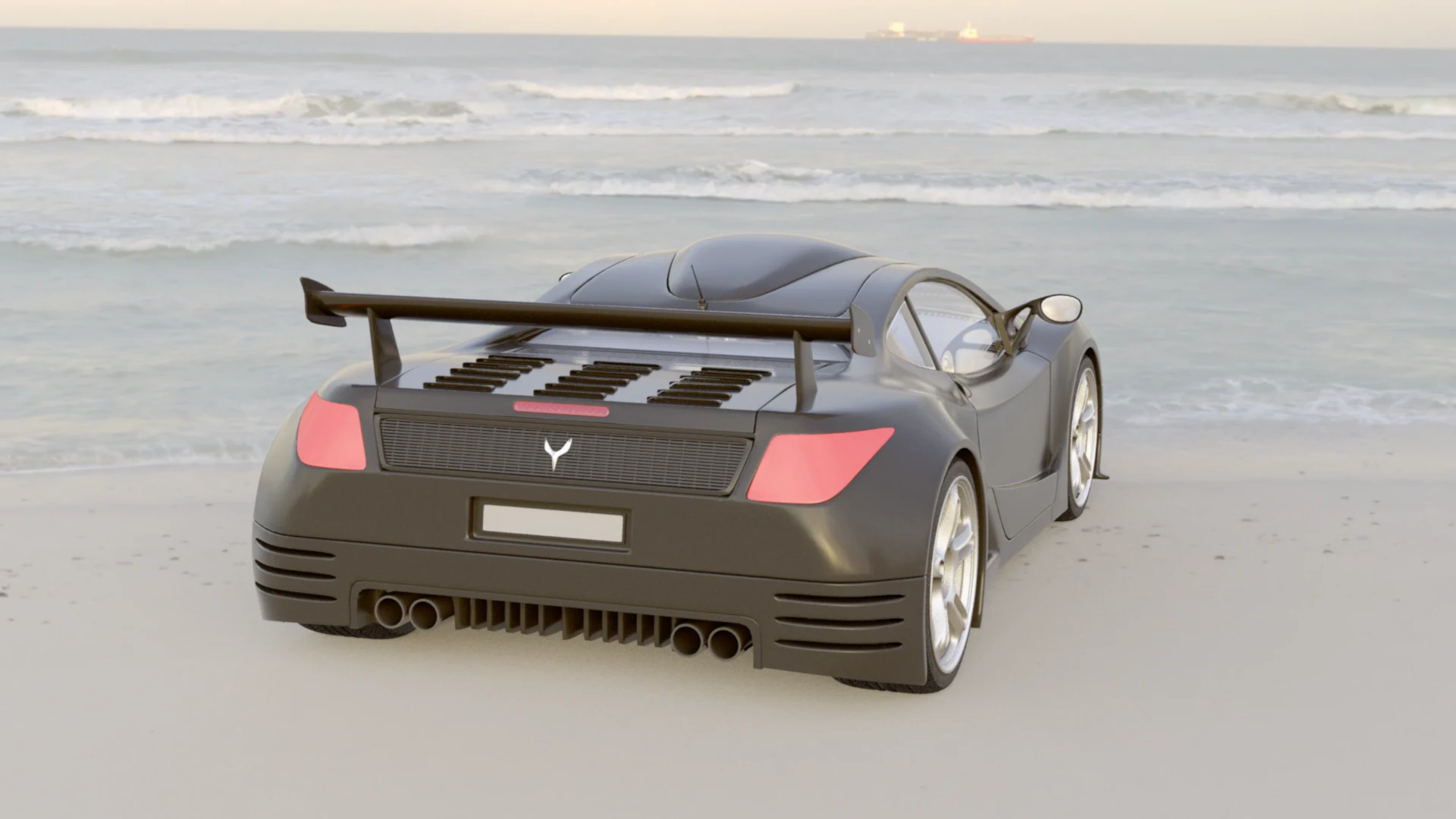
Film Stock: Vision3 500T. Kodak's tungsten-balanced cinema stock, and on this daylight frame the subtlest change in the set: a gentle cooling through the sea and shadows, with a slightly softer shoulder in the highlights. It is balanced for tungsten light, so it earns its keep indoors and at night; in full sun, it whispers.
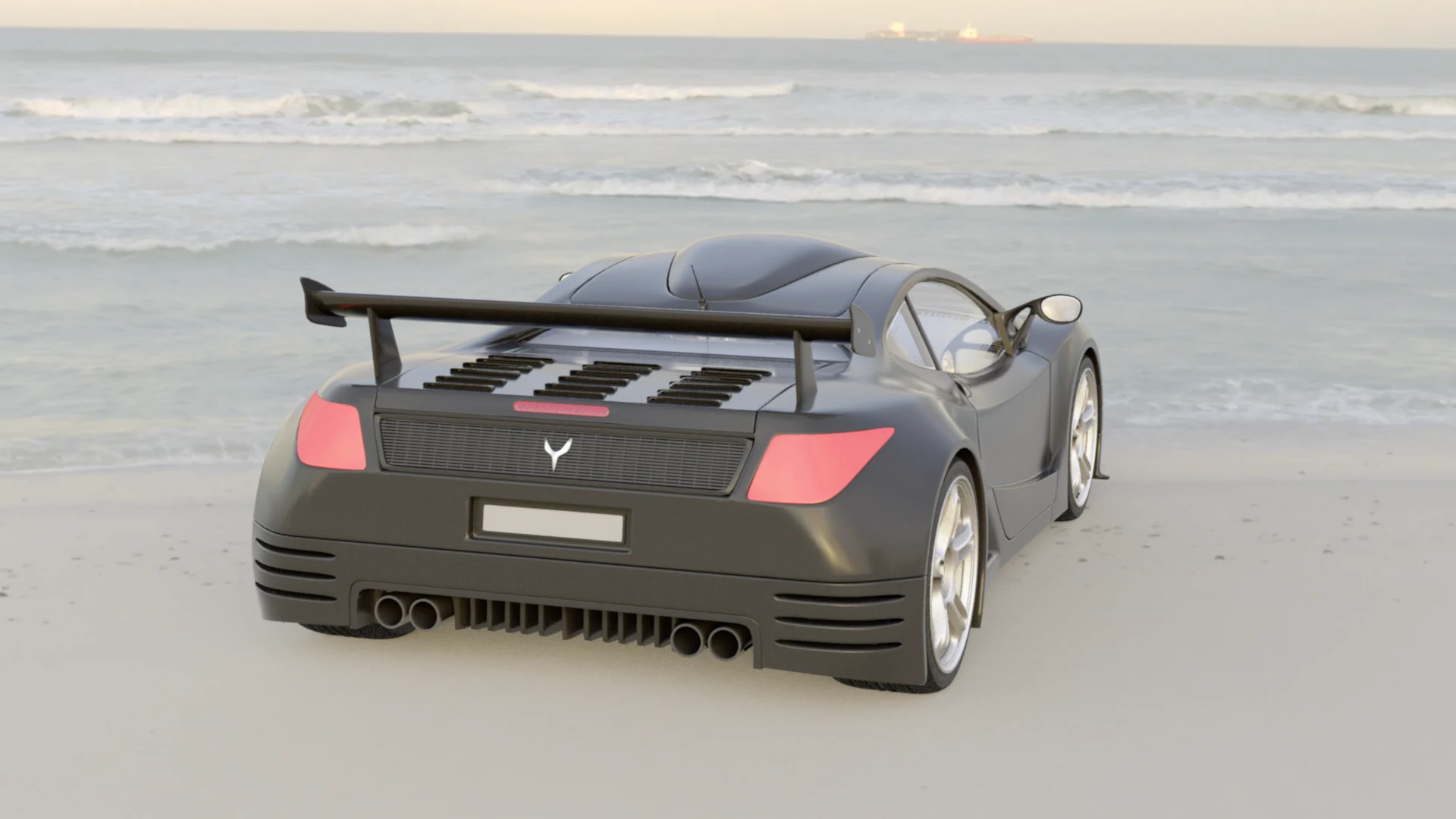
Film Stock: Vision3 250D. The daylight-balanced sibling — and on this frame the slightly stronger of the two Vision3 stocks. The shadows sit deeper, contrast and saturation tick up a notch, and the whole image feels a touch richer while staying natural. If the 500T whispers, the 250D speaks quietly.
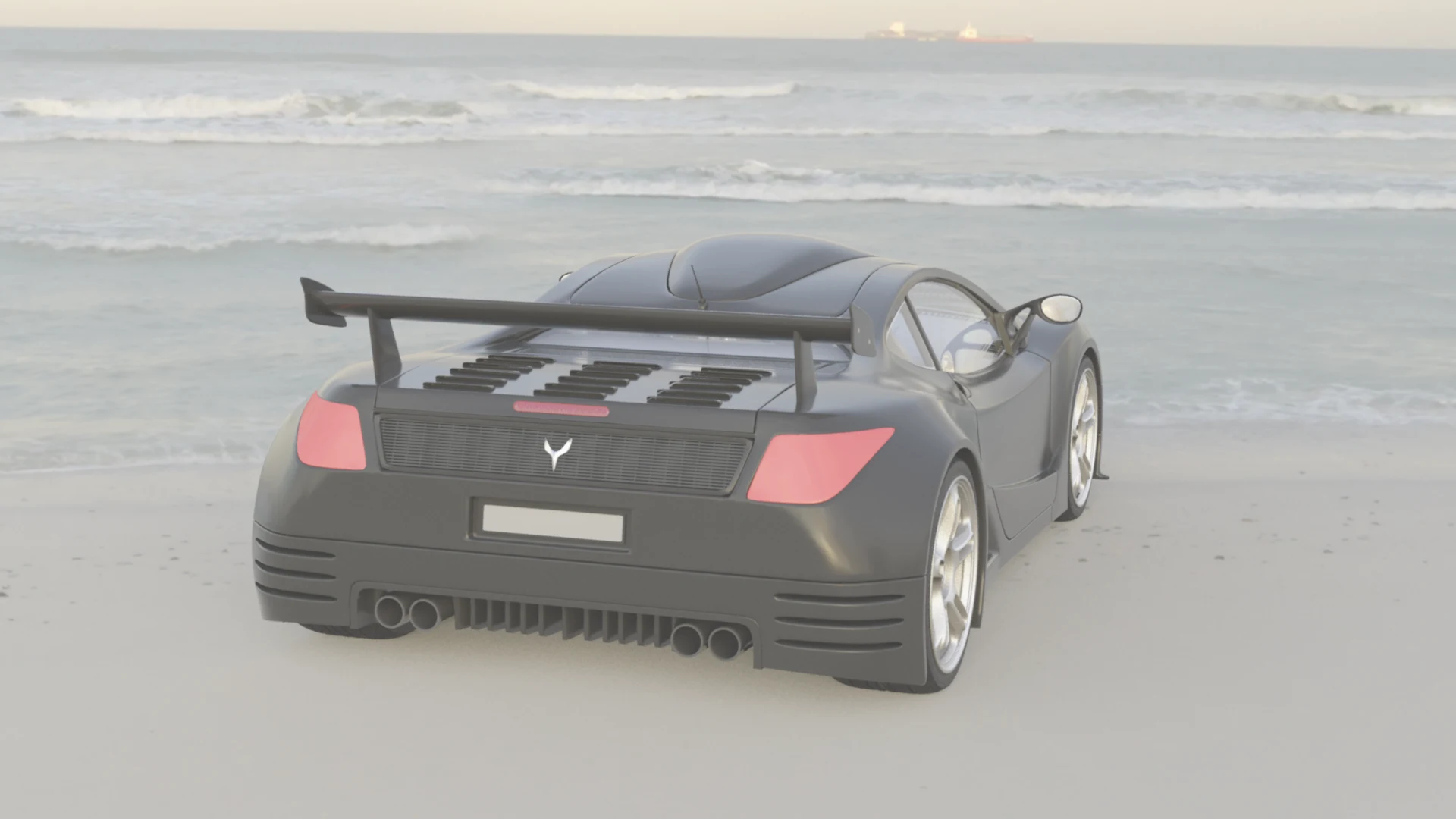
Film Stock: Eterna. Fujifilm's low-contrast cinema stock, and unmistakable here: the blacks lift and turn milky, contrast flattens, and saturation drains away. A faded, gentle, pastel-leaning image — the one to reach for when a scene should feel soft, old, or dreamlike.
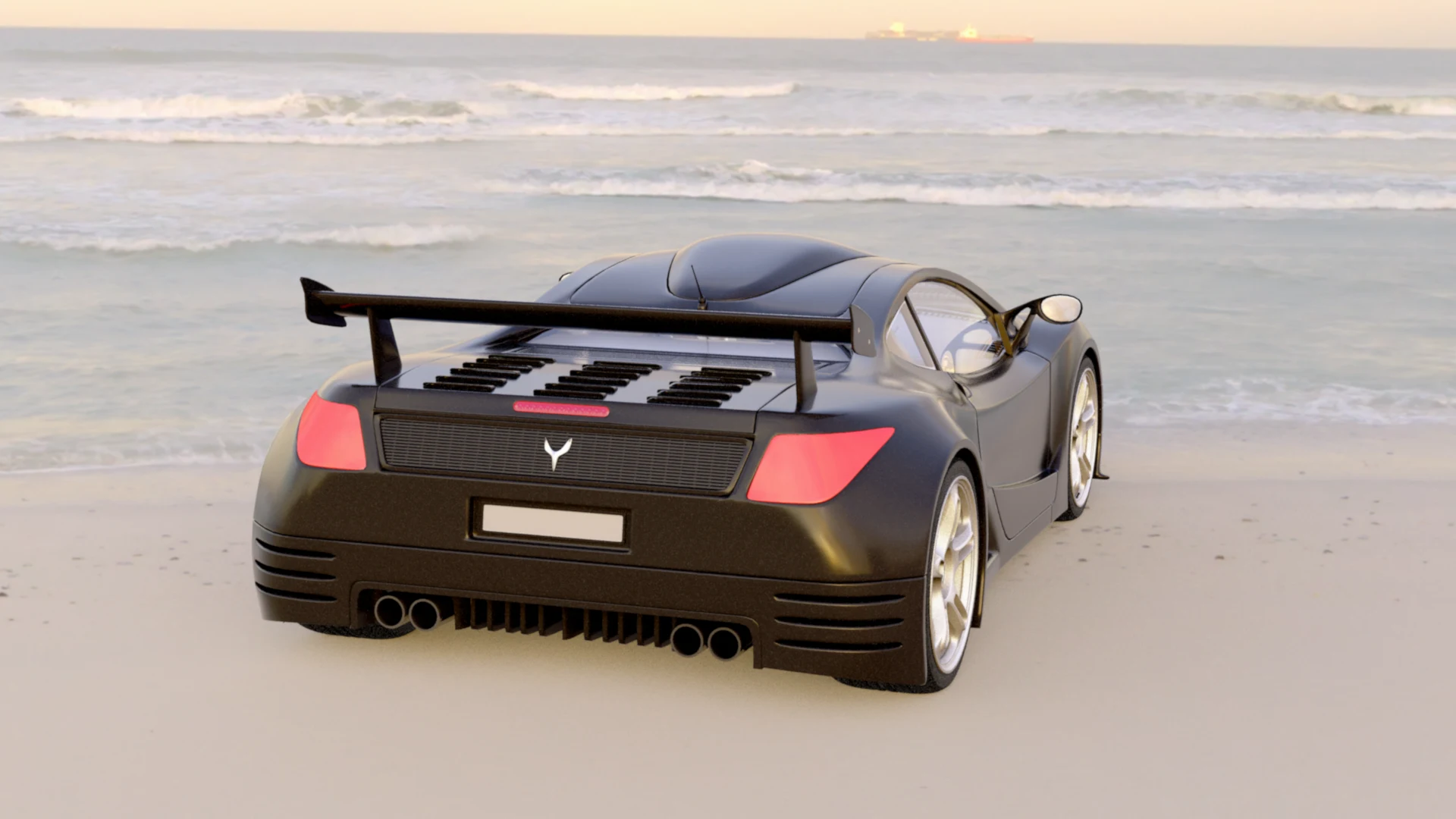
Film Stock: Kodachrome 25. The legend, and the biggest personality in the set: deep, rich blacks, contrast well up, and warm, saturated colour with the reds pushed forward — compare the tail lights against the None frame. In the real world this was a slow 25-speed daylight stock and famously unforgiving, but nothing else looks like it.
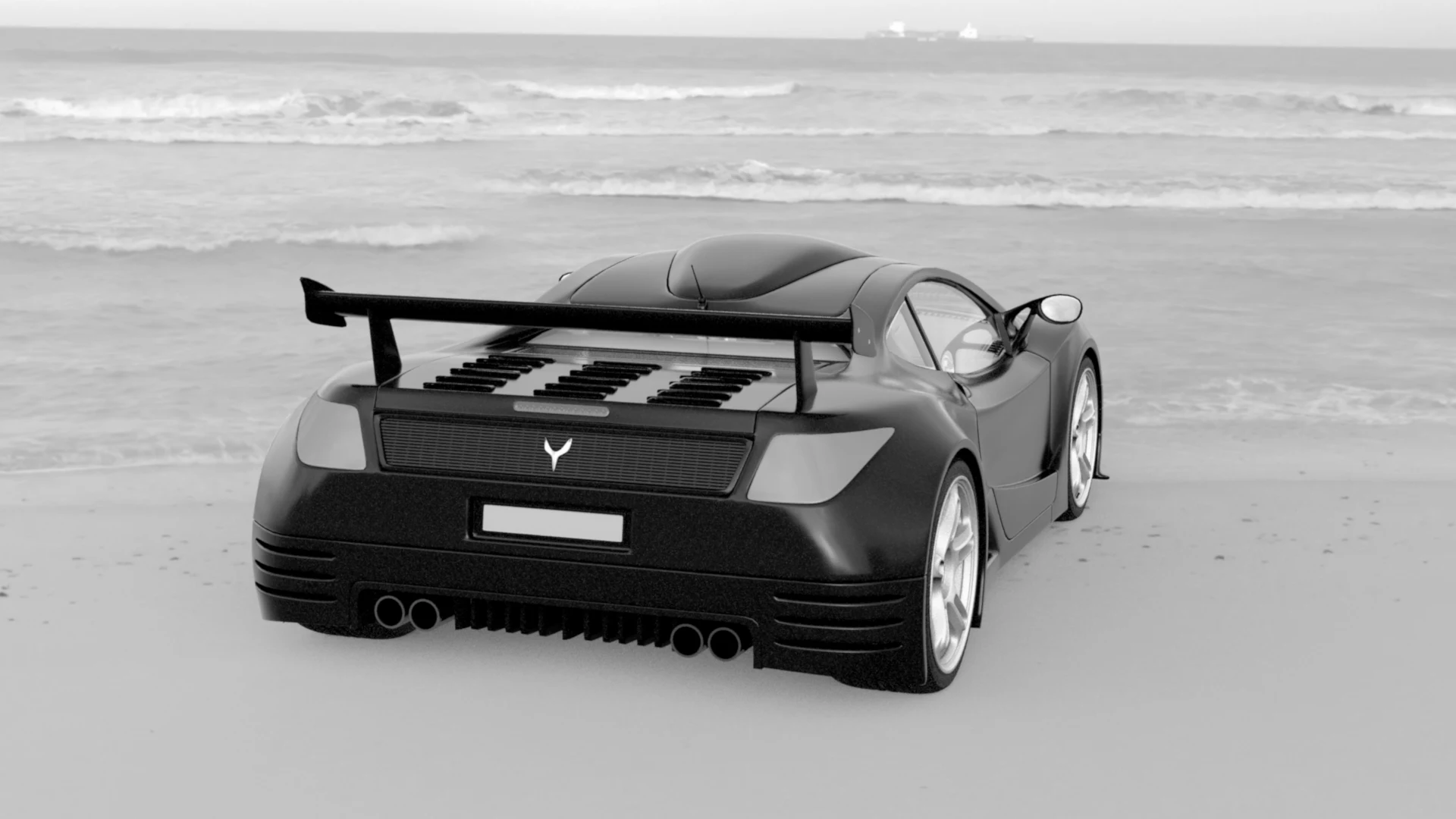
Film Stock: Tri-X. Kodak's black-and-white legend, and the set's only monochrome stock. Colour leaves entirely; what remains is tonal separation — deep, rich blacks, bright silvery highlights, and that classic reportage contrast. If a shot should feel timeless, this is the one.
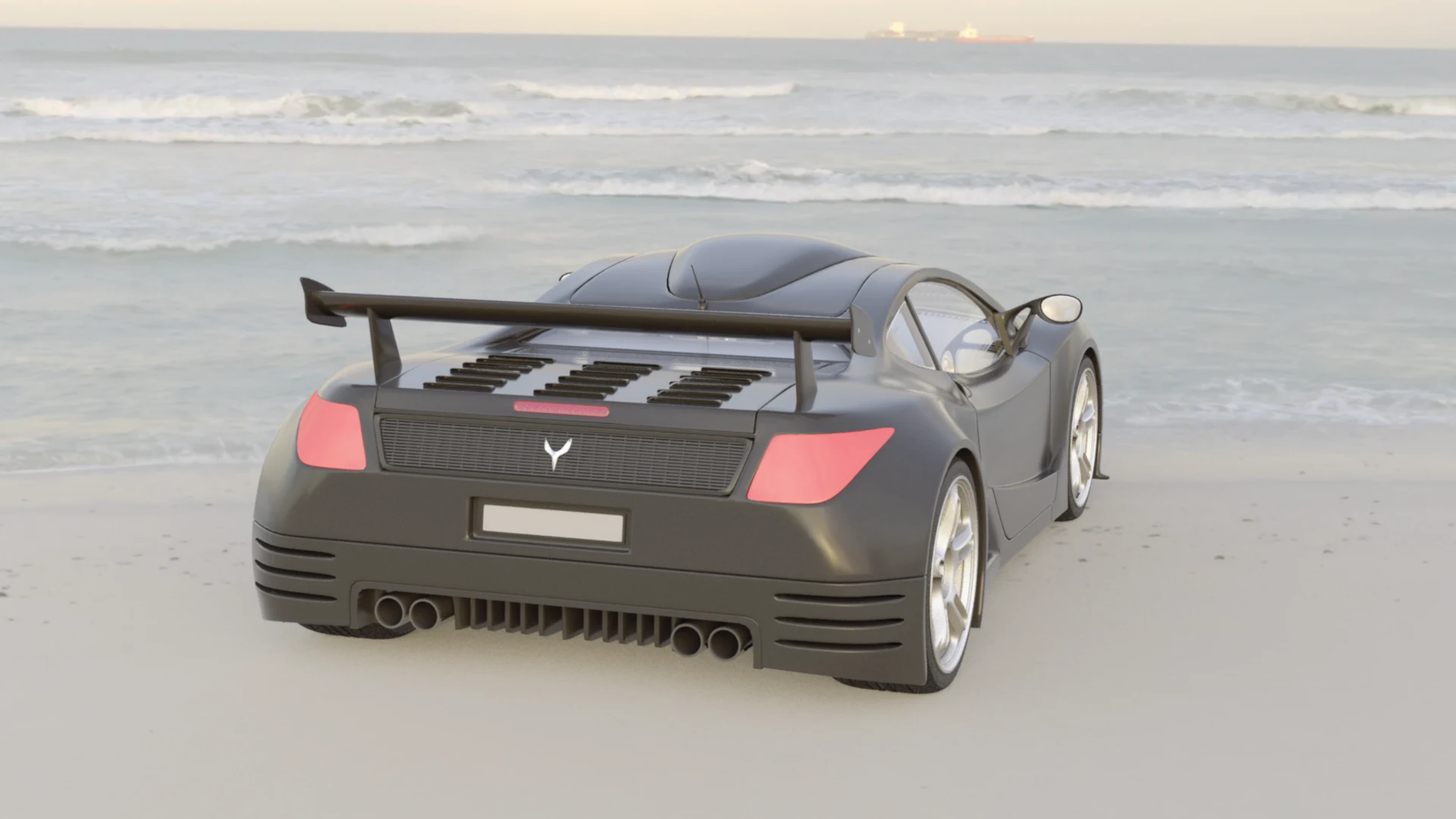
Film Stock: Vision3 200T. The third Vision3 — tungsten-balanced like the 500T, and on this frame the subtlest stock in the set, sitting almost on top of its sibling: the same gentle cooling, a shade deeper in the shadows. In full daylight the two tungsten stocks are near-twins; what separates them belongs to tungsten-lit scenes, not a sunny beach.
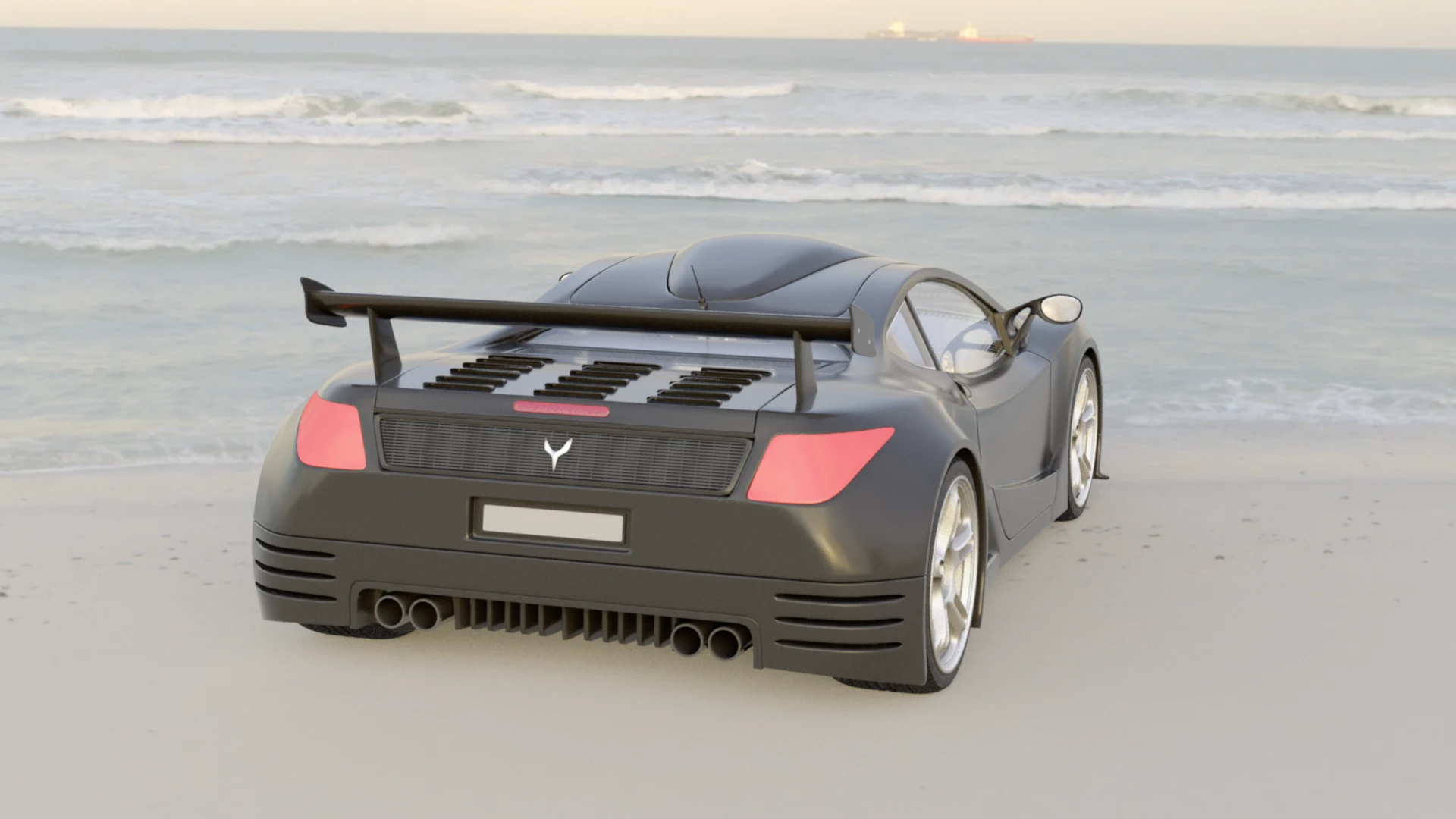
Film Stock: Vision3 50D. The slowest, finest-grained Vision3 — and on this frame, a dead heat with the 250D: the same deeper shadows, the same gentle richness, nothing between them that the eye can catch. That is honest to the stocks. What separates a 50-speed daylight film from a 250 is speed and grain fineness, and a bright beach shows neither. Reach for the 50D in strong light when you want the cleanest possible image; the 250D when the light starts to fall.
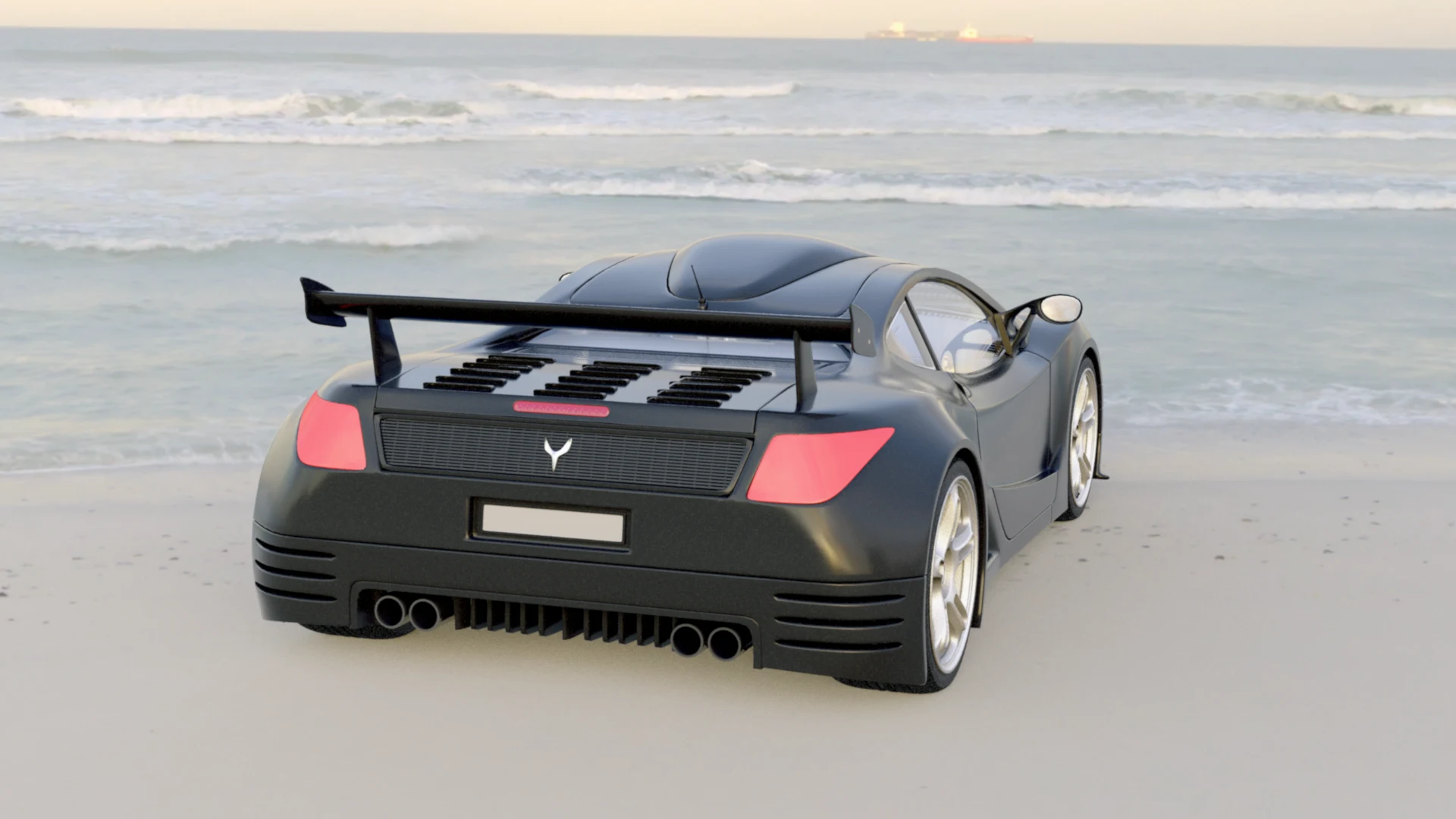
Film Stock: Ektachrome 100. The reversal stock — slide film, not negative — and it shows in the punch: blacks go deep and glossy, contrast climbs hard, and the colour stays clean and neutral rather than warm. Where Kodachrome leans into amber and red, Ektachrome stays truer and crisper — the chrome-film snap. Beautiful, and just as unforgiving of sloppy exposure as the real thing.
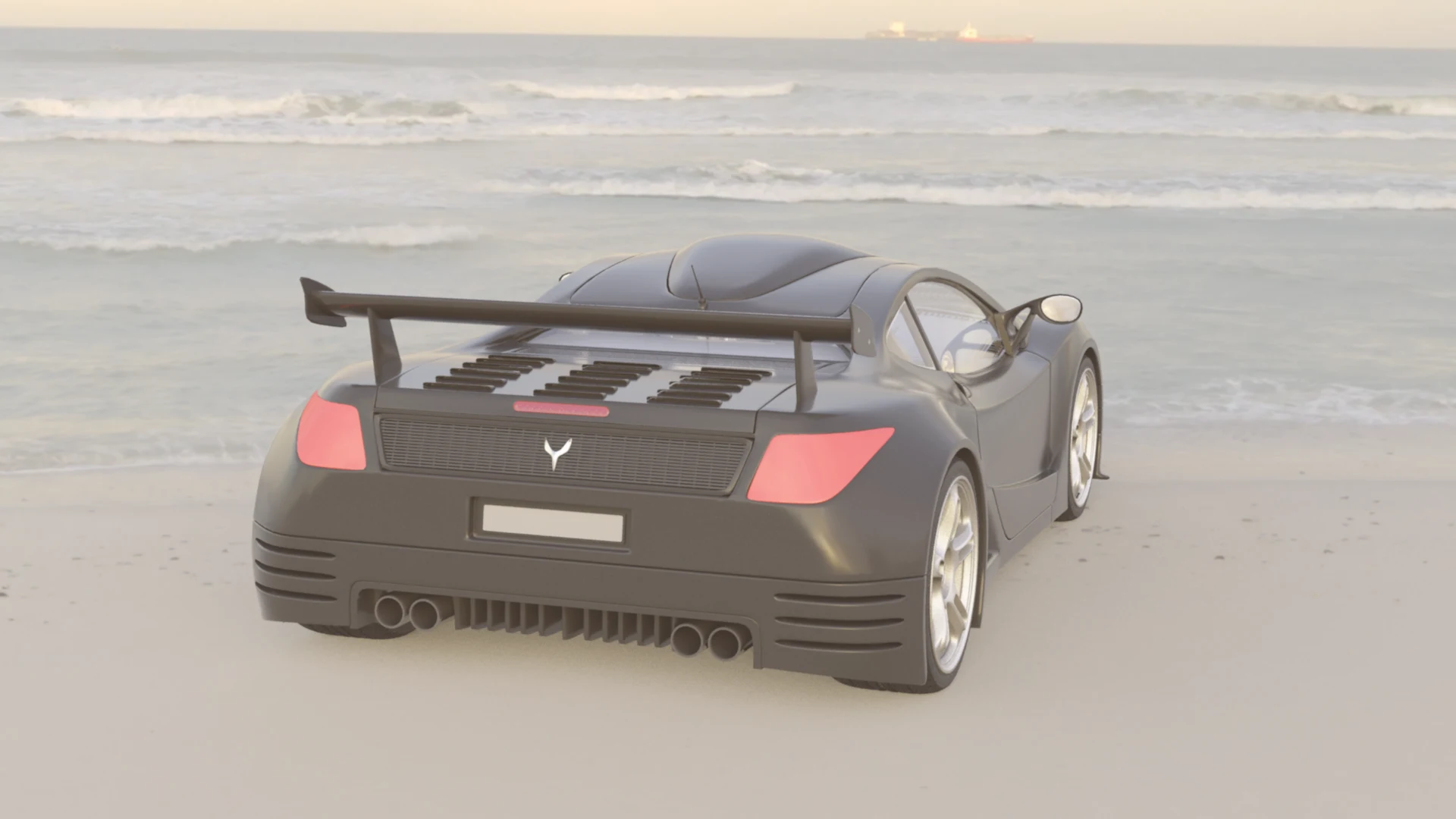
Film Stock: Portra 400. The portrait photographer's stock, and the warm softie of the set: contrast eases off, blacks lift a little, and everything goes gentle and warm with a pastel lean. Where Eterna fades toward grey, Portra fades toward honey. Made for skin, kind to everything else — faces and weddings made it famous, but it flatters any scene you want to feel tender.
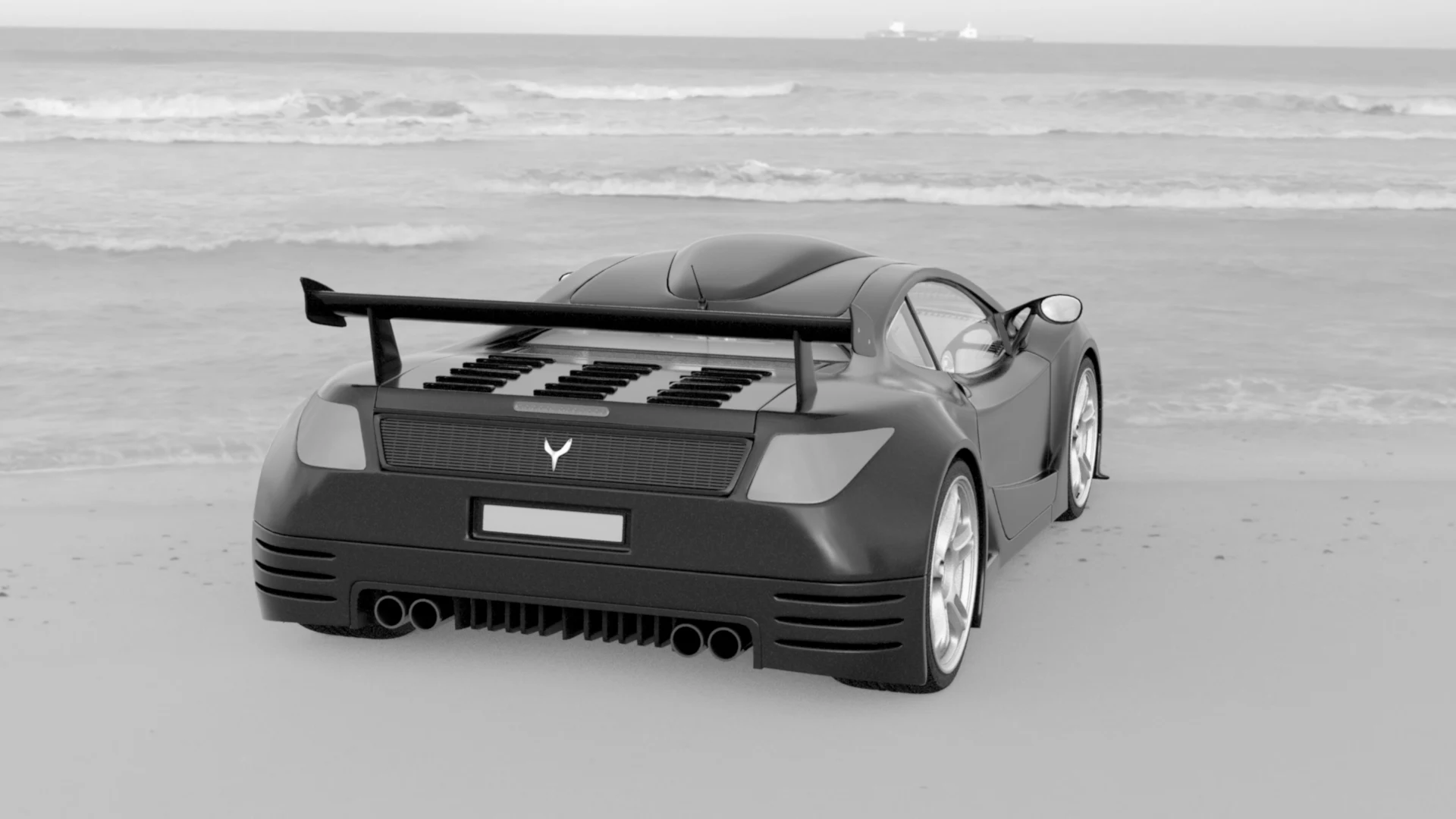
Film Stock: Double-X. The other monochrome — Kodak's black-and-white cinema stock — and the gentler of the two. Where Tri-X goes for reportage punch, Double-X keeps a longer, finer grey scale: blacks sit a touch higher, highlights stay silvery without hardening, and the whole frame feels like a classic film still. Tri-X is the newspaper; Double-X is the cinema.
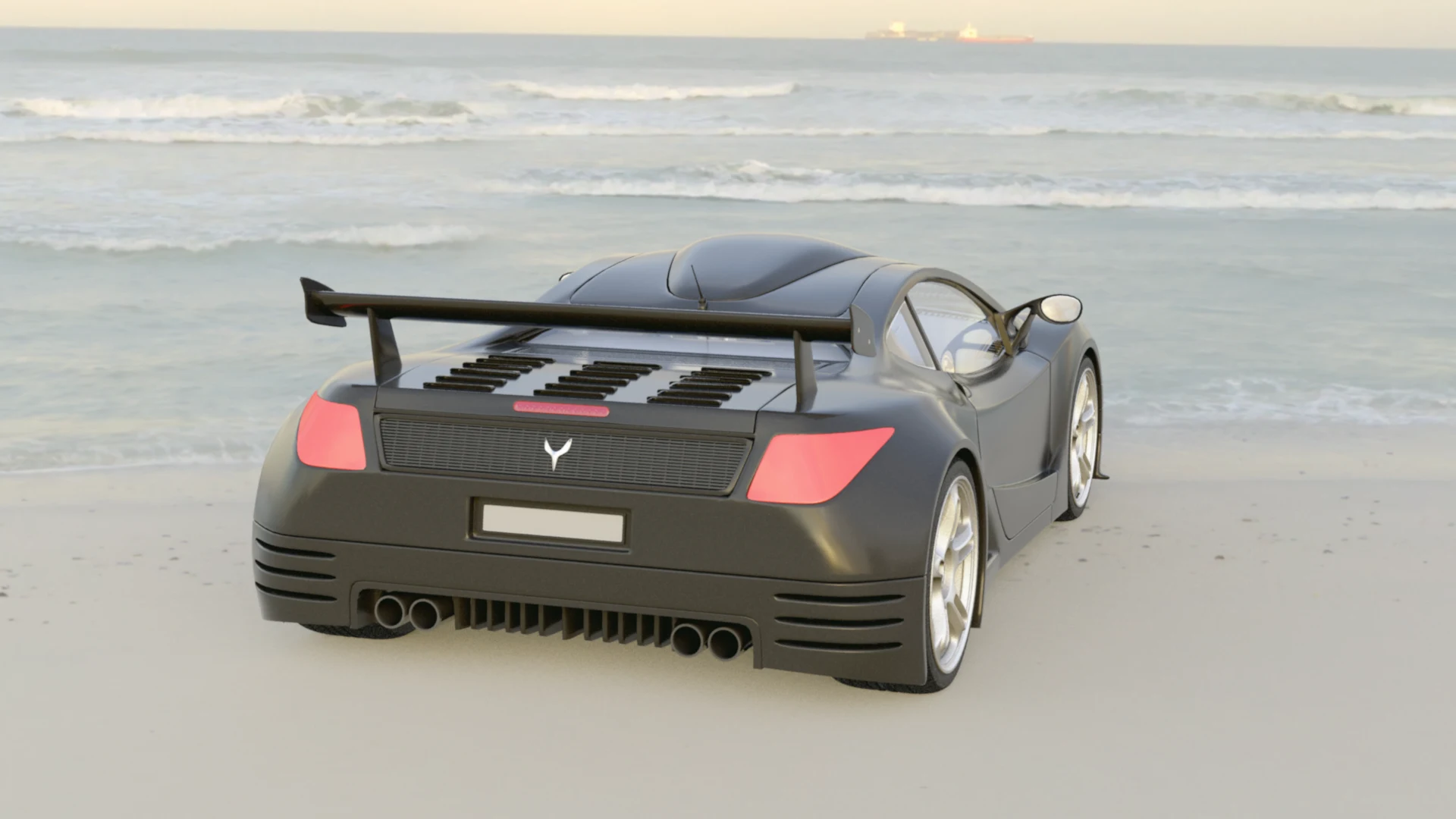
Film Stock: Eterna Vivid. Eterna's extrovert sibling. The family resemblance ends at the name: where the plain Eterna lifts its blacks and fades, the Vivid digs its blacks back down, restores the contrast, and lets the colour sing — the tail lights against the sand tell the story. Same Fujifilm palette at heart, wearing its Saturday clothes.
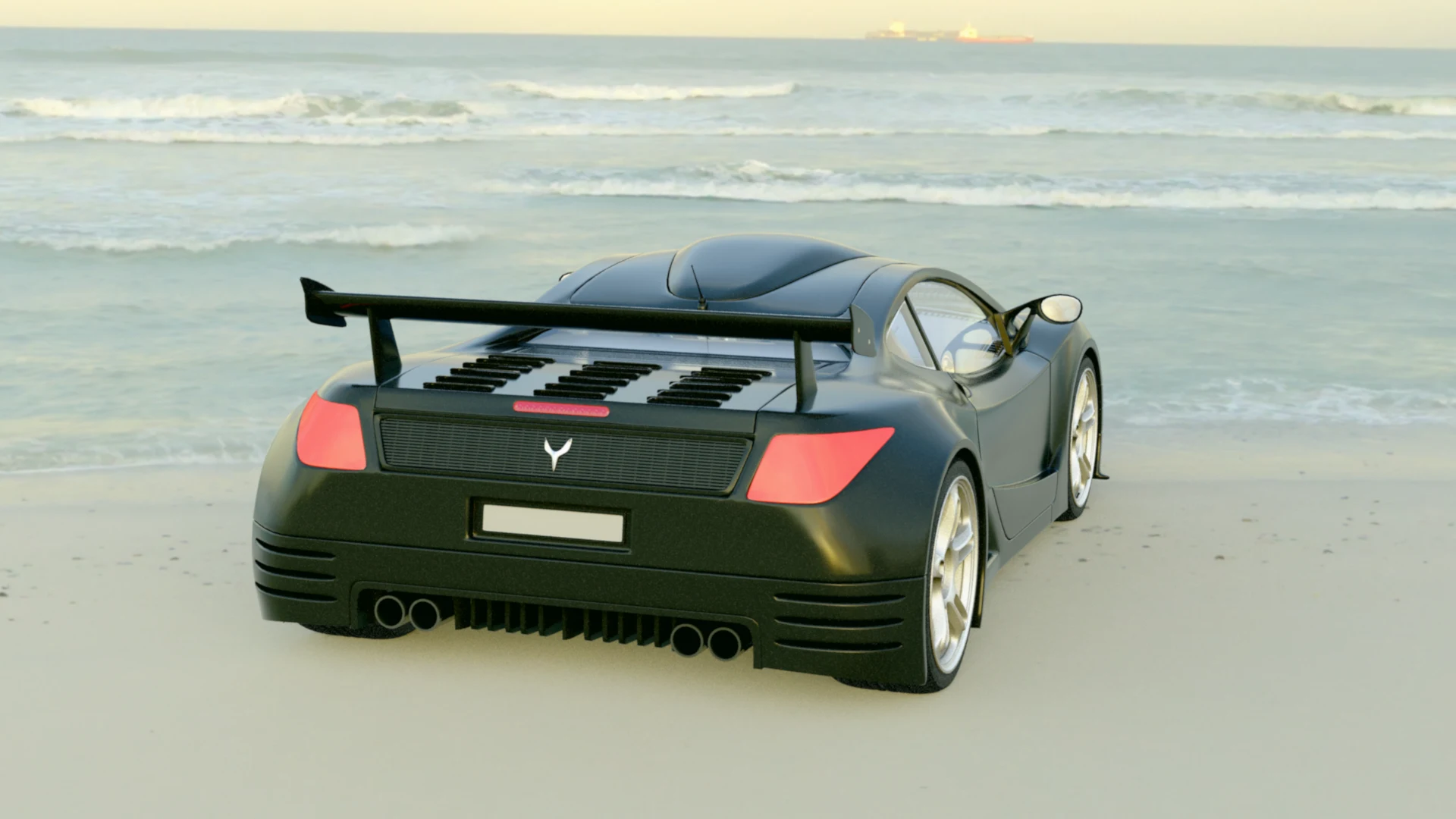
Film Stock: Velvia 50. The landscape photographer's firecracker: saturation right up, contrast hard, and the famous Velvia green push all through the sea and sand. Greens and blues go electric, reds glow, and nothing about it is subtle — one of the biggest personalities in the set. Nature shooters swore by it for decades precisely because it exaggerates; use it when the scene deserves exaggeration.
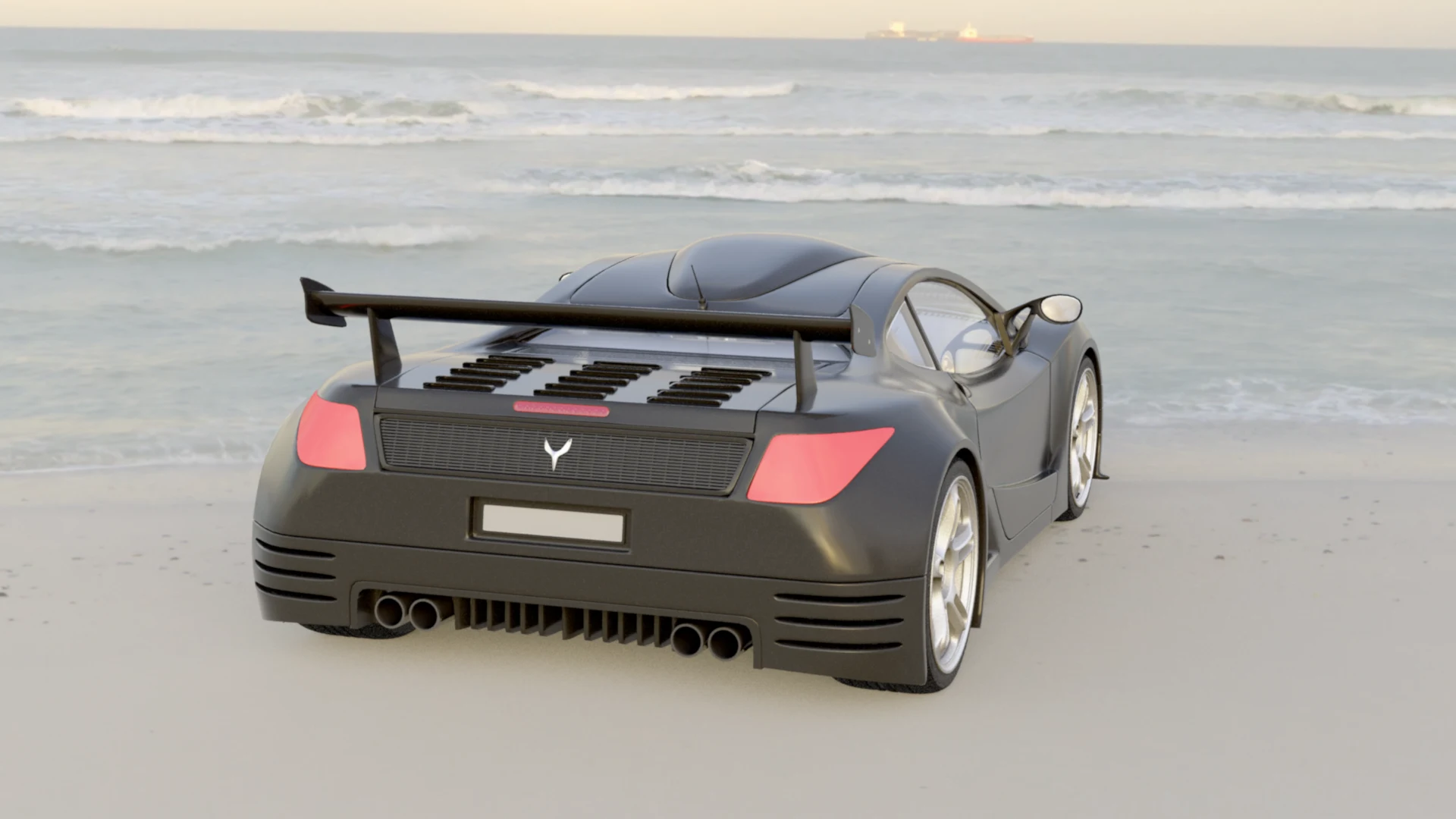
Film Stock: Provia 100F. Velvia's sober sibling — the other Fujifilm slide stock, and the neutral one. Colour is faithful rather than amplified, contrast sits in the middle of the set, and the balance stays true: no green push, no warm lean. This is the reversal stock for people who want the scene the way it was, which is why product and architecture shooters lived on it.
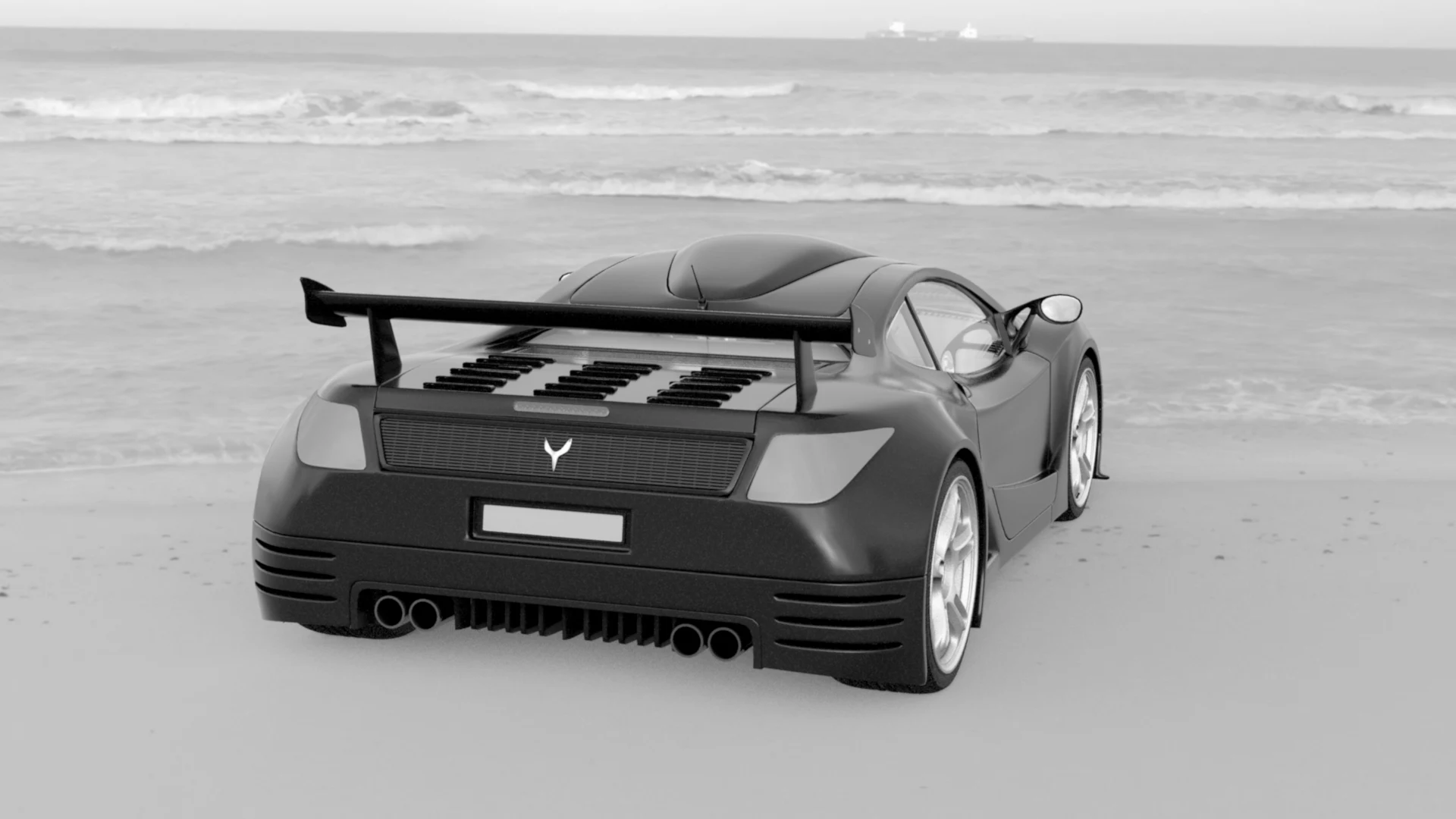
Film Stock: HP5 Plus. Ilford's black-and-white workhorse, and the middle road of the three monochromes: contrast and black depth sit between Tri-X's punch and Double-X's long grey scale, with bright, silvery highlights. The everyday B&W — decades of documentary and student-darkroom history in one stock, and the one to pick when you want monochrome without a manifesto.
The Movie Looks, Frame by Frame
Same frame again — this time with the Film Stock switched off (None, the gallery's reference frame above) and only the Movie Look changing. Each look is a grade in the spirit of a film: not a copy of any single frame from it, but the palette and contrast its cinematography is remembered for. Read them the same way as the stocks — the car's shadow side, the tail lights, the water.
How these looks are made matters: they are not colour tints. Each one was built by analysing the film itself — sampling its frames to measure the palette, the contrast behaviour, and how its colours relate: what the blacks do, where the saturation lives, how the highlights roll off — and encoding that behaviour as a full three-dimensional look-up table. A tint shifts everything the same way. An analysed look treats shadows, midtones and highlights differently, the way the film did. That is why the frames below read as cinematography rather than filters.
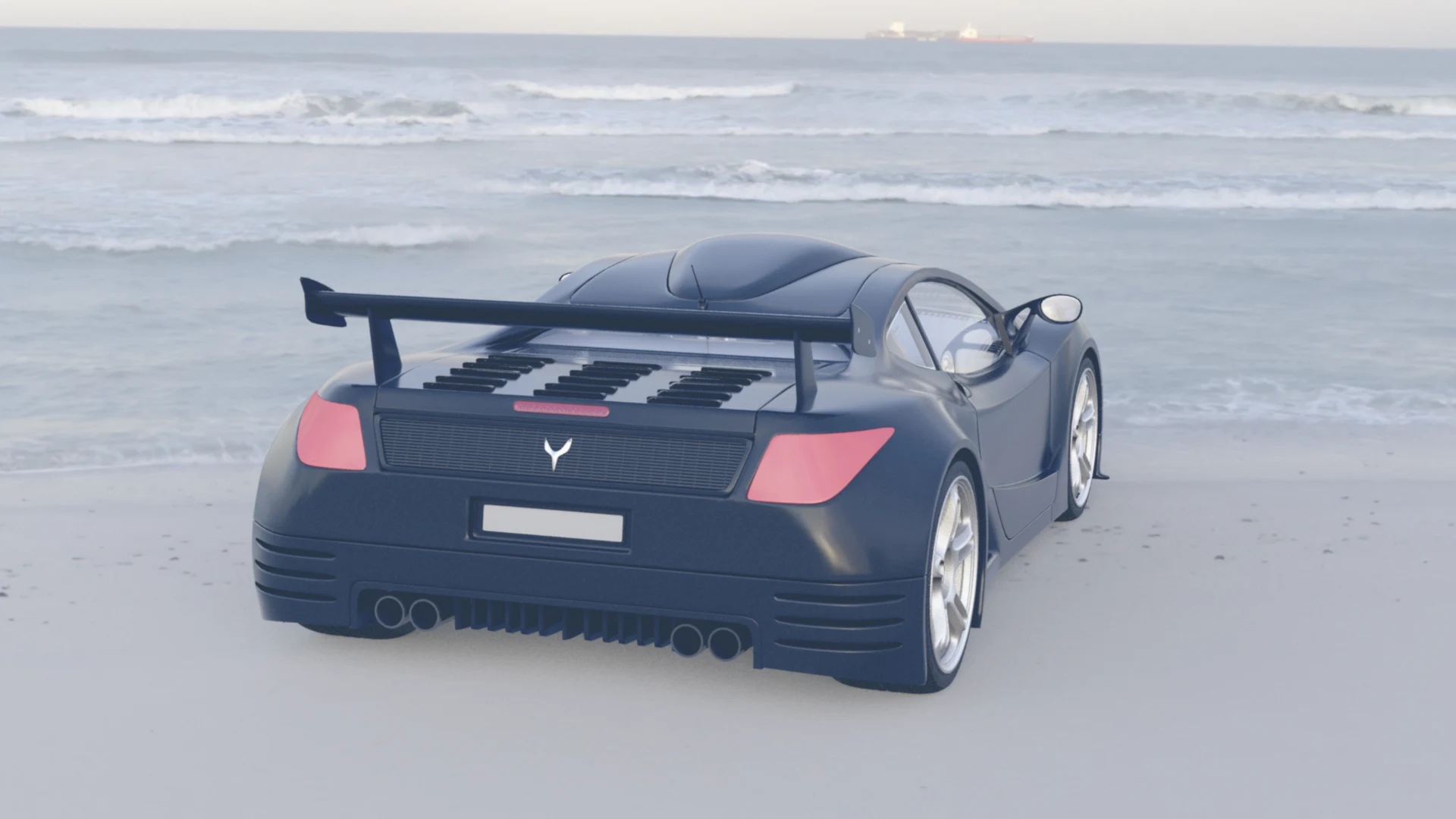
Movie Look: Aliens (Steel Blue). The Nostromo's palette: everything cools into steel blue and grey, the colours collapse into a single cold hue, and bright daylight turns industrial. The red tail lights surviving against all that blue is exactly the contrast this look lives on.
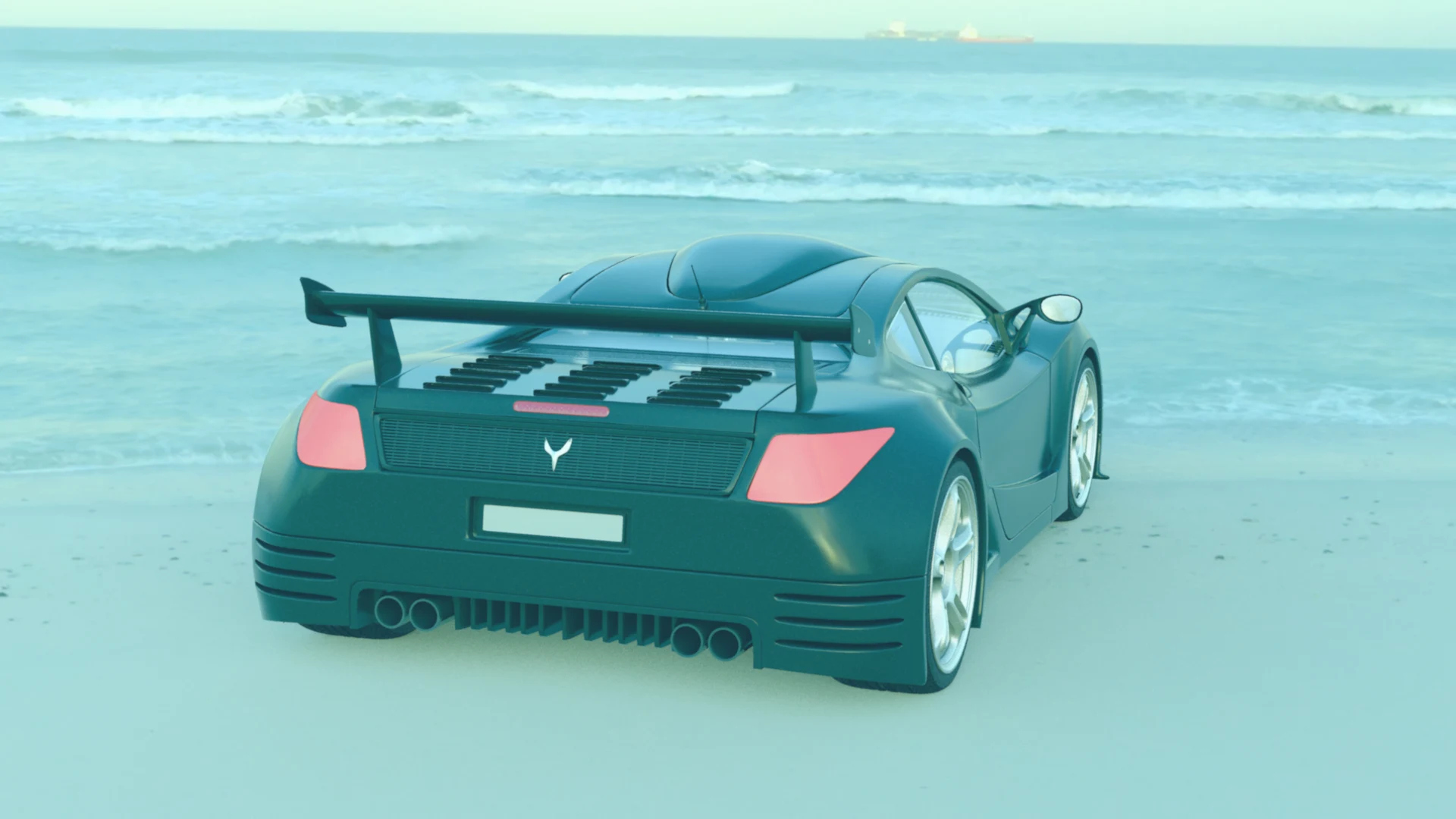
Movie Look: Avatar (Pandora). Pandora floods in: teal and green take over the whole frame, the sea goes tropical-turquoise, and even the sand picks up the jungle's glow. It's a full-immersion palette — the daylight doesn't just cool, it changes planet.
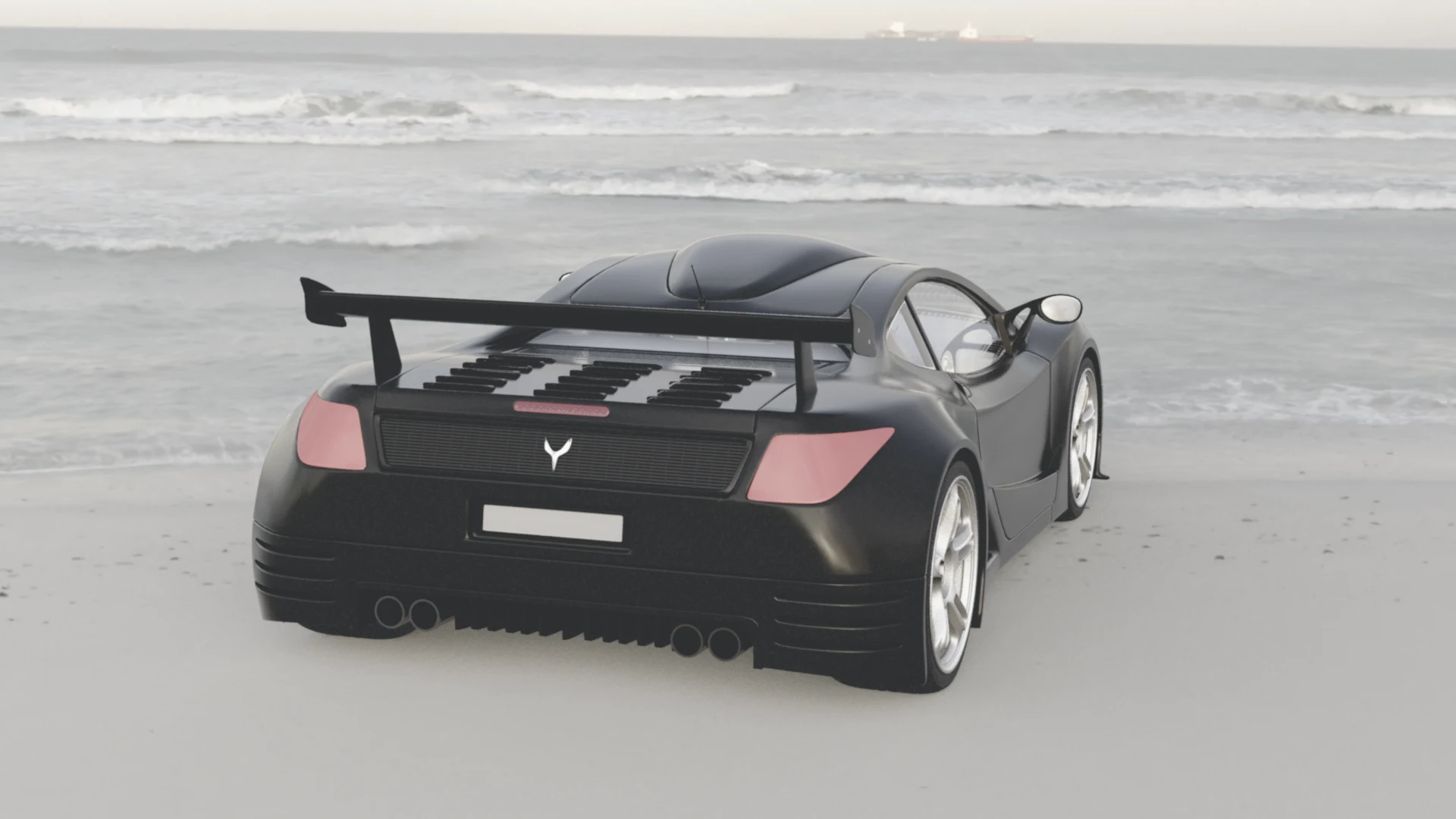
Movie Look: Saving Private Ryan (Bleach Bypass). The bleach-bypass process, Kamiński-style: colour drains away toward steel grey, contrast hardens, and the whole frame goes gritty and desaturated — the tail lights fade to a pale pink ghost of themselves. Nothing about it is pretty, and that is precisely the point.

Movie Look: Jurassic Park (Amber Jungle). Amber is the right word: the whole frame warms toward gold, the black car takes on a bronze-olive glow, and even the sea turns honeyed. It is the adventure-film warmth of a jungle at golden hour, poured over a beach.
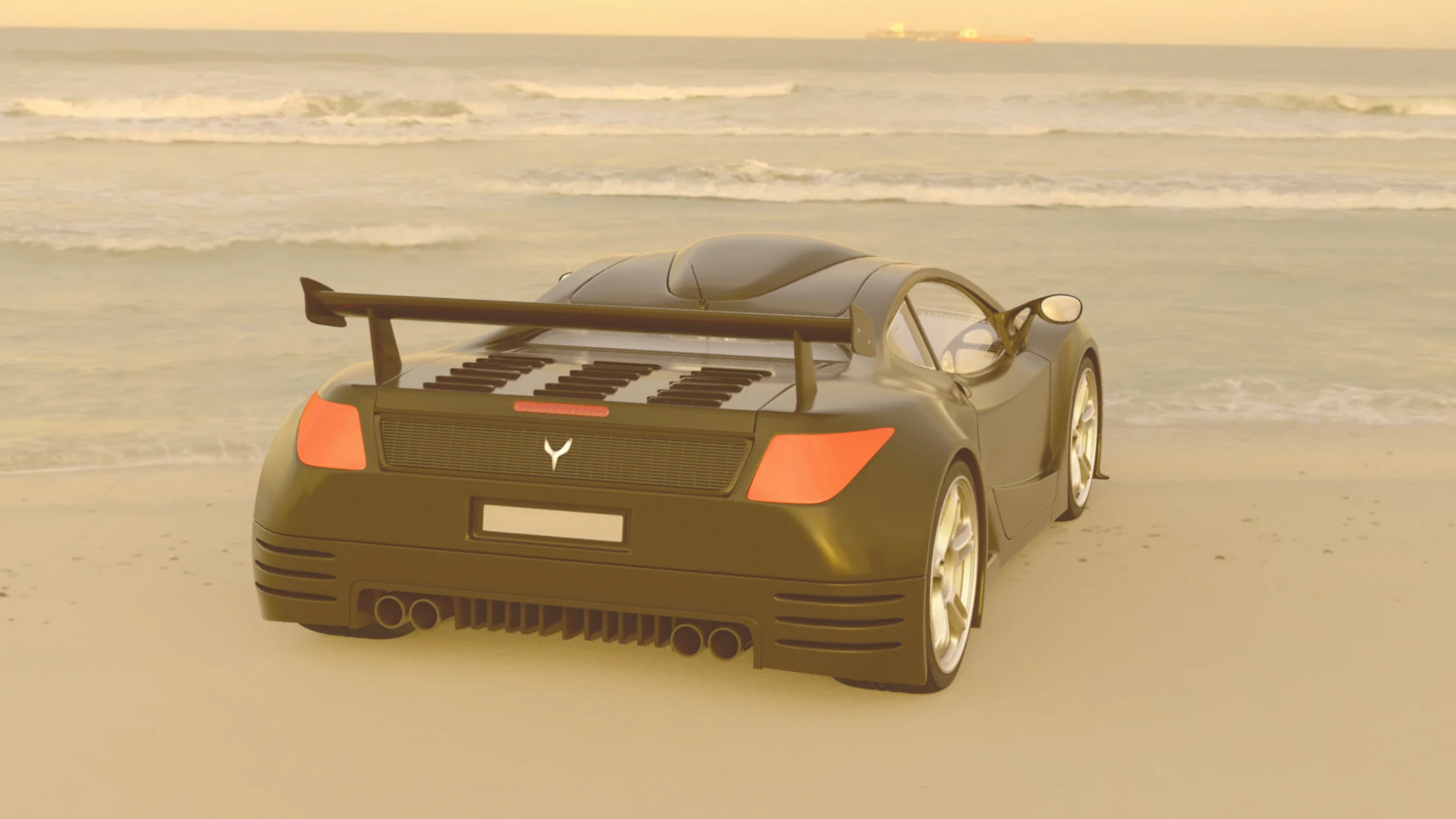
Movie Look: Star Wars (Tatooine). Twin-suns heat: the frame bakes into desert gold and sepia, brighter and more baked than the Jurassic Park amber — a hot haze that lifts even the blacks — with the tail lights burning orange. Where Amber Jungle is golden hour, Tatooine is high noon on a planet with no shade.
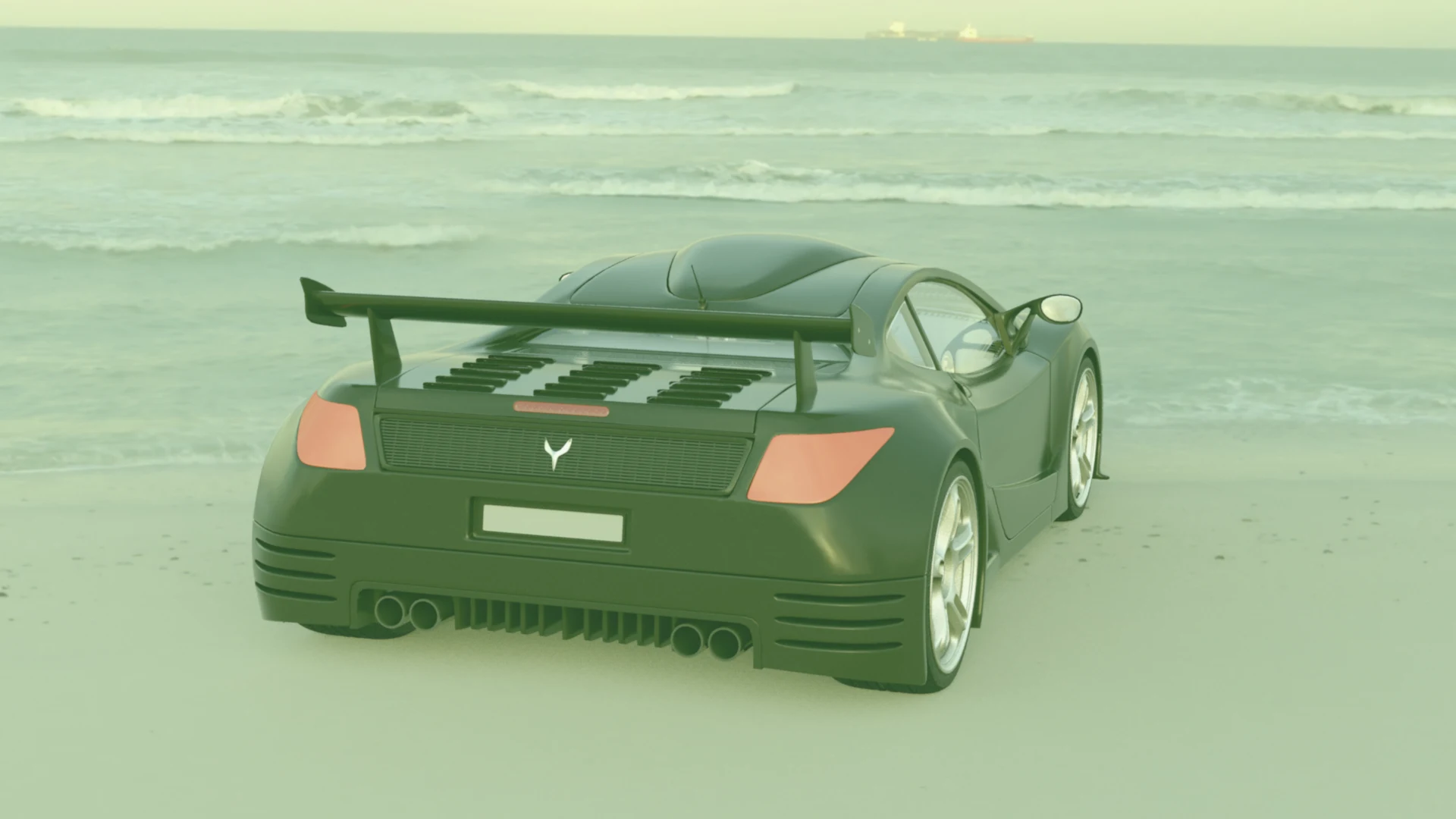
Movie Look: Empire Strikes Back (Dagobah). The swamp planet: a mossy green haze settles over everything, blacks lift into the murk, and the light goes soft and damp. Even a sunny beach ends up feeling like somewhere a Jedi trains in fog.
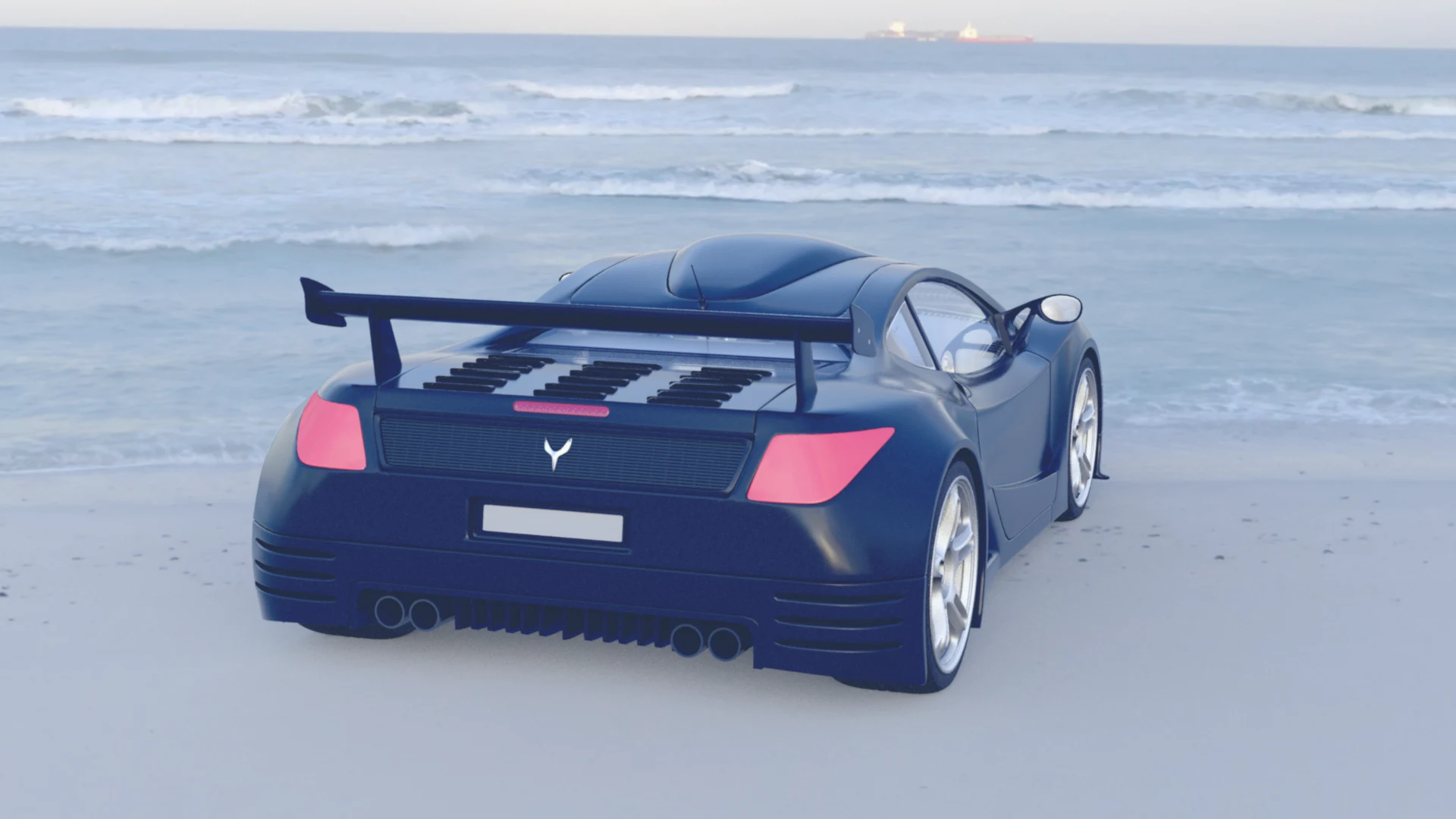
Movie Look: Die Hard (Nakatomi). The other blue — and a different blue entirely from Aliens' steel. This is night blue: deep, glossy, saturated, the Nakatomi Plaza after dark. Daylight doesn't just cool here; it turns into a Los Angeles night, all glass and neon reflections.
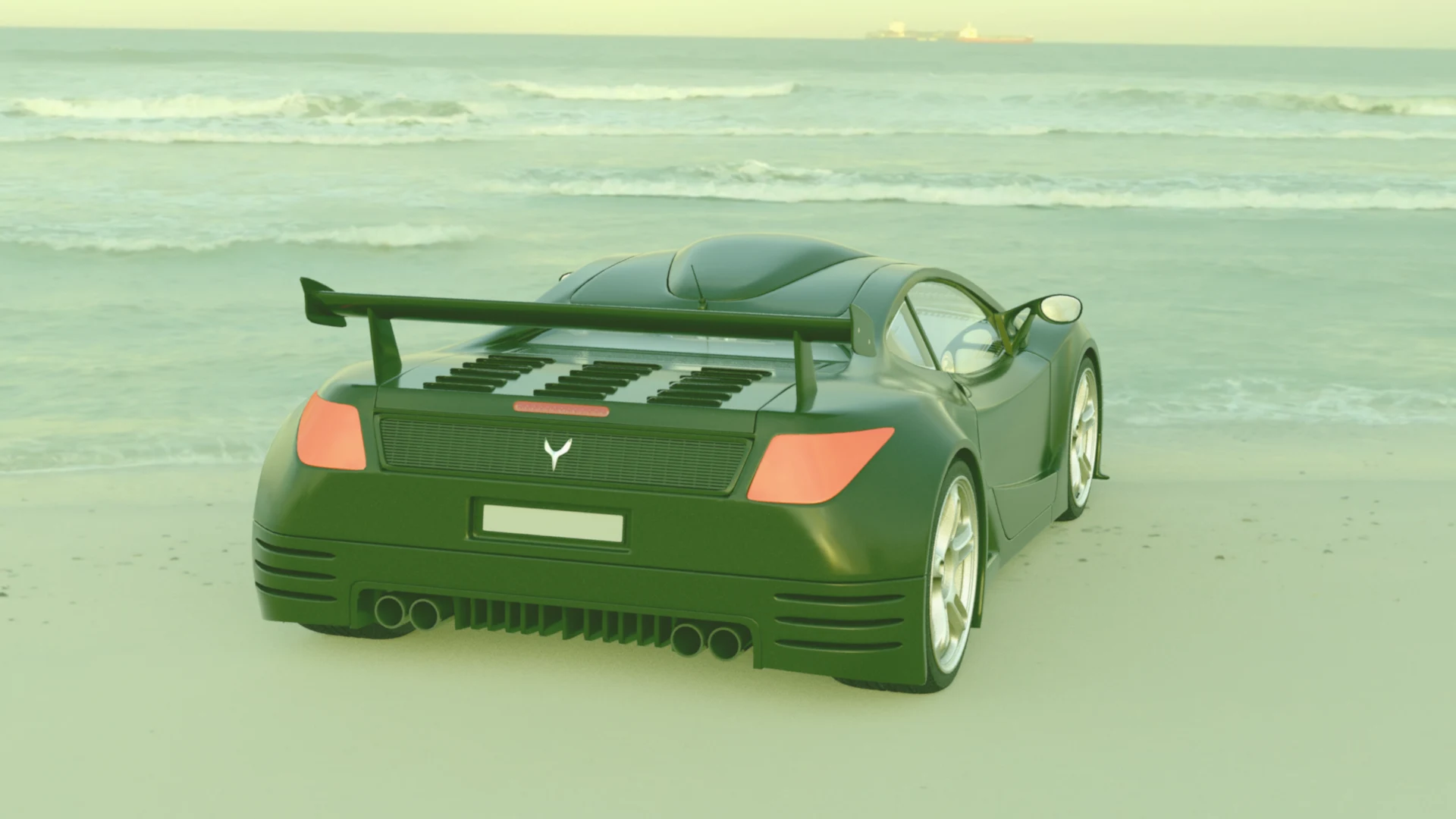
Movie Look: Predator (Jungle Heat). The other green, and the opposite of Dagobah's haze: this jungle green is deep and humid, with the shadows going dark army-green instead of lifting into murk. Same hue family, different physics — Dagobah is fog; Jungle Heat is canopy shade, and something in it is watching you.
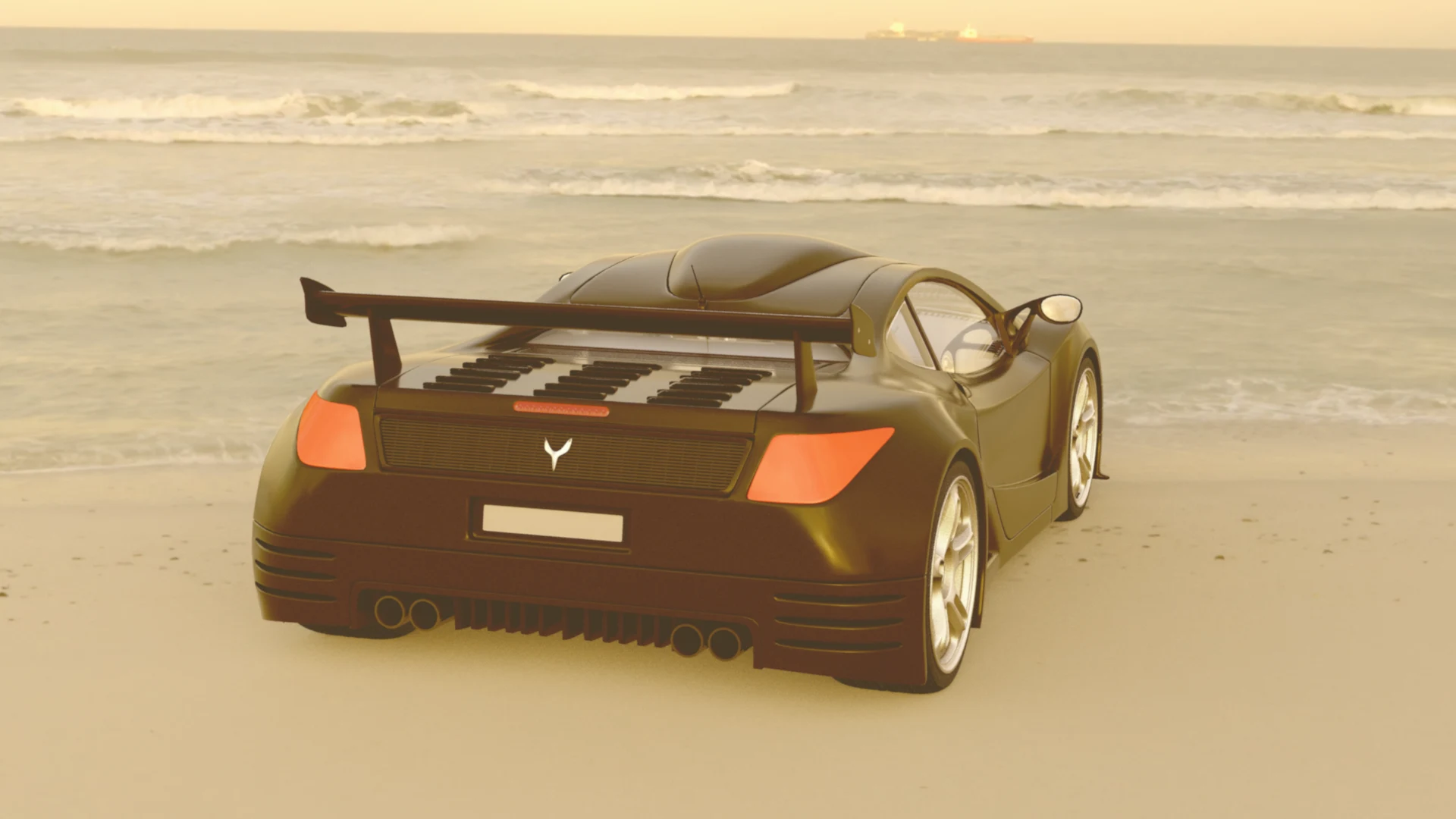
Movie Look: The Godfather (Amber Darkness). The third amber, and the dark one: a bronze-sepia warmth that pulls the exposure down instead of baking it bright, so the shadows go deep and brown and the highlights glow like lamplight through cigar smoke. Tatooine is noon; this is the study, door closed.
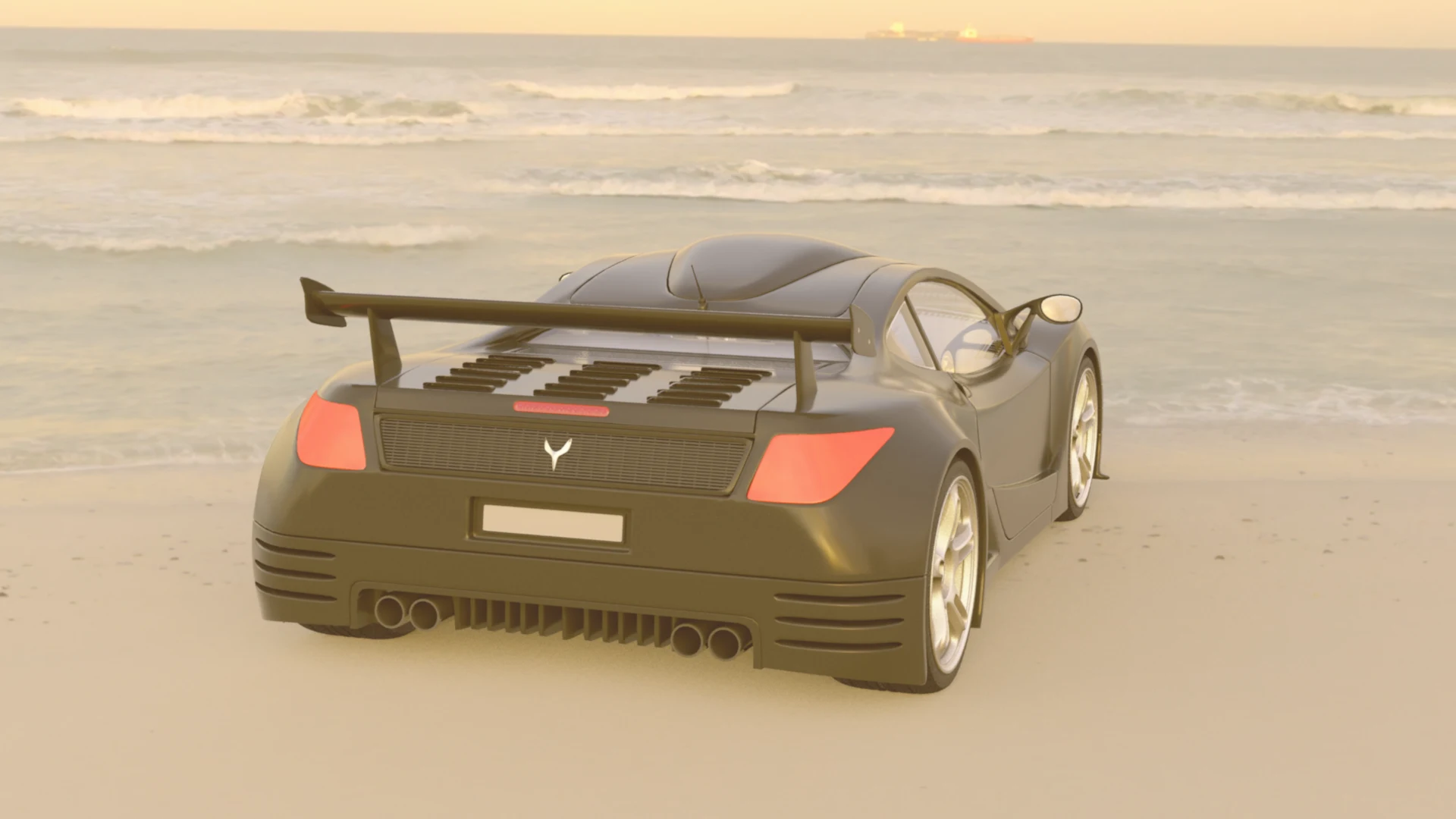
Movie Look: Amélie (Paris Gold). The warm family's romantic: gold poured over everything, but lifted and glowing where the Godfather broods — a storybook Paris morning. The tail lights pop storybook-red against the gold-green, which is the film's whole palette in miniature: red, green and gold, in love with each other.
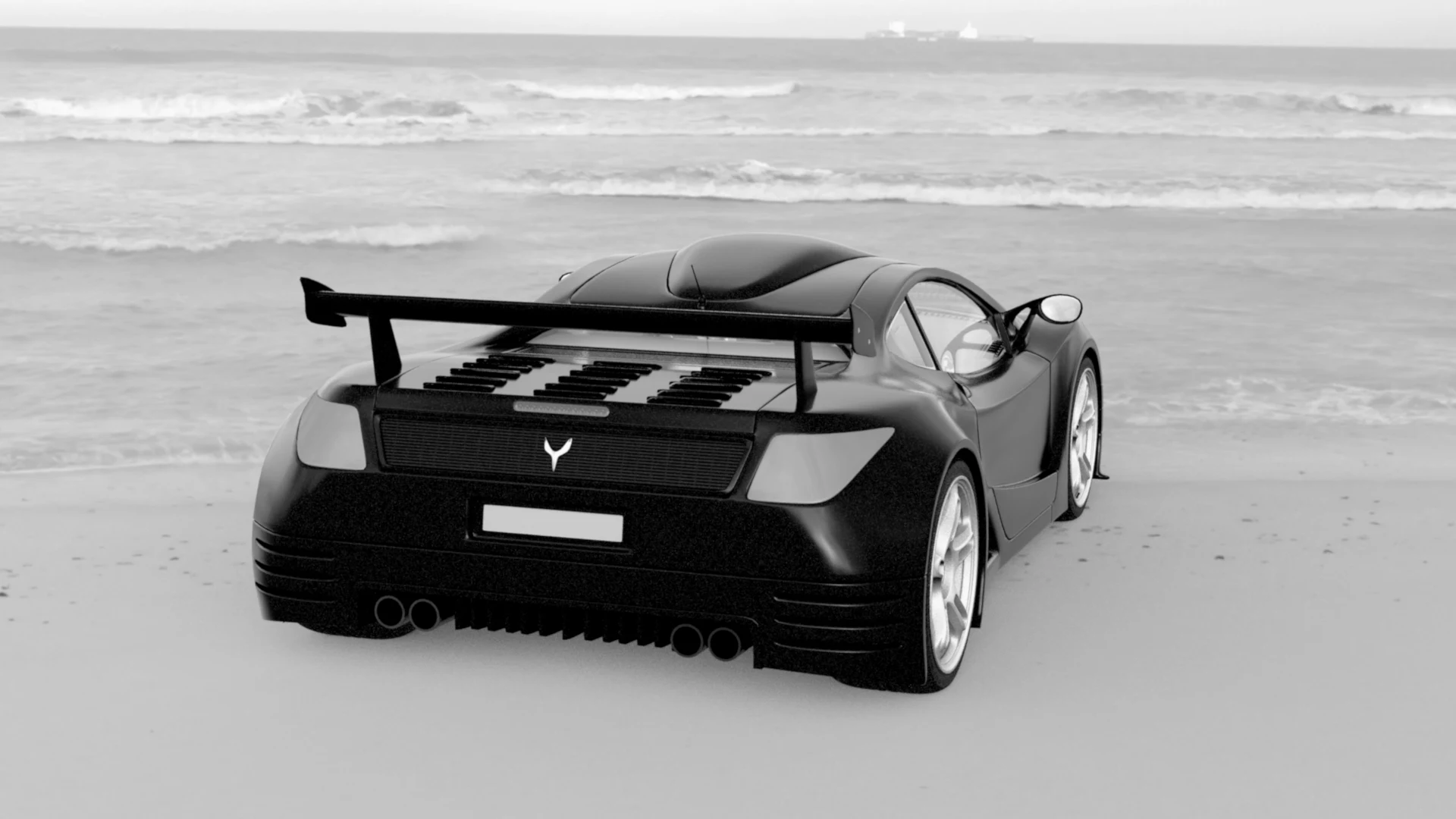
Movie Look: Noir. Full monochrome with a crime-scene heart: glossy hard blacks, silvery highlights, and a contrast curve that turns a sunny beach into a publicity still for a detective picture. It lives near the black-and-white film stocks in the gallery above — compare it with Tri-X: the stock emulates a film, this emulates a genre.

Movie Look: Grand Budapest Hotel (Pastel Symmetry). The softest landing in the set: contrast nearly dissolves, the blacks lift to grey, and what little colour remains is pastel-pink — the tail lights gone powdery. Noir's opposite pole. A dollhouse grade for a miniature world, faded like a postcard found in a hotel drawer.
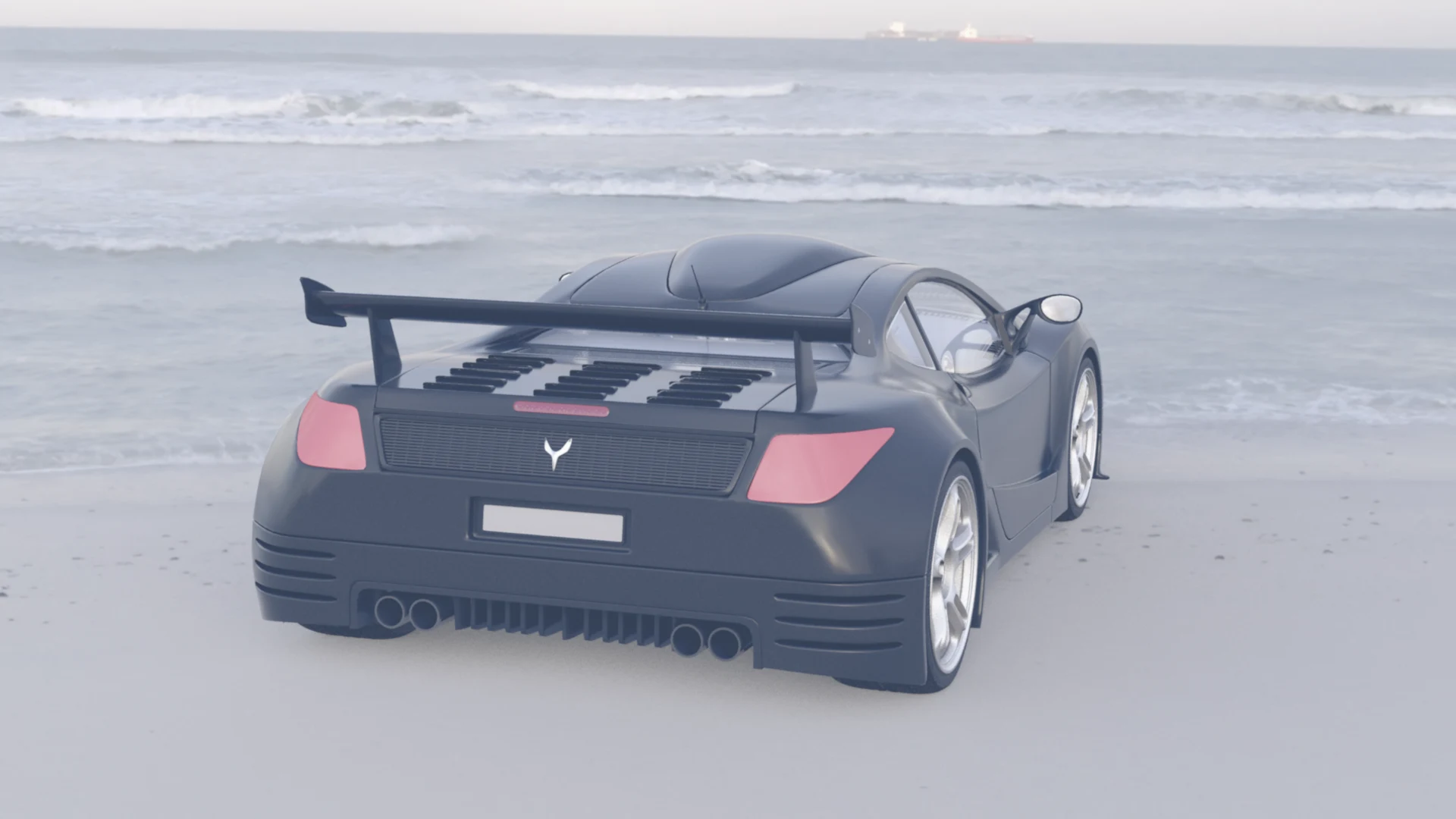
Movie Look: Empire Strikes Back (Hoth). The ice planet answers Dagobah's swamp: everything goes blue-grey and bright, the blacks lifting under snow glare until even a black car reads slate. Where Dagobah is damp murk, Hoth is whiteout — the two Empire looks are weather reports from opposite ends of the same film.
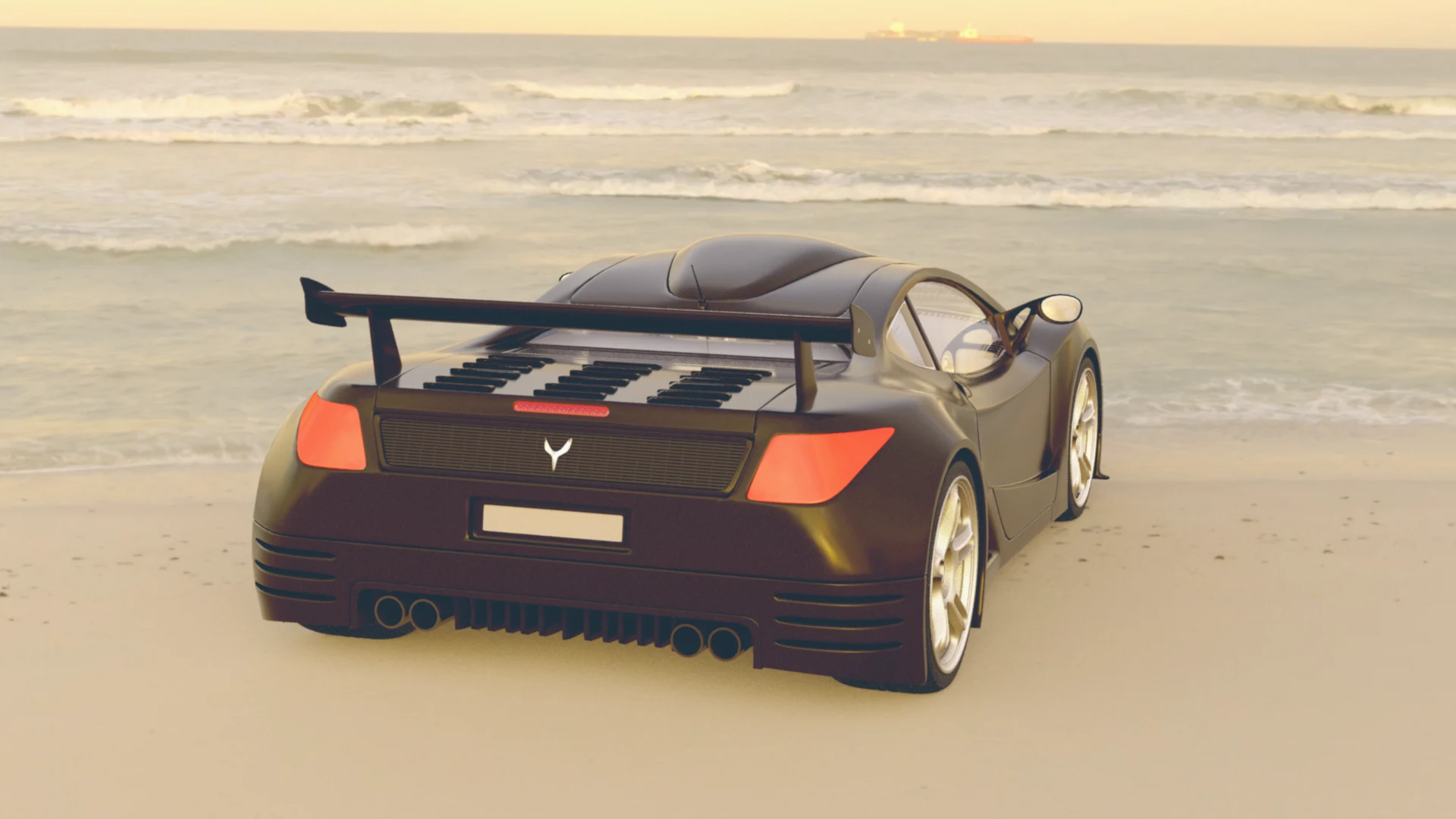
Movie Look: The Terminator (Tech Noir). Named for the nightclub where the future comes hunting. On a daylight frame it shows its warm half — a bronze-amber grade sitting between the Godfather's darkness and Amélie's glow, tail lights burning hard orange — but its soul is the film's blue-and-orange night, and that is where this look truly wakes up: night streets, neon, and chrome.
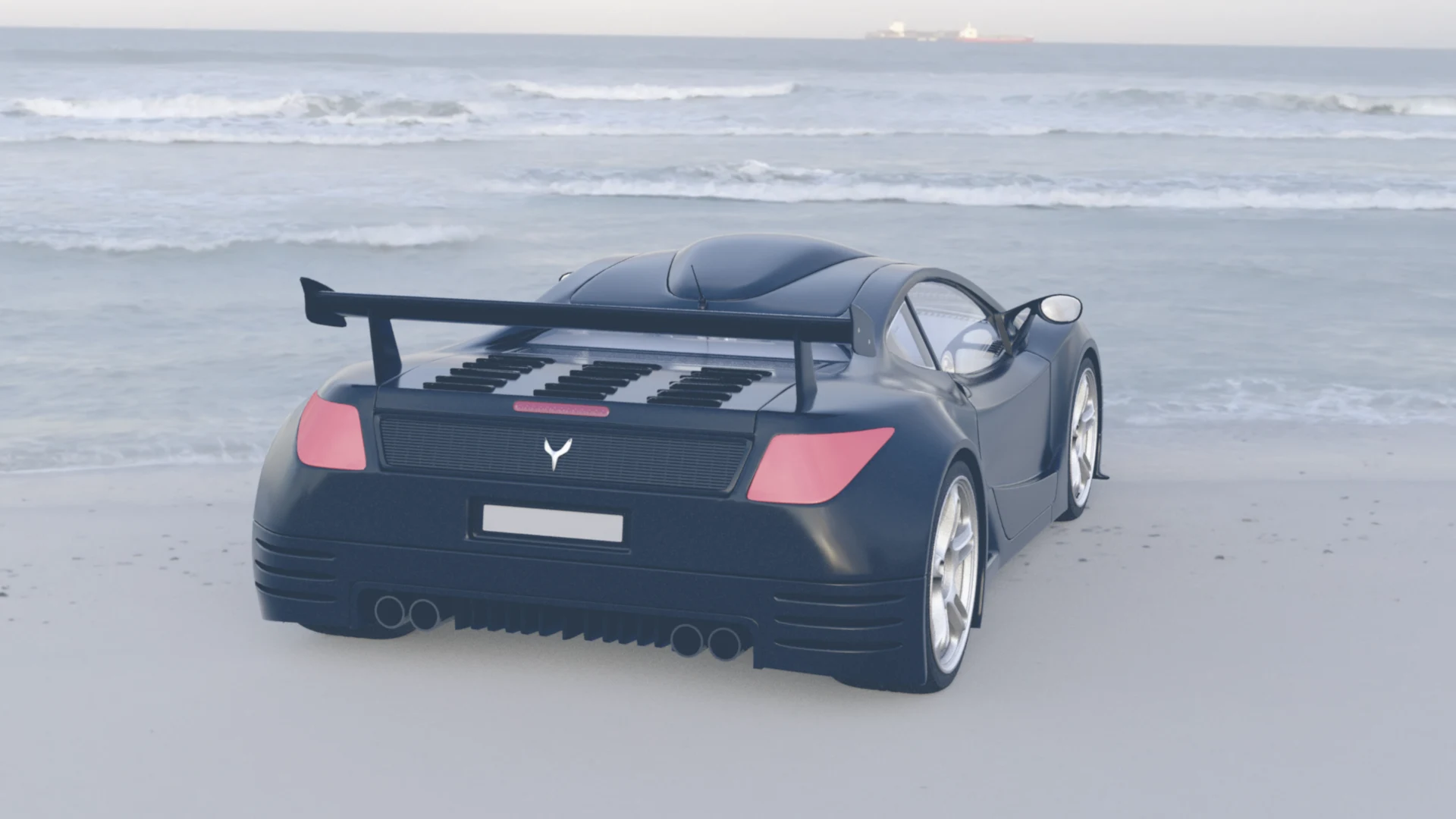
Movie Look: Terminator 2 (Chrome Dawn). Blue steel: the car turns liquid-metal navy, the daylight goes icy, and everything hardens into Cameron's chrome-and-cyan world. It sits between the two other blues — brighter than Nakatomi's night, darker and more metallic than Hoth's whiteout — dawn light on a machine.
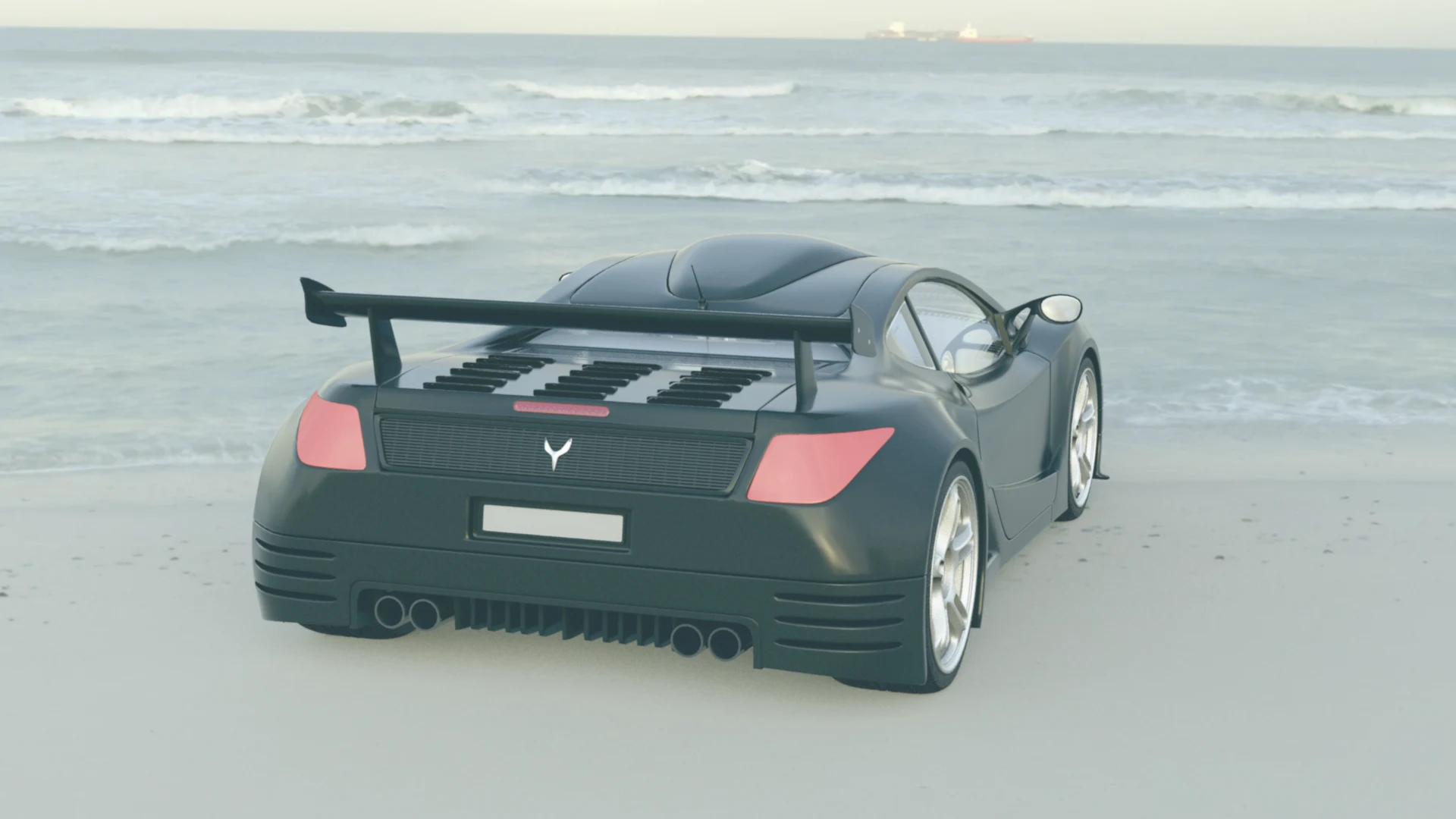
Movie Look: Aliens (LV-426). The colony world, as opposed to the ship: where Steel Blue is deep industrial navy, LV-426 is bleak daylight — pale, desaturated blue-grey, blacks washed up by atmosphere, contrast flattened by weather. Hadley's Hope in the rain, hoping the motion tracker is wrong.
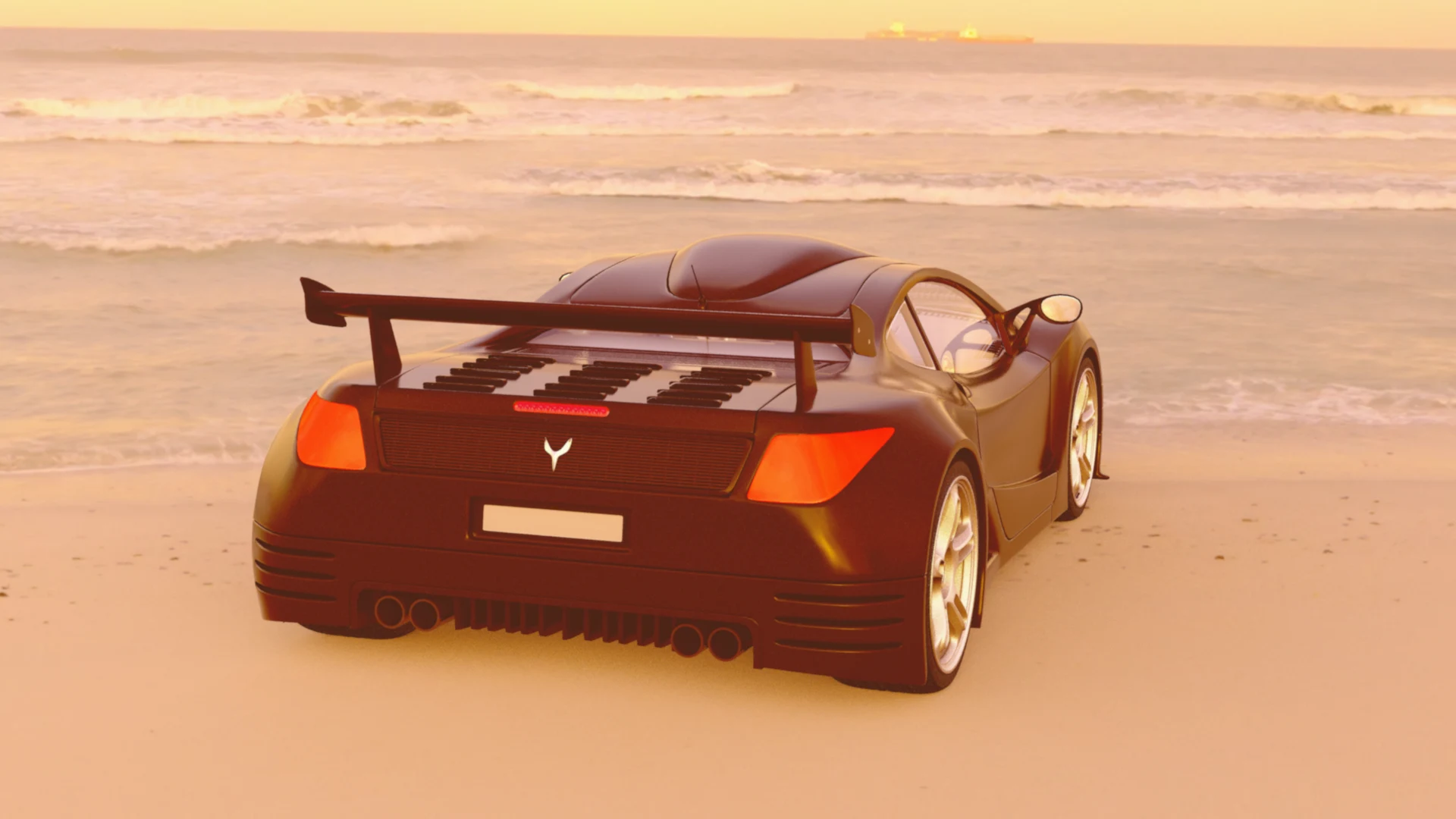
Movie Look: Predator (Thermal Hunt). Through the hunter's eyes: a heat-grade in hot orange, the whole scene running warm-to-glowing, highlights blooming like body heat — even the freighter on the horizon lights up as a target. Not a literal false-colour thermal image, but the palette of one, poured over your scene.
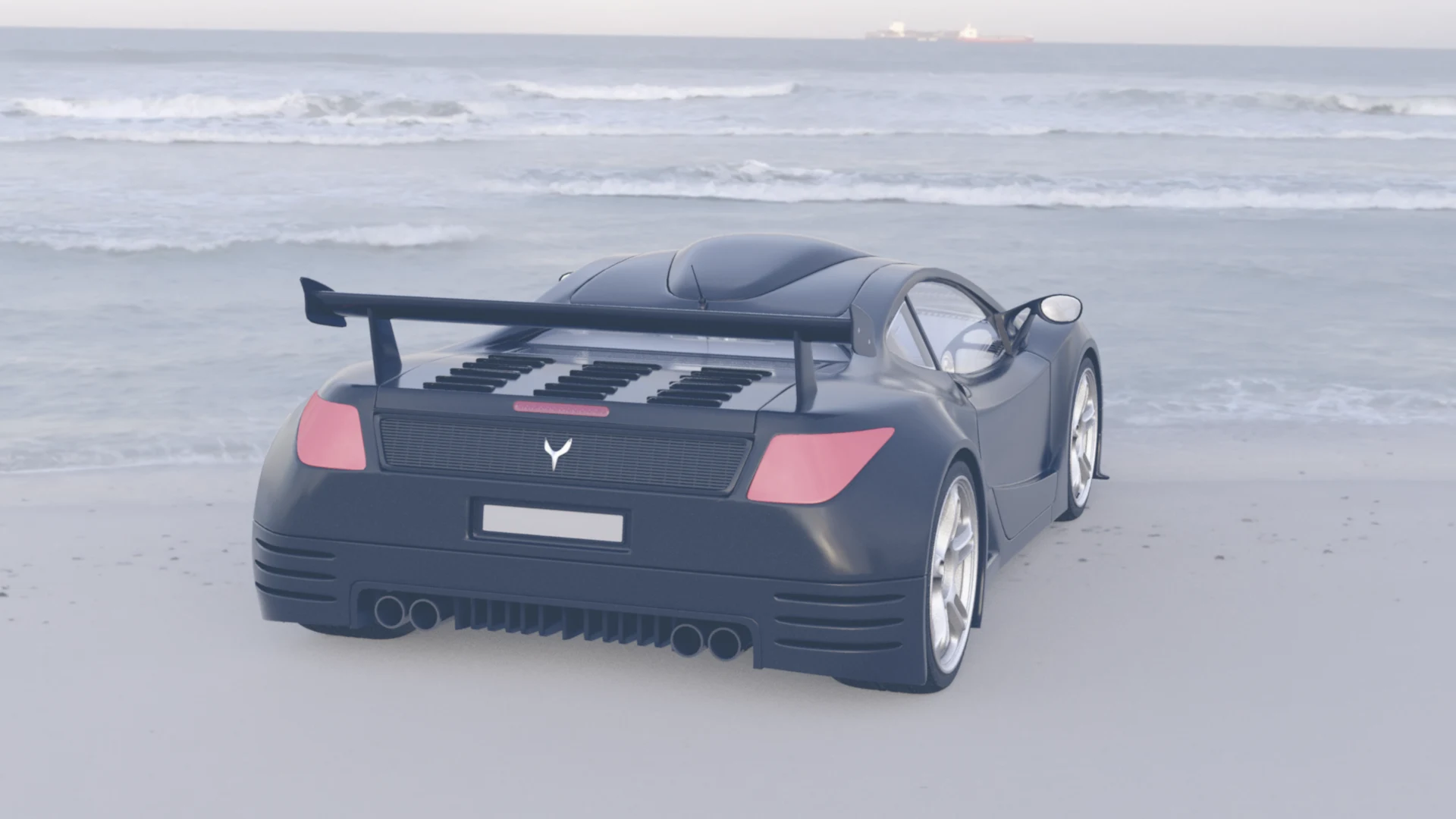
Movie Look: Die Hard 2 (Snow Runway). The other snowstorm, and the darker one: where Hoth is whiteout glare, Snow Runway is a blue-grey night storm — deeper shadows, steel-slate car, everything cold and sodium-lit underneath. Christmas Eve at Dulles, and the weather is the least of anyone's problems.
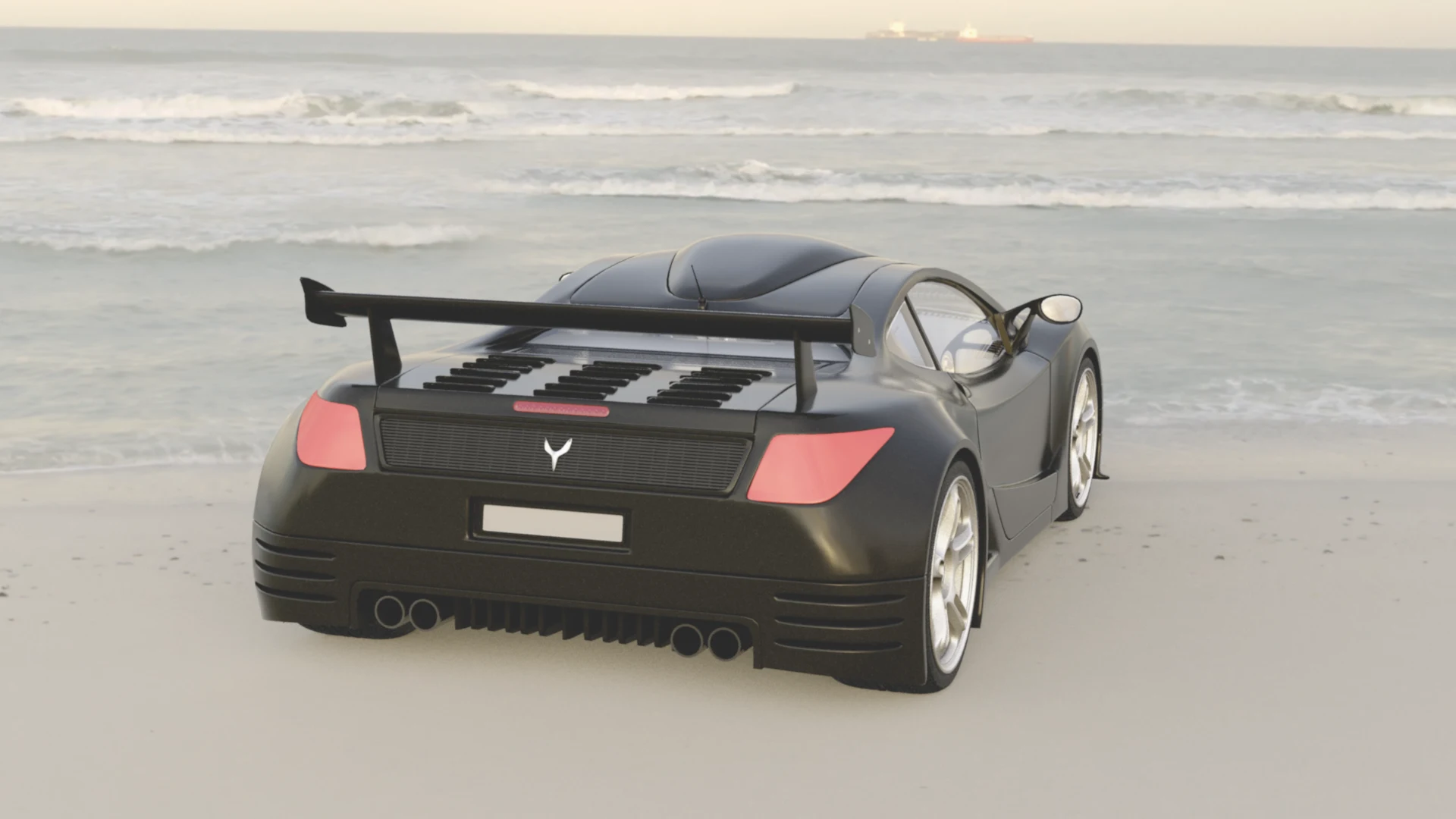
Movie Look: RoboCop (Motor City). The quietest look in the set — nearly naturalistic: the colour pulled in and muted, contrast quietly up, neutral steel-grey light — Detroit by way of a news camera. After Thermal Hunt's fireworks it is a palate cleanser, and that restraint is its character: old Detroit, shot straight, satire delivered deadpan.
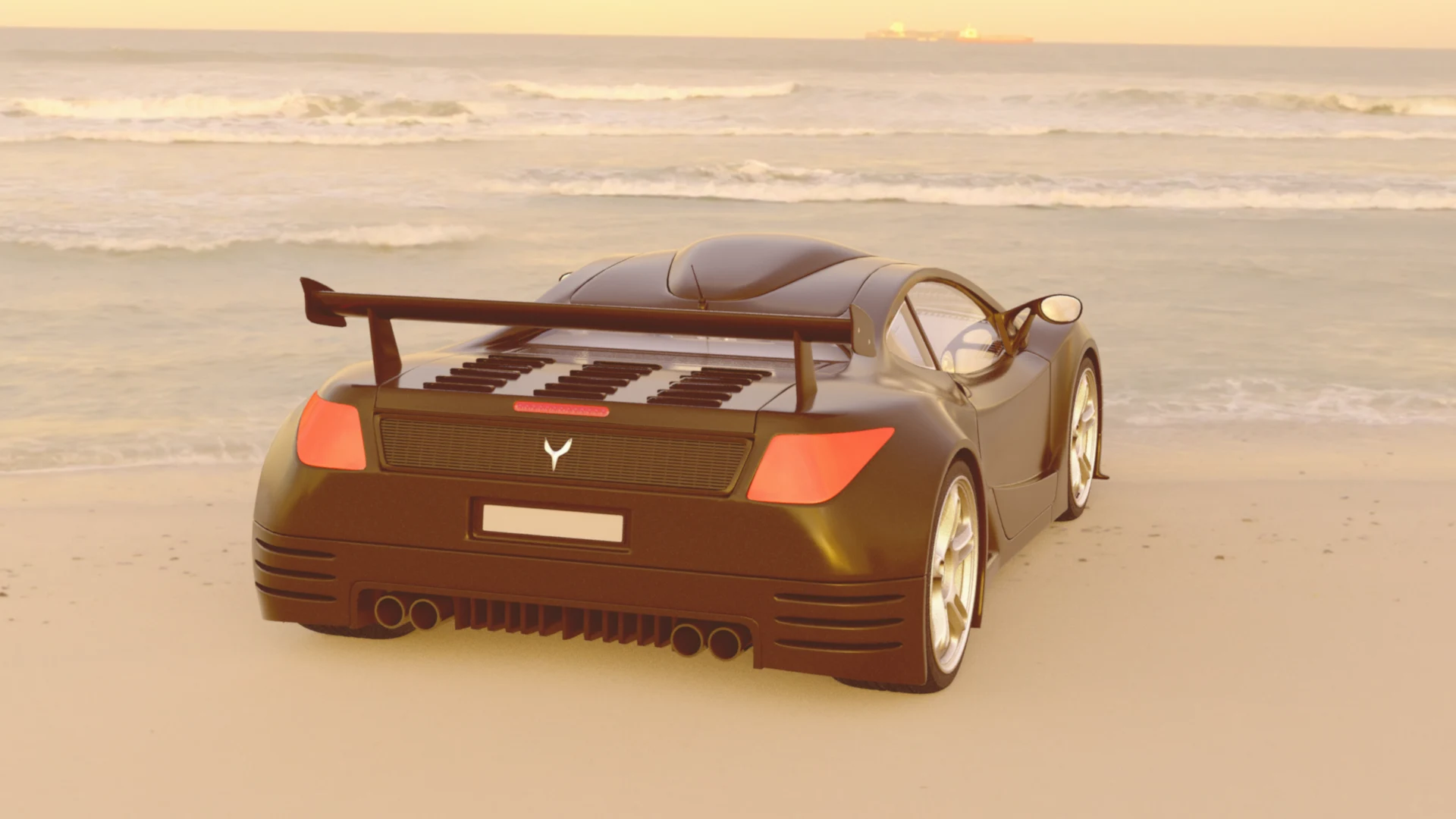
Movie Look: Total Recall (Mars Red). The red planet to close the set: a rust-sepia grade, warmer and browner than Tatooine's gold, with the shadows going the colour of Martian rock and the highlights running thin-air pale. Two weeks on Mars, and the beach will never look entirely terrestrial again.
Mixed: Stock and Look Together
The galleries isolated each layer so you could judge it alone. Real shots stack them — stock as the capture, look as the grade — and the combinations have personalities neither parent has. (Both examples use the RED Komodo-X sensor profile, as throughout the galleries, and the Look Amount is 100 — the full stack, blended at full strength.)
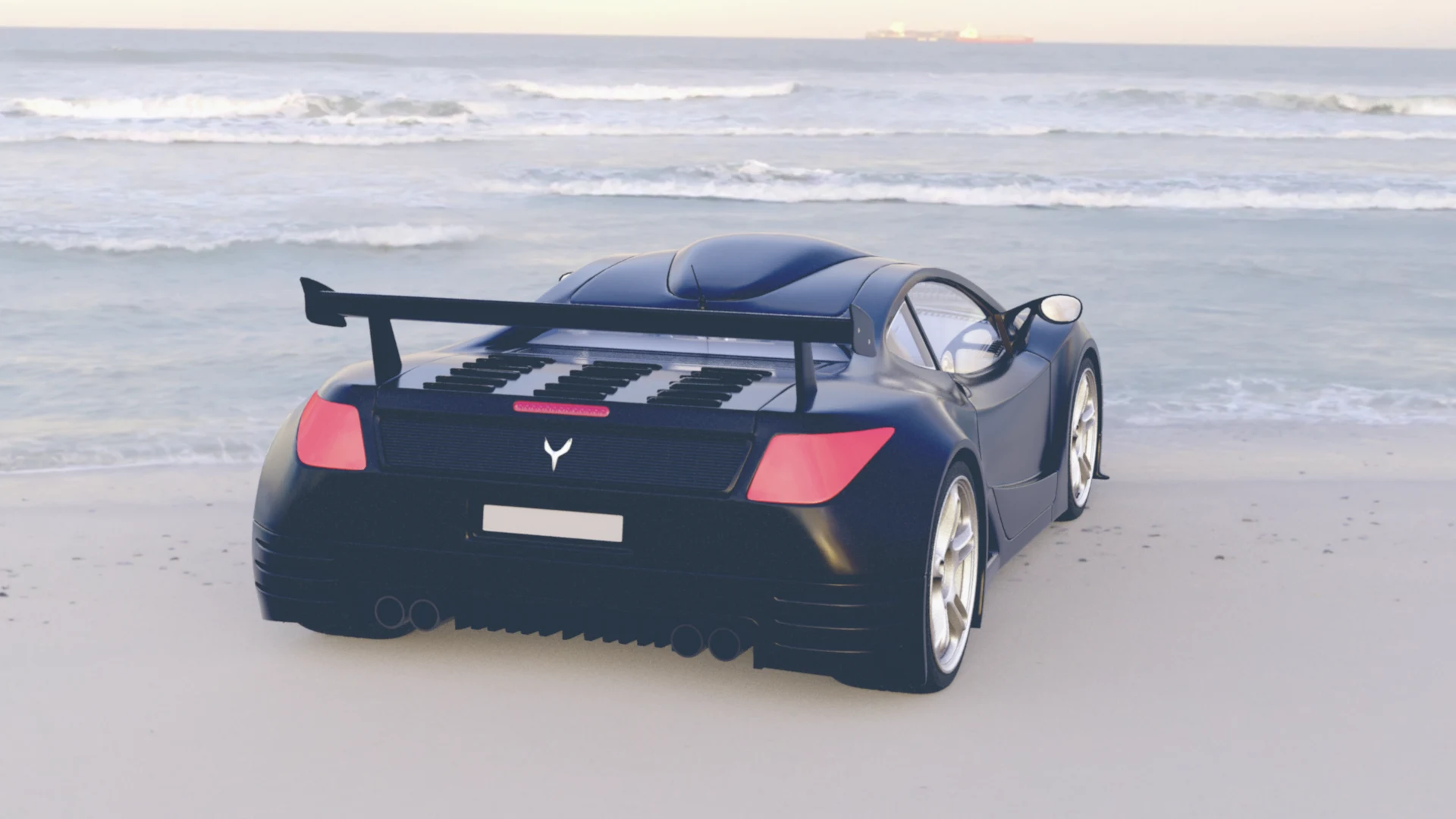
Mixed: Kodachrome 25 + Aliens (Steel Blue). The stock's deep, warm punch survives under the look's industrial blue: the blacks dig well below what Steel Blue reaches on its own, while Kodachrome's reds push back through the cold — the tail lights are the argument. Two strong personalities, and neither cancels the other.
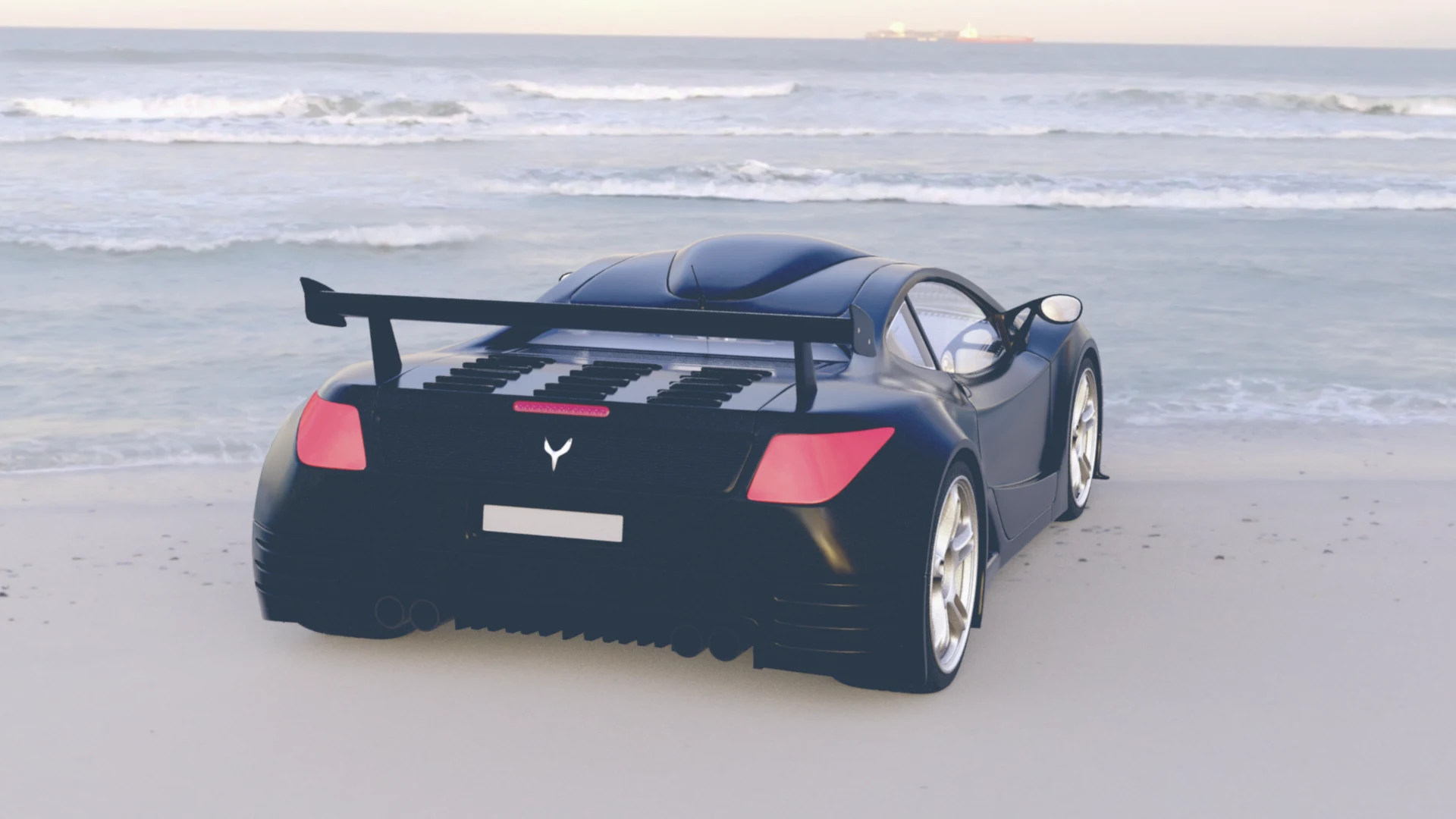
Mixed: Kodachrome 25 + Terminator 2 (Chrome Dawn). Same stock, the other Cameron blue — and the two mixes land close. The Kodachrome skeleton dominates both: rich, deep blacks, tail lights glowing red. What changes is the light over the water — the Chrome Dawn mix runs brighter and icier in the sea and sky, the Steel Blue mix moodier and deeper. A useful lesson in what a mix is: the capture decides the bones, the grade decides the weather.

Mixed: Ektachrome 100 + Aliens (Steel Blue). The reversal stock's clean punch under the same blue as the first mix — and the comparison cuts the other way: hold the look constant and swap the stock, and the picture moves more than it did when the stock was held and the look swapped. Ektachrome keeps the blacks tight and the tail lights hard and vivid, and it lets the Steel Blue lead — this combination sits closer to its look than the Kodachrome one did. The capture medium is never just a passenger.
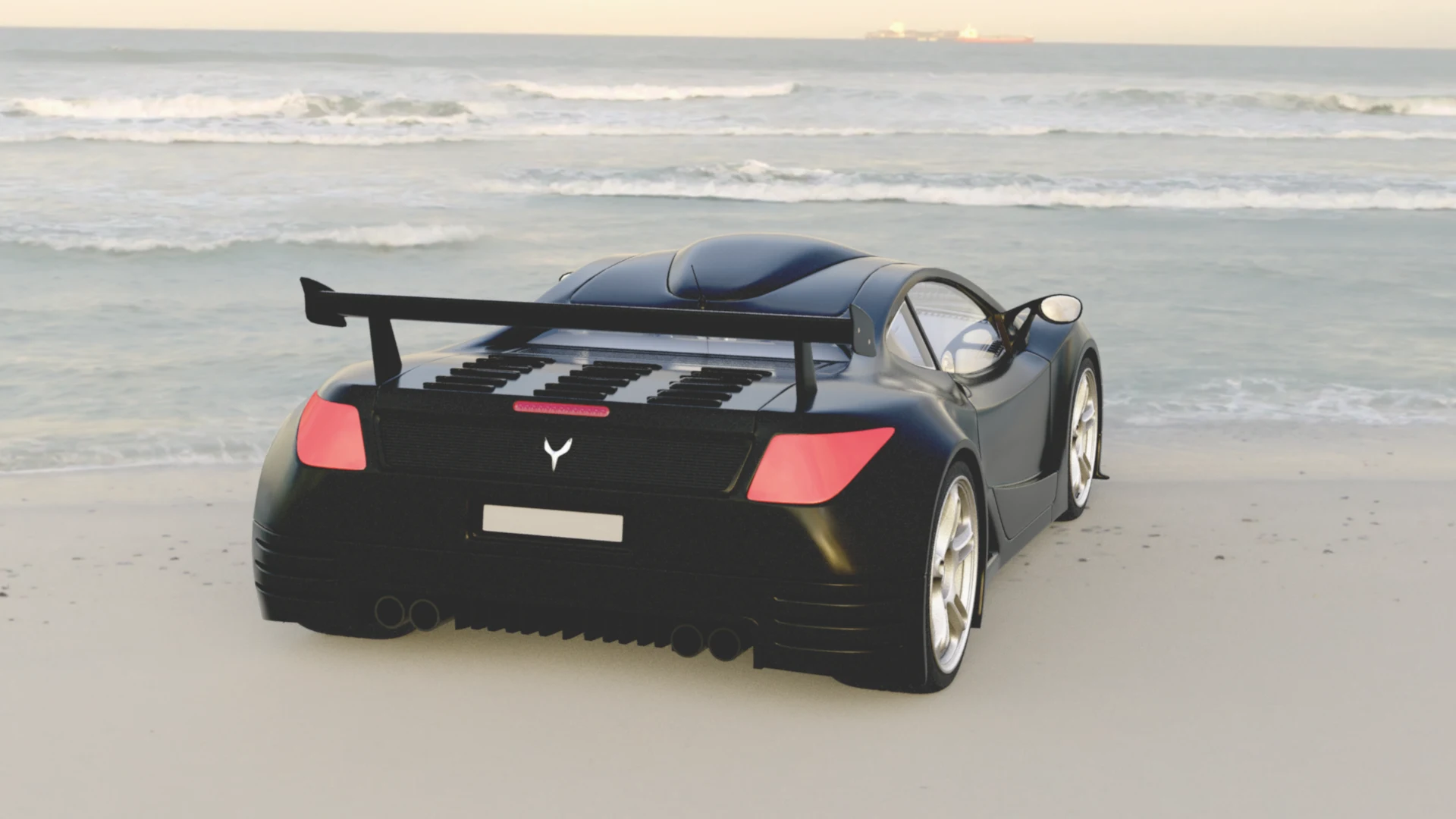
Mixed: Ektachrome 100 + RoboCop (Motor City). The quietest look on the clean stock — and it stays quiet: the car drops toward neutral black, the water goes pale aqua, and only the tail lights keep the stock's vividness. Set the four mixes side by side and a rule shows itself. Kodachrome pulls its combinations toward the stock — its two mixes, under two different looks, come out near-identical. Ektachrome hands its combinations to the grade — its two mixes stay clearly distinct, each sitting closer to its look than to the stock. Heavy capture, light capture: the medium decides how much of the final word the grade gets.
Grain, Amount by Amount
Last variable. Everything above ran with the grain off; here the same combination — Ektachrome 100 with RoboCop (Motor City) on the RED Komodo-X profile — is re-rendered at climbing Grain Amounts, so you can watch the Sensor's digital noise arrive. Nothing here is a generic overlay: it is the chosen body's own noise behaviour, driven by the ISO the shot was taken at, reacting with everything upstream of it — the paragraphs after the ladder spell out exactly what drives it.
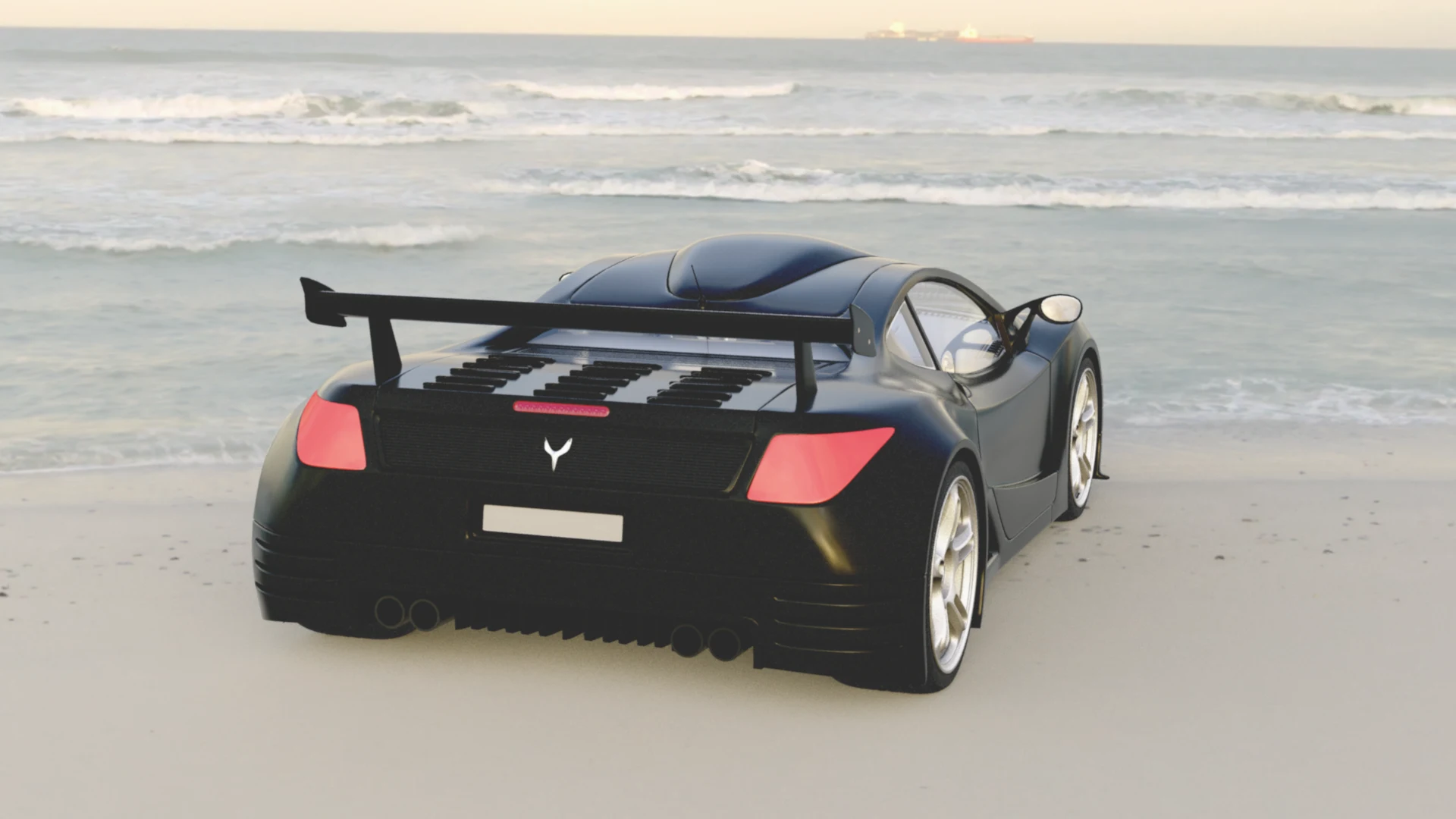
Grain Amount 0%. The mix above with the noise off — the clean reference the following frames wander away from.
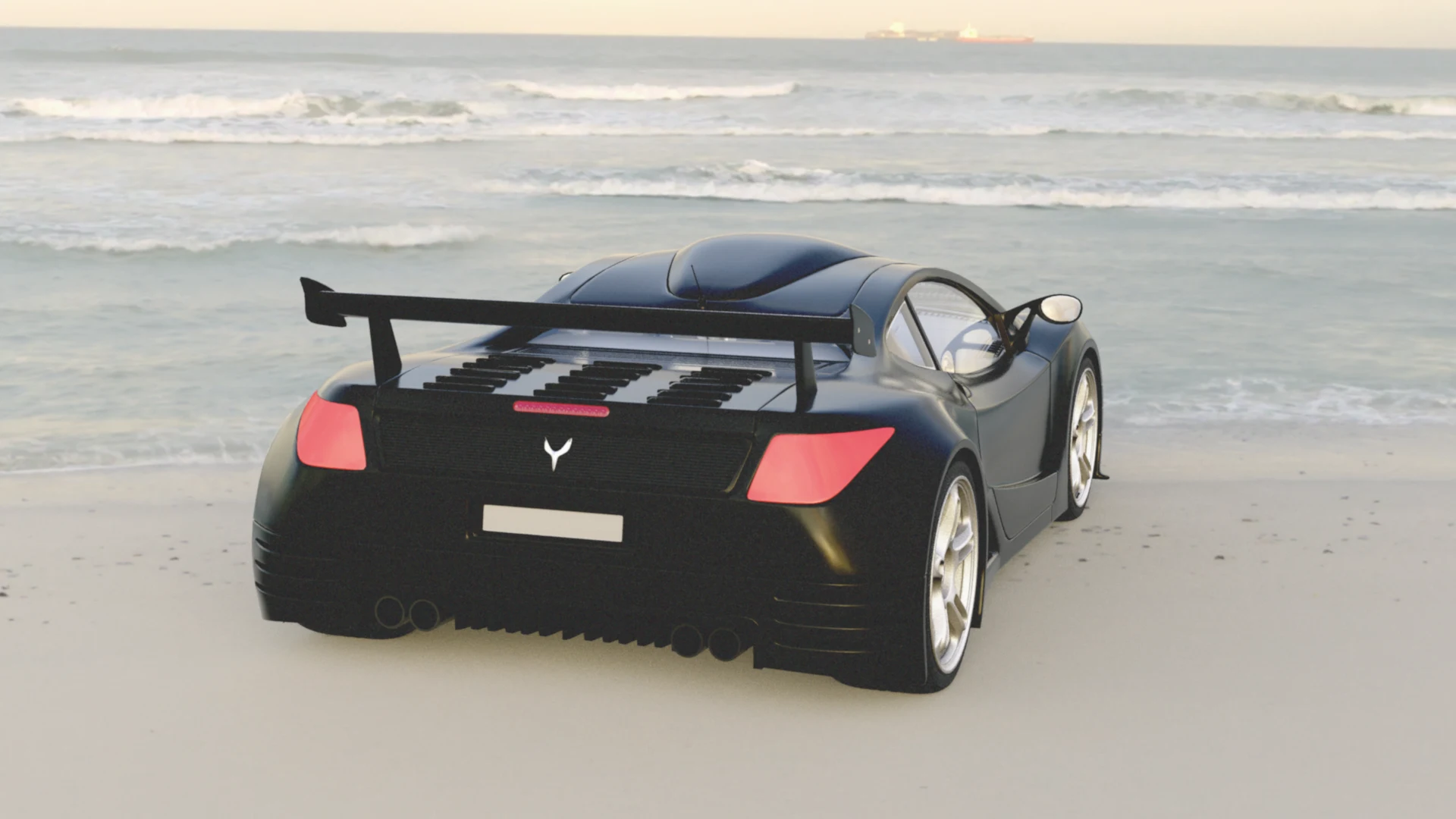
Grain Amount 25%. The noise arrives as a fine, even texture — look at the sky, the sand and the car's shadow side. Nothing about the colour or the contrast changes; the frame simply stops being digitally clean.
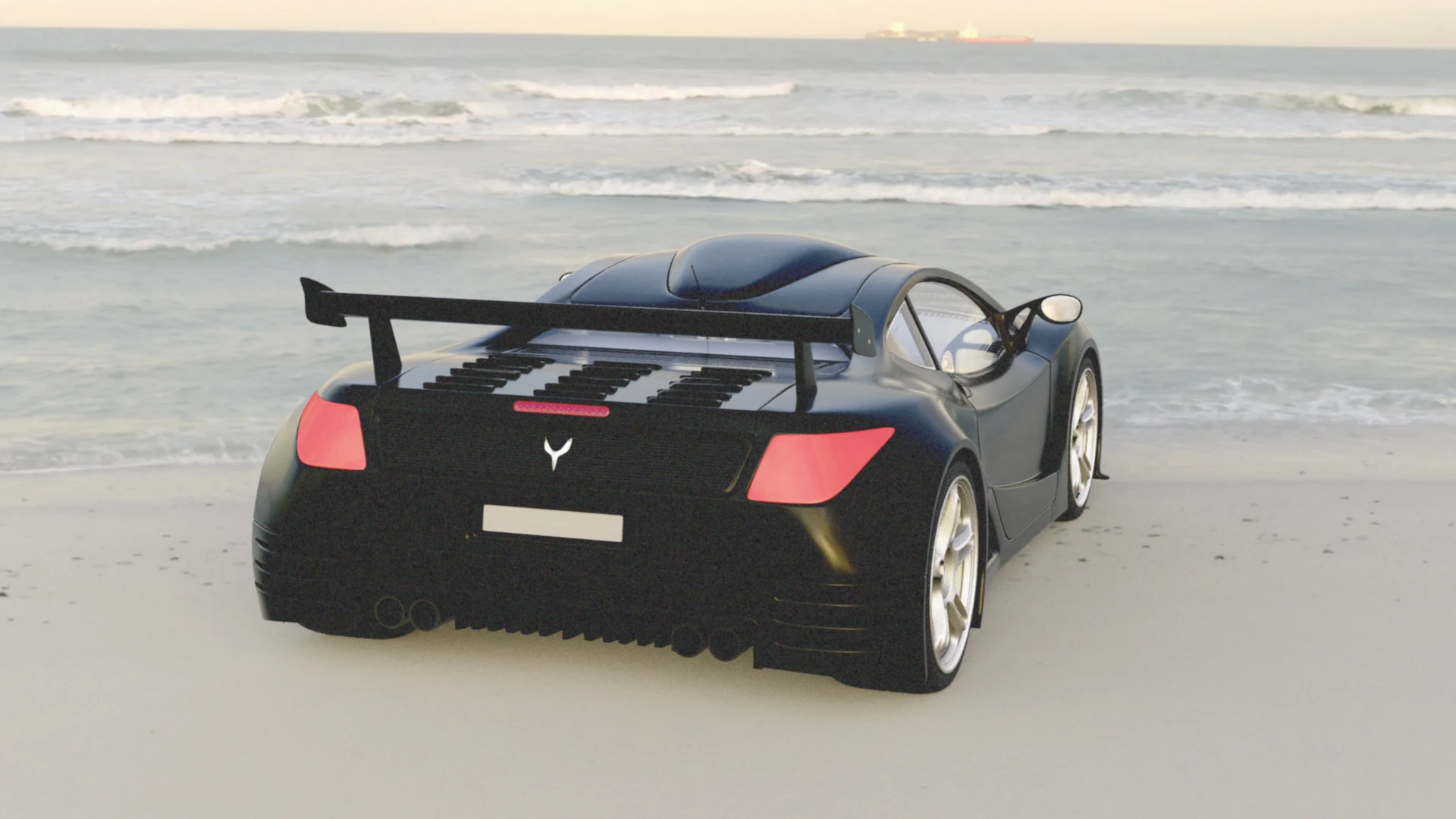
Grain Amount 50%. Now it is unmistakably present. The texture reads everywhere, and it lives largest in the car's dark flanks — the way real grain swims in the shadows of a pushed frame — while the highlights stay comparatively calm.
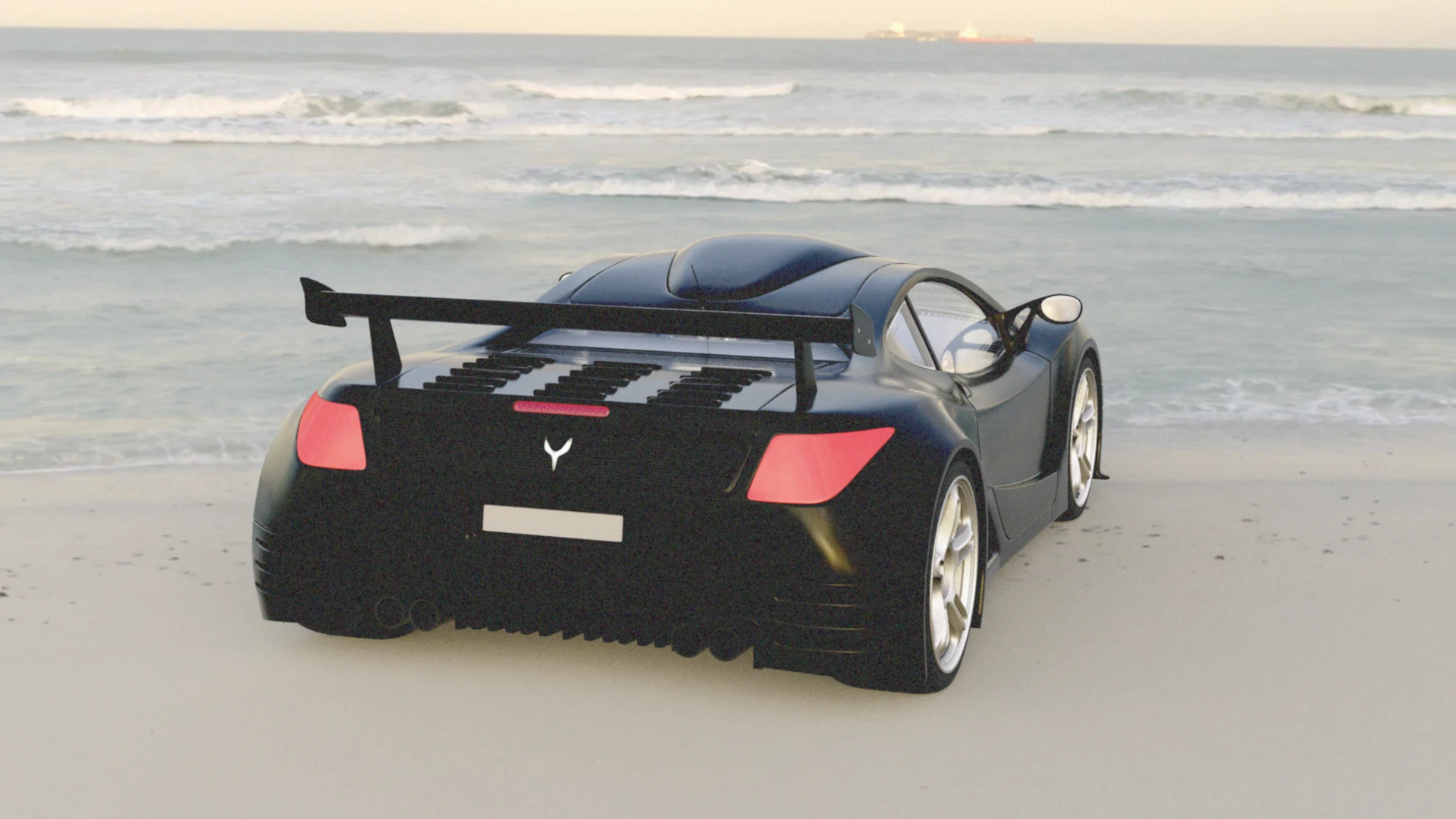
Grain Amount 75%. Heavy weather. The frame now reads as genuinely shot on something — noise is a surface quality in its own right, and the finest detail (the decklid slats, the ship on the horizon) starts to swim in it. This is the neighbourhood of taste: plenty for a period piece, too much for a product shot.
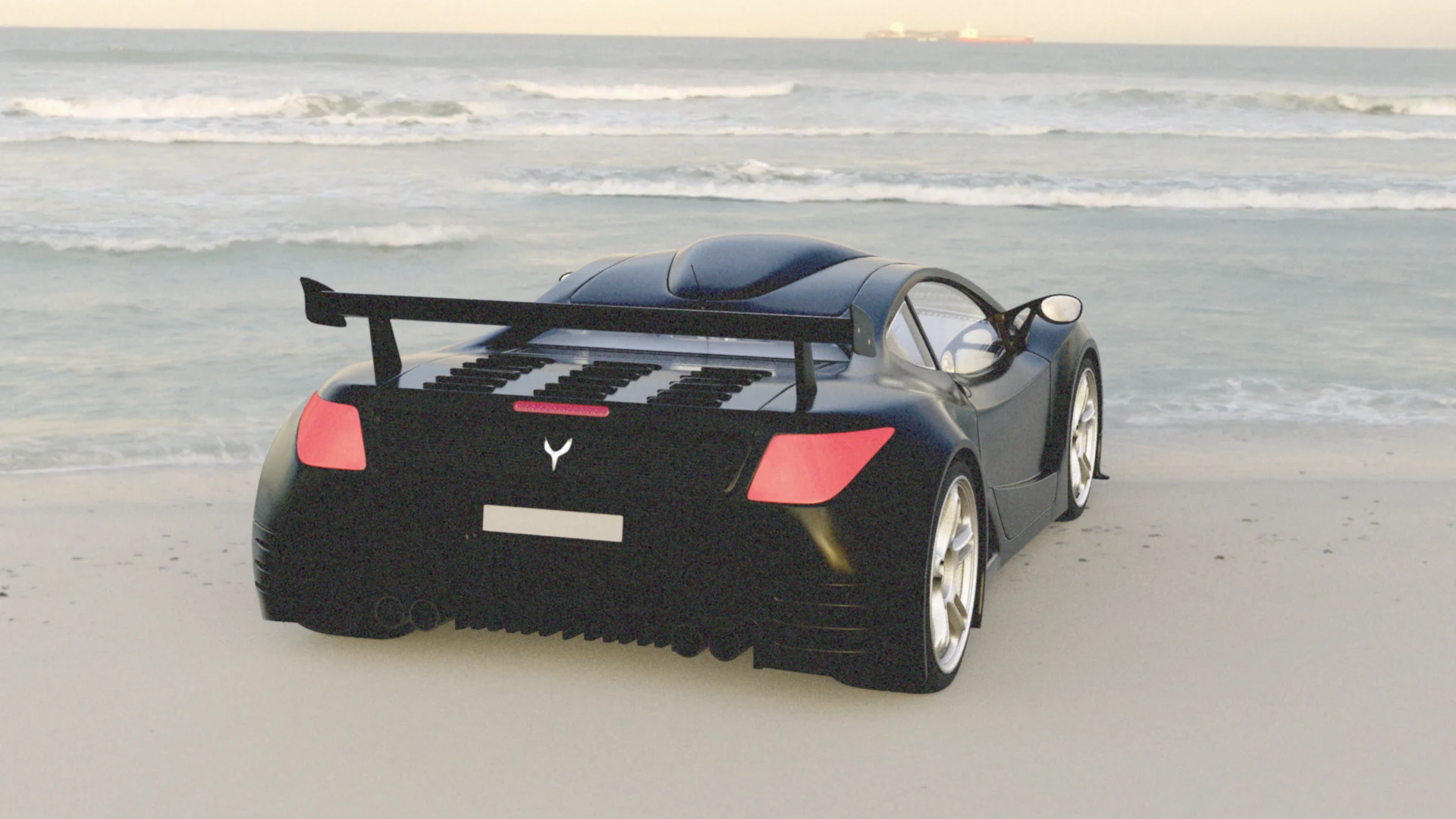
Grain Amount 100%. The full dose — with an honest wrinkle: measured against the clean frame, 100% carries almost the same total noise as 75%. The ladder climbs steeply to about 50 and flattens after. The picture is not a repeat of the 75% frame (the grain field itself is re-rolled, as it is every frame), but the energy tops out. Most work will live between 10 and 40; the top of the dial is for pictures that want to admit they were taken in the dark.
How the grain is animated. The noise is not an overlay. Every frame, the Sensor seeds its noise field from the frame's own time, so each frame of a sequence wears a completely new pattern — the grain boils and dances the way real film grain does, never a frozen texture sliding over the picture. Because the seed is simply the frame time, the field is also deterministic: a given frame always gets the same grain, in VPR and in the final render alike, and a re-render matches the original.
What the grain listens to. Three things, all from the sensor side of the tool. First, the profile: every body in the Sensor's detailed table carries its own noise character — a base noise level, an ISO growth curve, and a chroma ratio (how much of the grain is neutral luminance texture and how much is per-channel colour sparkle) — so the same Amount on a different body is different grain, which is why this series, shot on the RED Komodo-X profile, should be re-judged per body. Second, the ISO: noise strength scales with how far the HyperCam ISO sits above the body's native ISO, following that body's own growth curve — push the ISO and the grain grows, the way the real camera's does; shoot at base and the same Amount stays fine. On dual-native bodies, the nearer native ISO is the anchor. Third, the Amount itself, as the final multiplier over both. (With no body matched, the grain falls back to an ARRI ALEV character — the Alexa's sensor — as its neutral default.)
HyperLook — Look Passes for Compositing
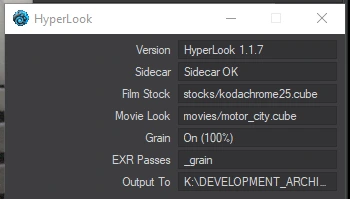
HyperLook is an image filter (Effects > Processing > Add Image Filter) that works with the Sensor to save the look as separate EXR passes next to your beauty render, on every F9/F10:
<name>_stock_<frame>.exr— beauty with the film stock only<name>_pregrain_<frame>.exr— beauty with stock and movie look, no grain<name>_grain_<frame>.exr— the grain alone, centred on mid-grey (0.5 + grain)
In comp, rebuild the full look or dial it yourself: grain = Read(grain pass) − 0.5, then final = Read(pregrain pass) + grain — or lay the grain over the stock pass, or your own grade.
The Sensor and HyperLook coordinate automatically, so the look is never applied twice. If the Sensor is on, it owns the beauty render and HyperLook writes only the grain pass. If the Sensor is off — switched off in its panel or simply unticked in the Effects list — HyperLook takes over the look on the beauty render and writes all the passes. (The Sensor reports in while it renders; the moment it stops, HyperLook steps in automatically. This needs Sensor 0.4.112 and HyperLook 1.1.7 together.) HyperLook has no settings of its own; the Sensor panel is the control surface, and double-clicking HyperLook in the filter list shows a status panel reporting which passes the next render will write, and where.
In your compositor
Nuke:
- Grade node on the grain pass: offset −0.5 on RGB
- Merge node: operation = plus, A = pregrain, B = adjusted grain
Fusion:
- Grain → Brightness/Contrast (Lift R/G/B = −0.5)
- Merge: Background = pregrain, Foreground = adjusted grain, Apply Mode = Add
After Effects:
- Grain layer: Effect > Levels (or Exposure), shift the black point to remove the 0.5 offset
- Set the layer blending mode to Add over the pregrain layer
HyperDIT — The Virtual DIT Monitor
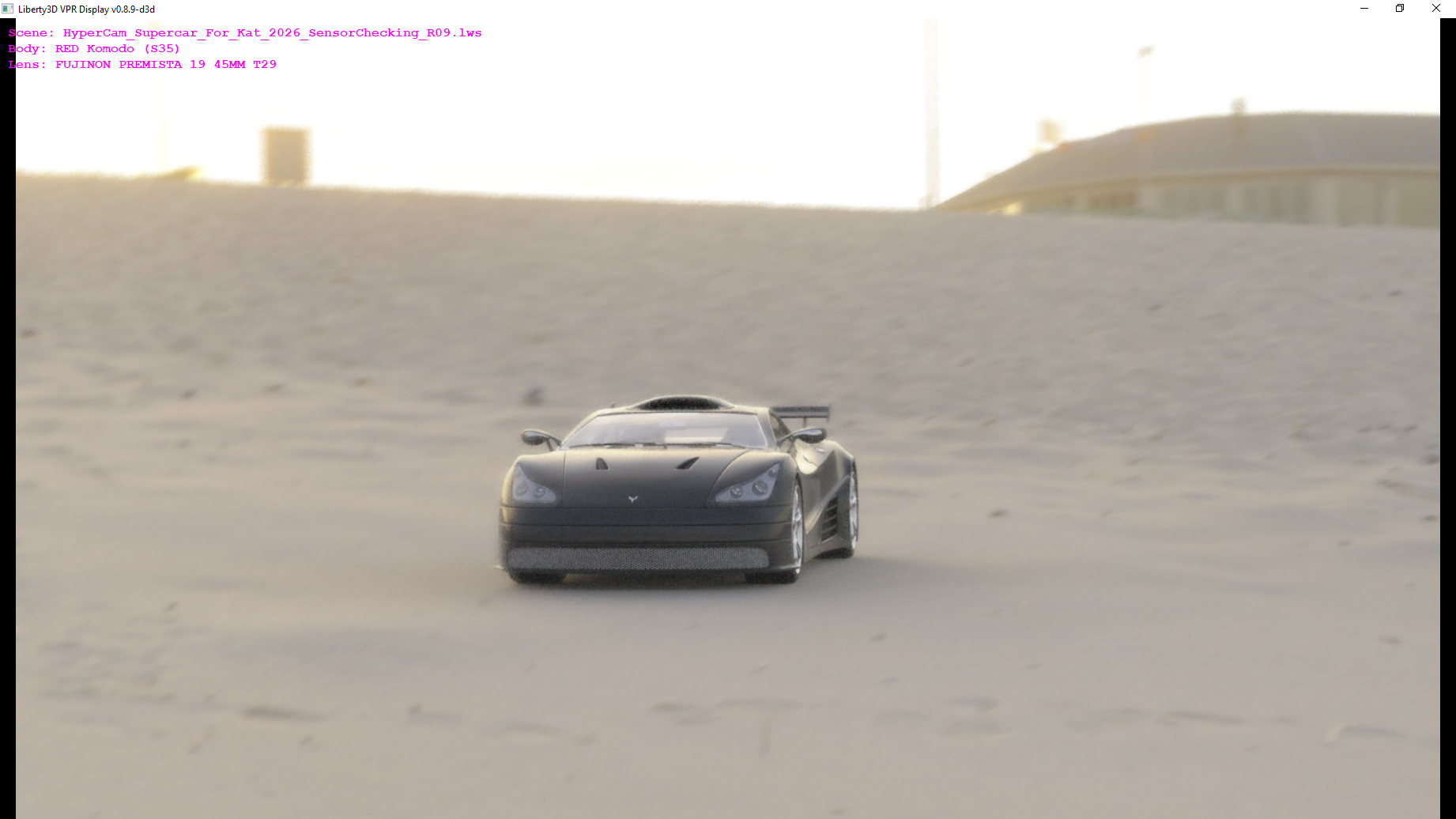
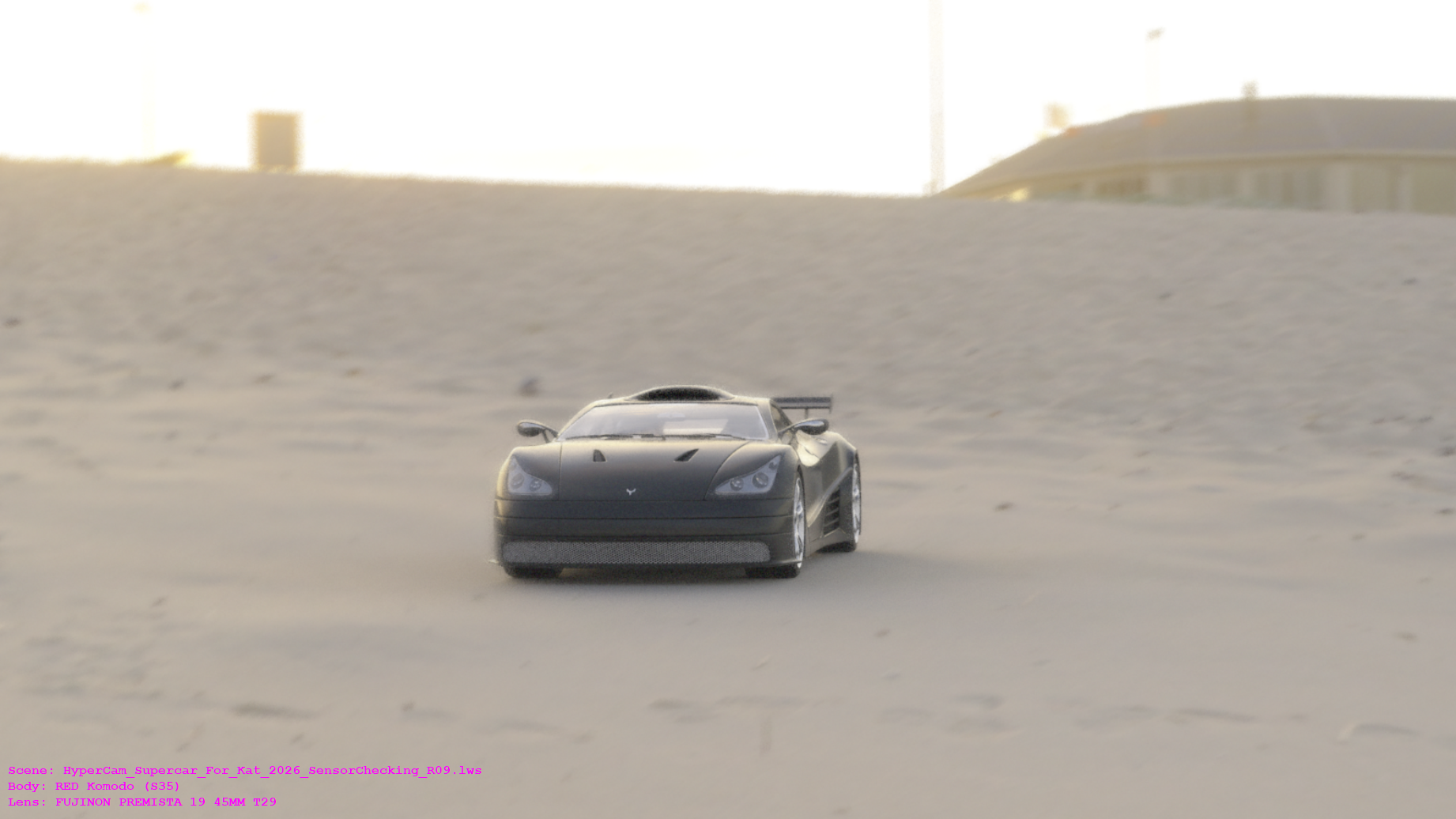
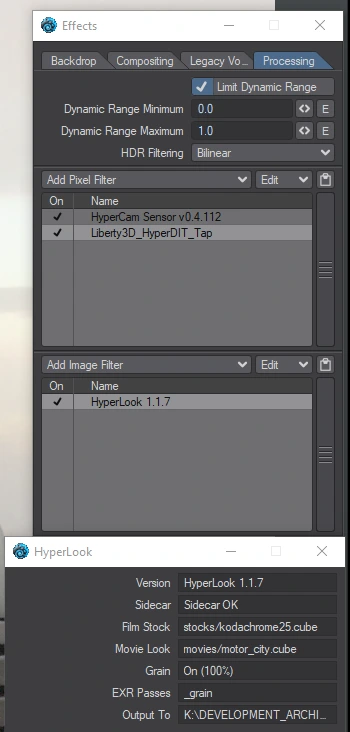
HyperDIT mirrors a Layout viewport into its own window, built for a second or client monitor: clean borderless fullscreen, a live metadata overlay (scene, body, lens — read from the CameraLink sidecar), and a REFINING indicator while VPR is still working. It shows exactly what the viewport shows, VPR and OpenGL alike, because it reads the viewport's own display image.
- Add
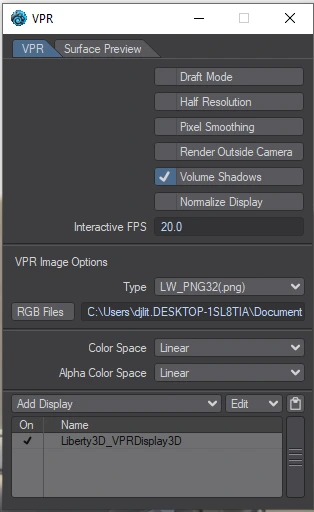
Lib3D_VPRDisplay3D64.pvia Utilities > Add Plug-ins. (The package also includesLib3D_HyperDIT_Tap64.p, an optional fallback — you can skip it.) - Set a viewport to VPR, open that viewport's VPR options, choose Add Display, and select Liberty3D VPR Display. The HyperDIT window opens and starts mirroring.
- Drag the window to your second monitor and press Ctrl+F9 for borderless fullscreen; Esc restores the window.
HyperCam — Licensing
One licence key covers the whole camera set — HyperCam, UberCam 4 and the Sensor. Your key is in your purchase email. To activate:
- Open the HyperCam panel (or any UberCam 4 camera panel) and find the License Key field.
- Paste the key from your purchase email and click Activate.
- The plugin contacts Liberty3D.com once to verify the key, then saves a signed certificate on your machine. From then on, activation works offline — no internet needed.
The Sensor has no activation button of its own — it reads the certificate the cameras saved, so activate a camera first and the Sensor follows. HyperLook and HyperDIT need no key at all. Your licence includes 2 seats: to use a second computer, install there and activate with the same key.
HyperCam — In-Camera Updates
Click “Check for Updates” at the top of the HyperCam panel. It uses your existing certificate — no key entry needed. If an update is available, click “Download Update” and follow the prompts.
HyperCam — Troubleshooting
UberCam 4 — What It Is
UberCam 4 is a multi-camera toolkit for LightWave: sixteen specialty cameras in one plugin. Split-screen composites, stereo pairs, overscan plates, fisheye and panoramic capture, lens-distortion matching, skybox unfolding, and more. Each camera is a separate camera type with its own panel, all living in the single Lib3D_UberCam64.p plugin.
This version: UberCam 4.0.0.20 is the current release, shipping in the same package as HyperCam 1.2.59 and sharing its licence — one key activates both.
UberCam 4 — Installation
- Copy
Lib3D_UberCam64.pinto your LightWave plugins folder. Do not rename the file. - In Layout: Utilities > Add Plug-ins, and select the file.
- Open Camera Properties and change the camera Type — all sixteen UberCam cameras appear in the type list.
UberCam 4 — The Cameras
Dual
Splits the frame into left and right halves, each driven by a different scene camera. The classic two-up composite: two angles, one render.
4Up
A 2-by-2 grid: four cameras composited into one frame. Handy for multi-angle previz or comparison renders.
12Up
A 3-by-4 grid of twelve cameras in a single frame — the full contact sheet.
Overscan & DPI
Renders a larger frame than the selected camera sees, so you have handle room for stabilization or reframing in post. The DPI variant sizes the frame for print instead of screen.
DPI camera only
Stereo
A two-eyed camera for stereoscopic 3D: left and right views with proper convergence.
Fisheye
True fisheye capture with controllable distortion falloff — domes, skate videos, and stylized wide shots.
Panoramic
Wide panoramic capture defined by field-of-view angles rather than focal length.
Spherical
Full spherical capture for 360° environments and HDRI-style work.
Cylinder
Wraps the view onto a cylinder — the classic curved-screen panorama.
Advanced Panning
A panoramic camera with per-edge scaling and shifting — for when the panorama needs to be massaged to fit a specific plate or screen geometry.
Immersive
Multi-direction immersive capture for dome and VR-style output, with the same edge controls as Advanced Panning.
Radial Shift
Lens-distortion matching: dial the image until straight lines in your render line up with the same lines in real footage shot through a distorting lens.
Skybox
Unfolds the scene into a skybox layout for game engines and real-time work.
Baking Forthcoming
The Baking camera bakes the surrounding scene onto a mesh's UV map — texture baking from the camera's point of view. It is still in active development: the current build focuses on memory safety while the actual baking is finished. The panel exposes Mesh, UV Map, Offset from surface, Direction reference, UV Border, Fit UV map to reference, Flip UV Y and Bake surroundings. Full baking support will arrive in a later update.
Perspective
A clean, fast perspective camera with the UberCam feature set behind it — the straightforward choice when you want UberCam's pipeline without exotic projection.
Ships in three variants, like HyperCam: full (depth of field + motion blur), NoDOF (motion blur only), and NoDOFNoMB (both off, fastest).
UberCam 4 — Licensing
UberCam 4 activates with the same licence key as HyperCam — see HyperCam — Licensing above. Paste the key from your purchase email into any UberCam 4 camera panel's License Key field and click Activate; one activation covers the set, with 2 seats included.
FAQ
Support
Liberty3D.com is home base: product news, updates, and support contact. When reporting an issue, include your plugin version (shown in each camera's panel), your LightWave version, and the steps to reproduce — screenshots of the panel help enormously.
Copyright & License
Copyright © 2007–2026, Kelly Lee Myers, Declaration Pictures, Liberty3D.com, Black Tiger Recordings LLC. All rights reserved.
HyperCam, UberCam 4, the HyperCam Sensor, HyperLook and HyperDIT — and this manual — are commercial software and documentation of Kelly Lee Myers and Declaration Pictures. The software is licensed, not sold: your purchase grants one license key, good for two seats under one owner, activated against your machine’s Lock ID. You may not redistribute, resell, rent or share the plugins, license keys, lens libraries, lookup tables or STMap libraries.
Portions of the lens database derive from the Lensfun database, © its contributors, used under the Creative Commons Attribution-ShareAlike 3.0 license (CC BY-SA 3.0); the Lensfun library data is LGPL-3.0 (data only). COLMAP is a separate free, open-source tool (© its authors, BSD license): HyperCam reads its exported camera files, and COLMAP itself is not included. This software also incorporates TinyEXR (BSD 3-Clause, © Syoyo Fujita and contributors), miniz (MIT License, © Rich Geldreich and contributors) and stb_image (public domain, © Sean Barrett), each used under its own license.
LightWave 3D is a trademark of LightWave Digital. SynthEyes, PFTrack and Nuke are trademarks of their respective owners. Camera, lens and film-stock names are trademarks of their respective owners, used for identification only — no endorsement is implied. Film titles referenced by the Movie Looks belong to their respective studios; the looks are original profiles built from image analysis, not studio assets.